Start
Quick start
From a blank screen to your first working agent in about five minutes. Follow along with the screenshots.
1. Make a profile
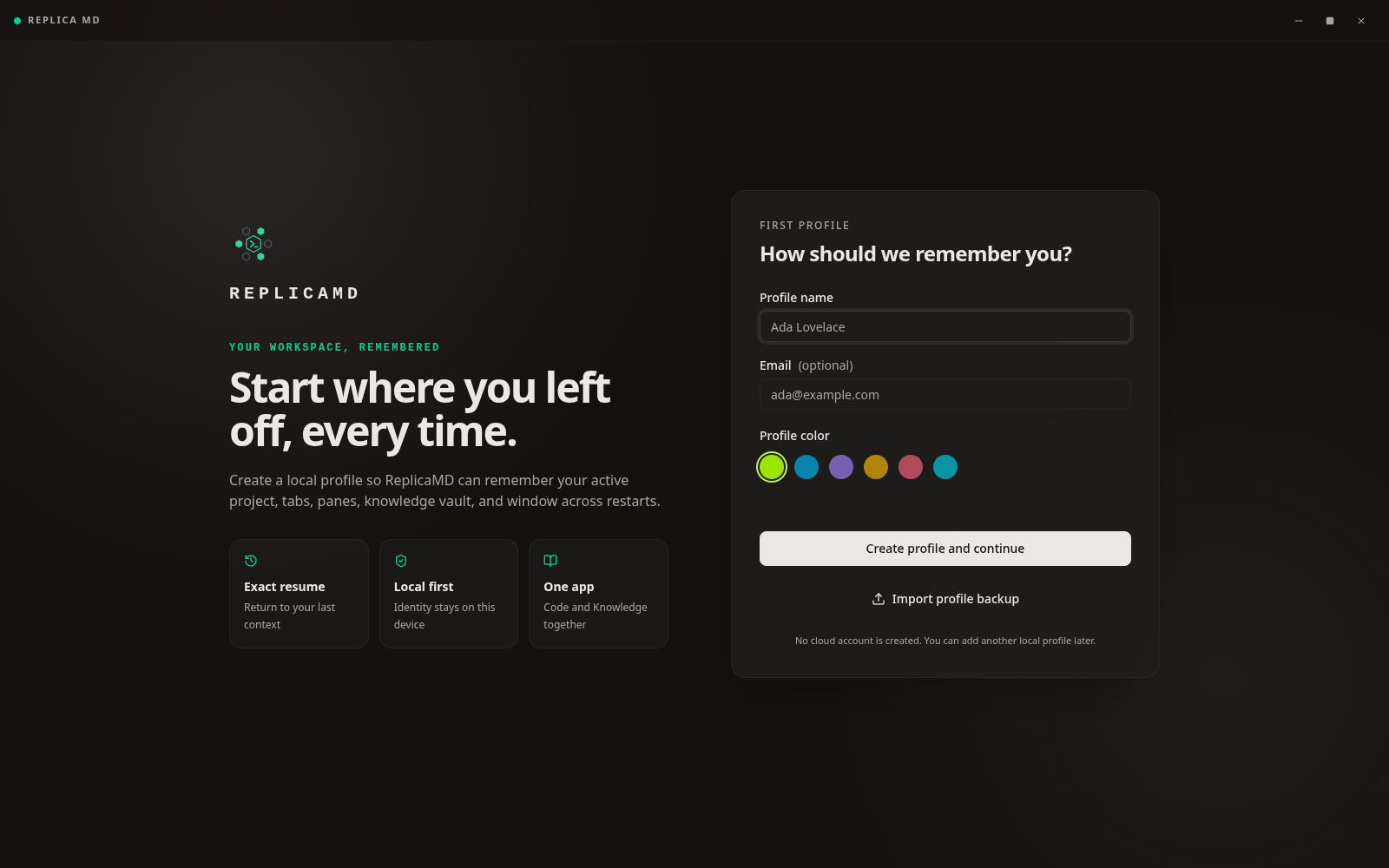
The very first time you open ReplicaMD, it asks who you are. This is just a name and a colour so the app can remember your place - it is not an account, and nothing leaves your machine.
Type a name, pick a colour, and click Create profile and continue. That's it - no email, no password, no sign-up.
2. Skim the quick tour
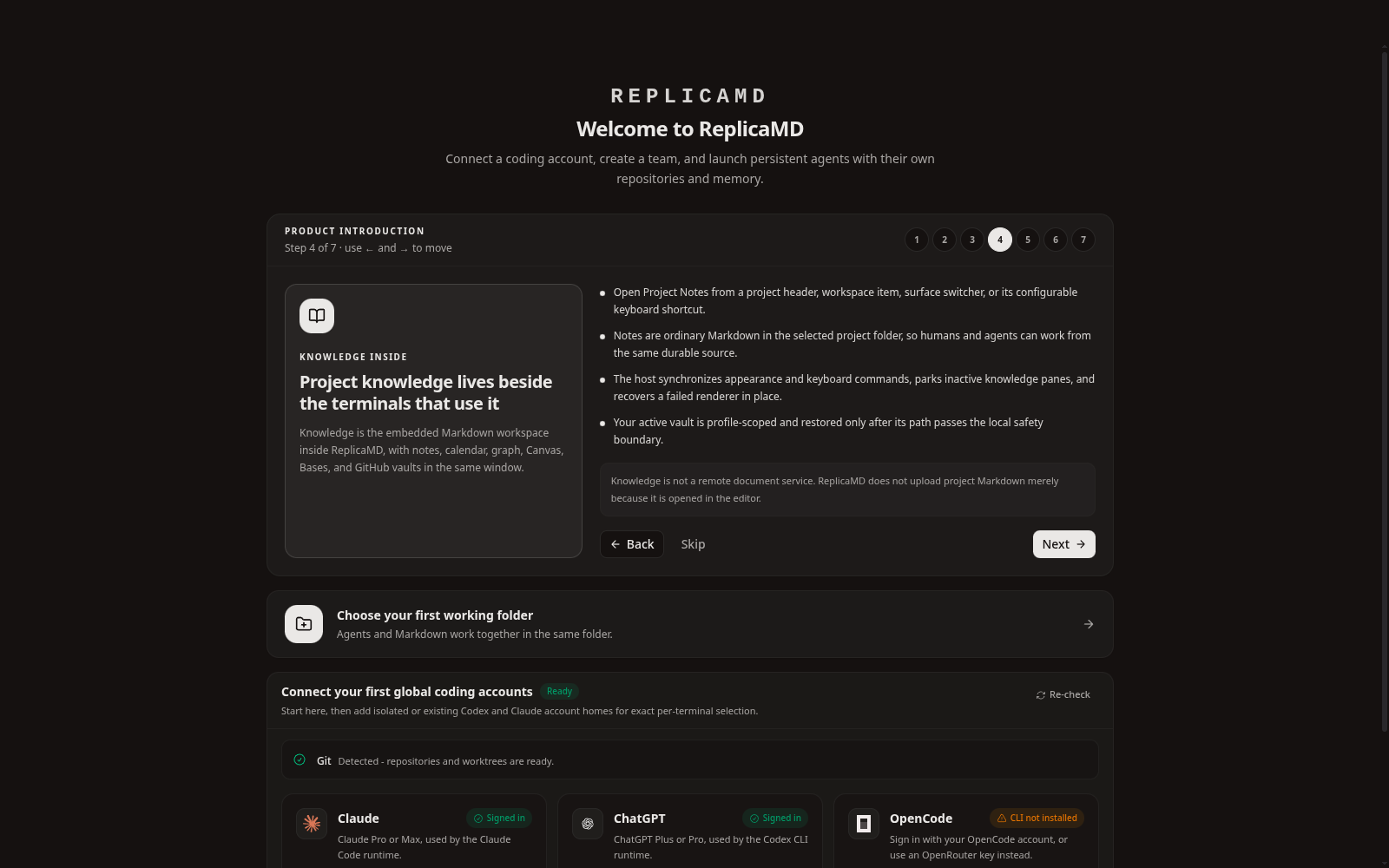
Next you get a short, seven-step tour explaining the idea: every agent gets its own copy of your project, its own terminal, and its own memory, all in real files on your disk.
Read it or skip it - you can always come back. When you're ready, move on to opening a folder.
3. Open a project folder
Point ReplicaMD at a folder on your computer - a Git repository you already have, or a fresh folder you want to start in. This becomes your workspace.
Nothing is uploaded. Your code and notes stay exactly where they are; ReplicaMD just works inside them.
- Pick an existing repo, clone one from a URL, or start a new empty repo
- The folder you choose is the only place agents can read and write
4. Meet your workspace
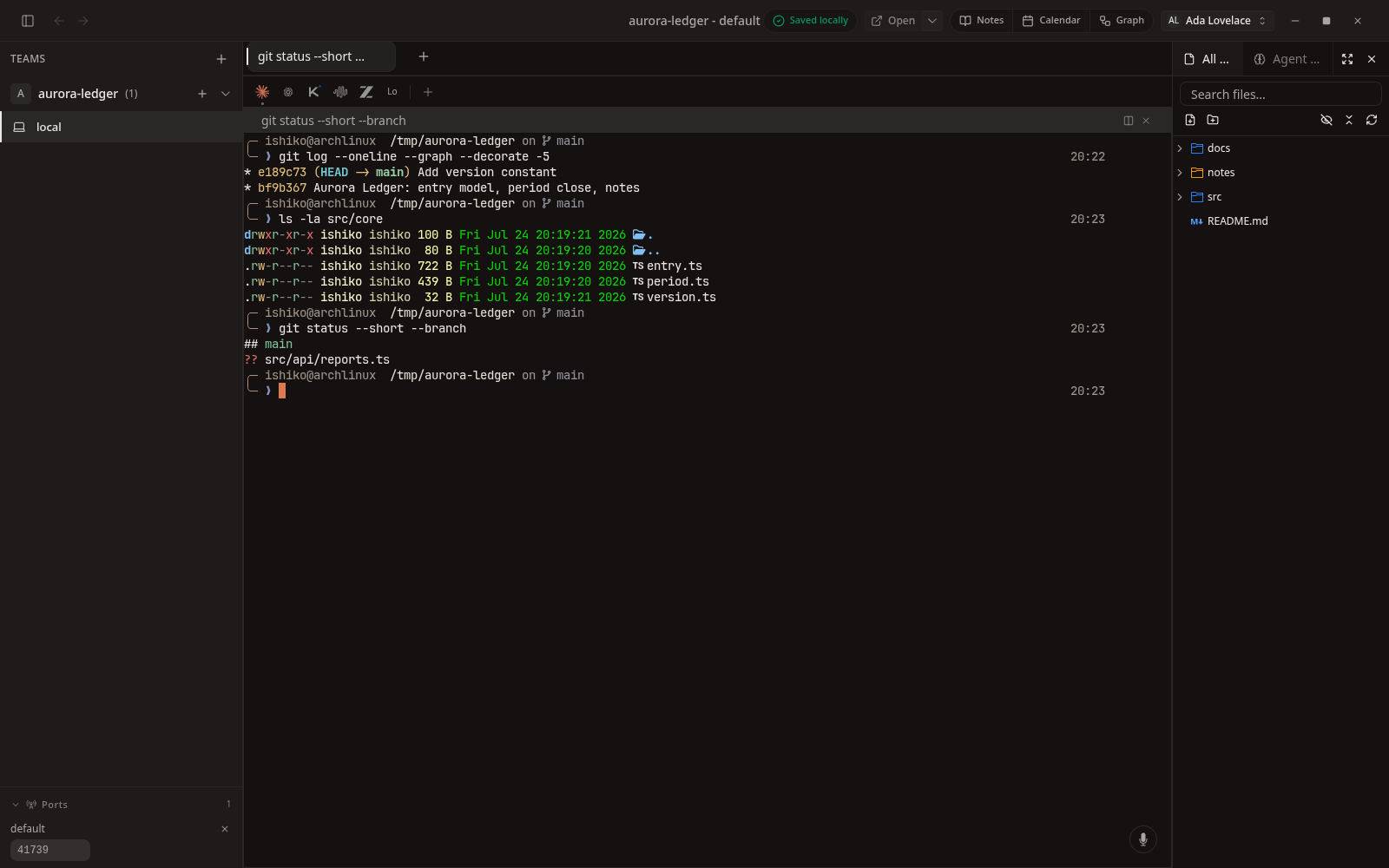
Now you're in. On the left is your team, in the middle is a real terminal already sitting in your project, and on the right is your file tree. Everything you'd expect from a terminal is here - because it is one.
Try a command. The screenshot below shows a live shell running git and ls in a demo project - real output, not a picture of a terminal.
5. Add an agent
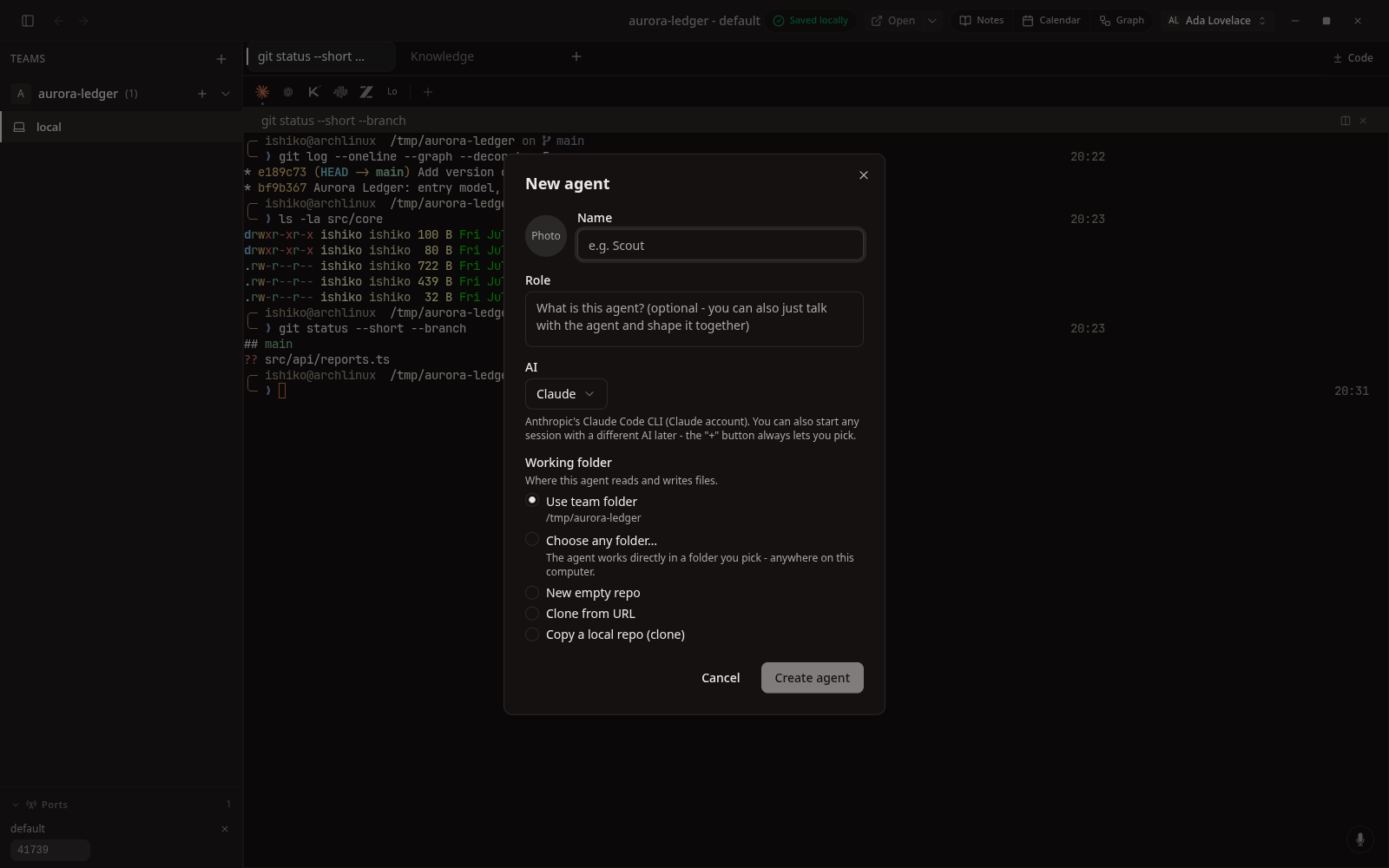
Click the + on your team to create an agent. Give it a name and a role, choose which AI runs it - Claude, Codex, OpenCode, or a local model - and pick where it works.
Each agent gets its own isolated copy of the project (a Git worktree), so several agents can work at once without stepping on each other.
6. Keep notes right next to the work
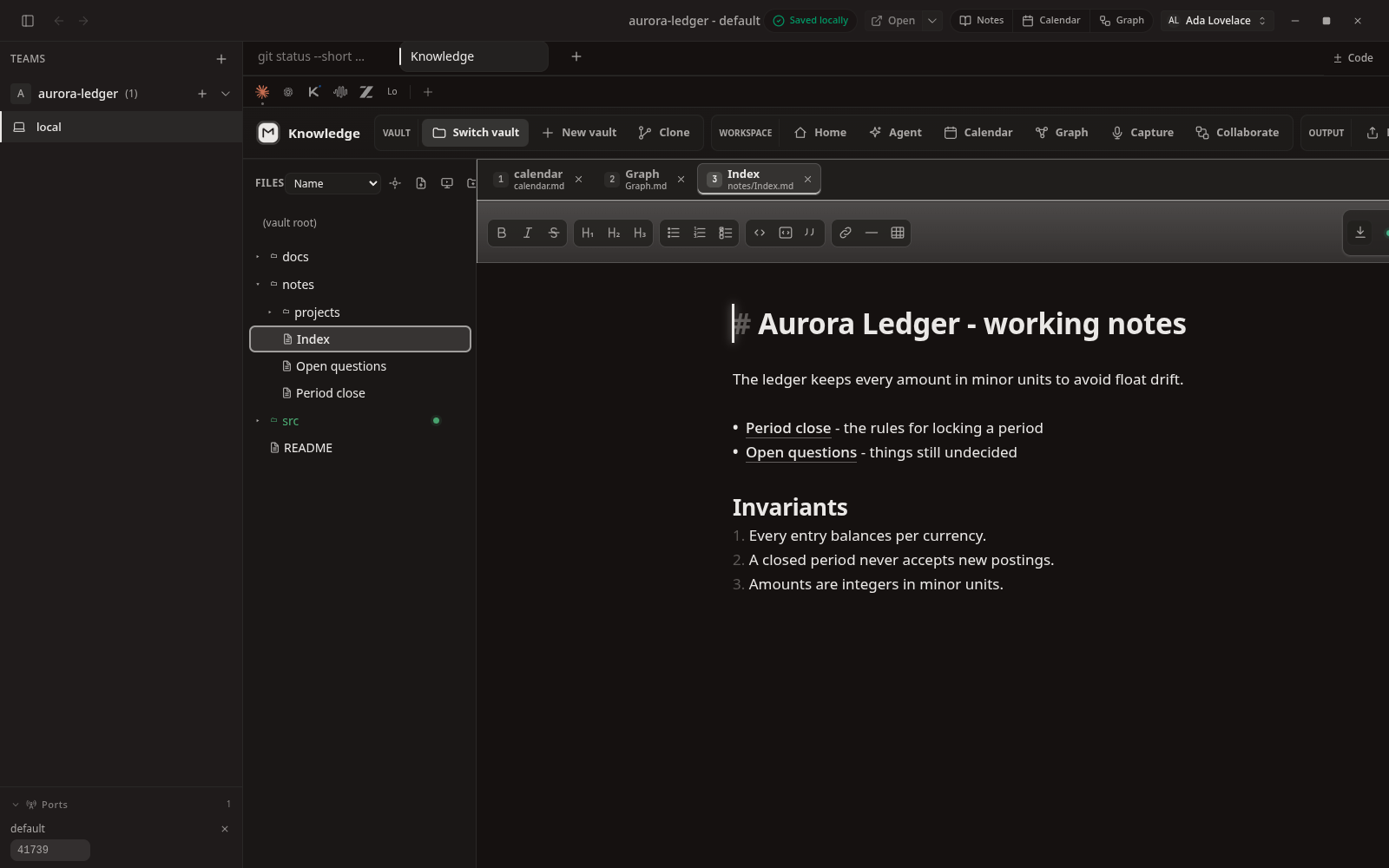
Open Knowledge to jot down decisions, plans, and anything you want the agents to remember. It's a full Markdown editor with linking, a graph, and a calendar - and every note is a plain file in your project.
Because the notes live beside the code, your agents can read them too.
That's the whole loop
Open a folder, add an agent, give it work, keep notes. Close the app and everything - your terminals, your place, your agents' memory - is right where you left it when you come back.
Prefer to see every screen first? The Screenshots page has the whole app, captured from the real build.