Screenshots
The whole application, as it actually runs.
63 captures across 8 areas - first run, workspaces and live terminals, the Knowledge Markdown surface, every built-in theme, settings, and the dialogs that create work.
From the running app
Each frame was taken from the real desktop build, driven over its automation port. Nothing here is a mockup, a render, or stock art.
Whole window, unedited
Full 1600 x 1000 window captures. No cropping, retouching, or composited UI - the terminals show actual process output.
A throwaway repository
The subject is a demo project created for these captures, so no private path, repository, or account appears in any frame.
First run
A local profile is created before anything else. No cloud account exists at any point in this sequence.
 Full size
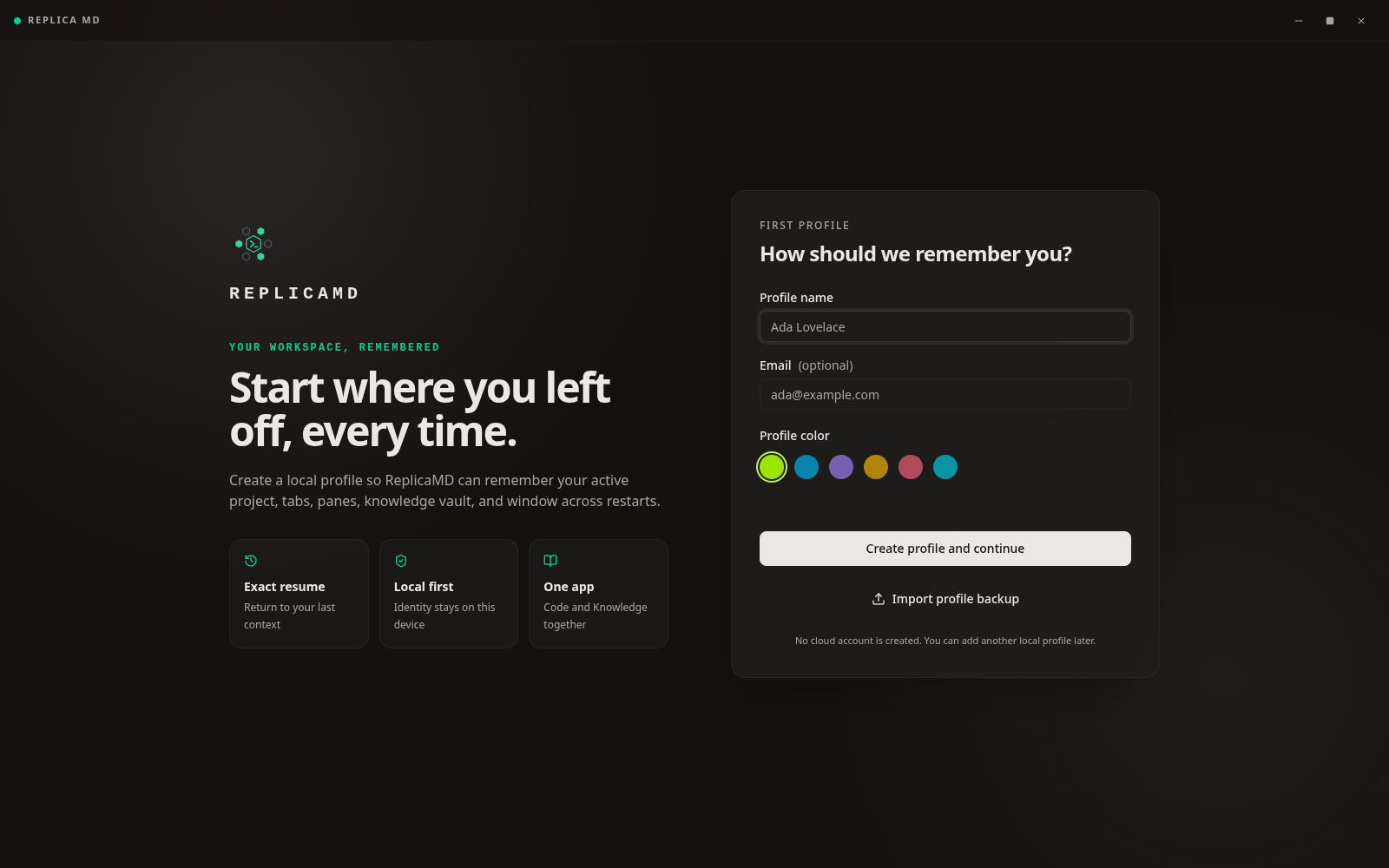
Profile creation
The very first screen. A profile is a local workspace identity, not an operating-system login.
 Full size
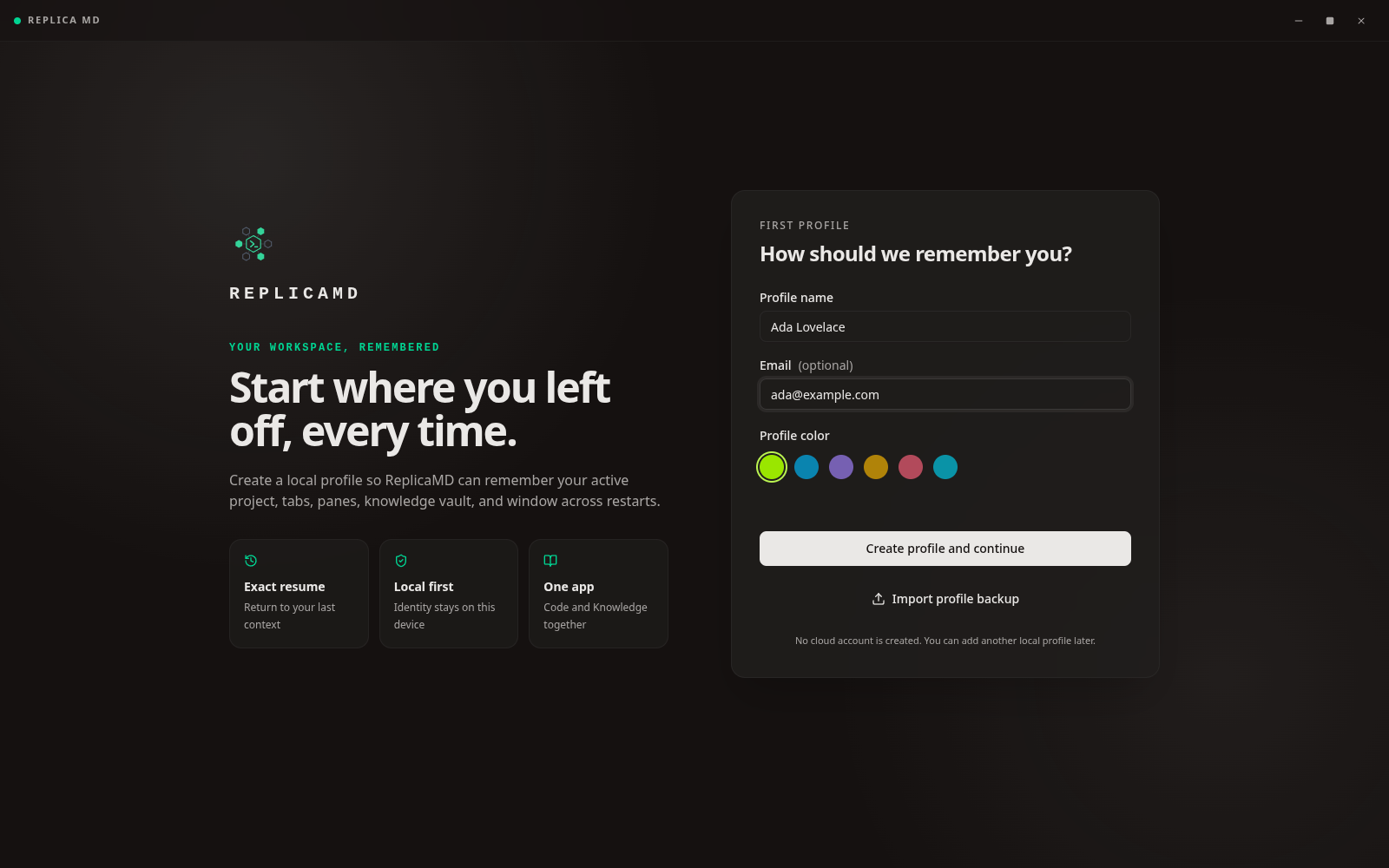
Naming the profile
Name, optional email, and a colour used to distinguish profiles in the top bar.
 Full size
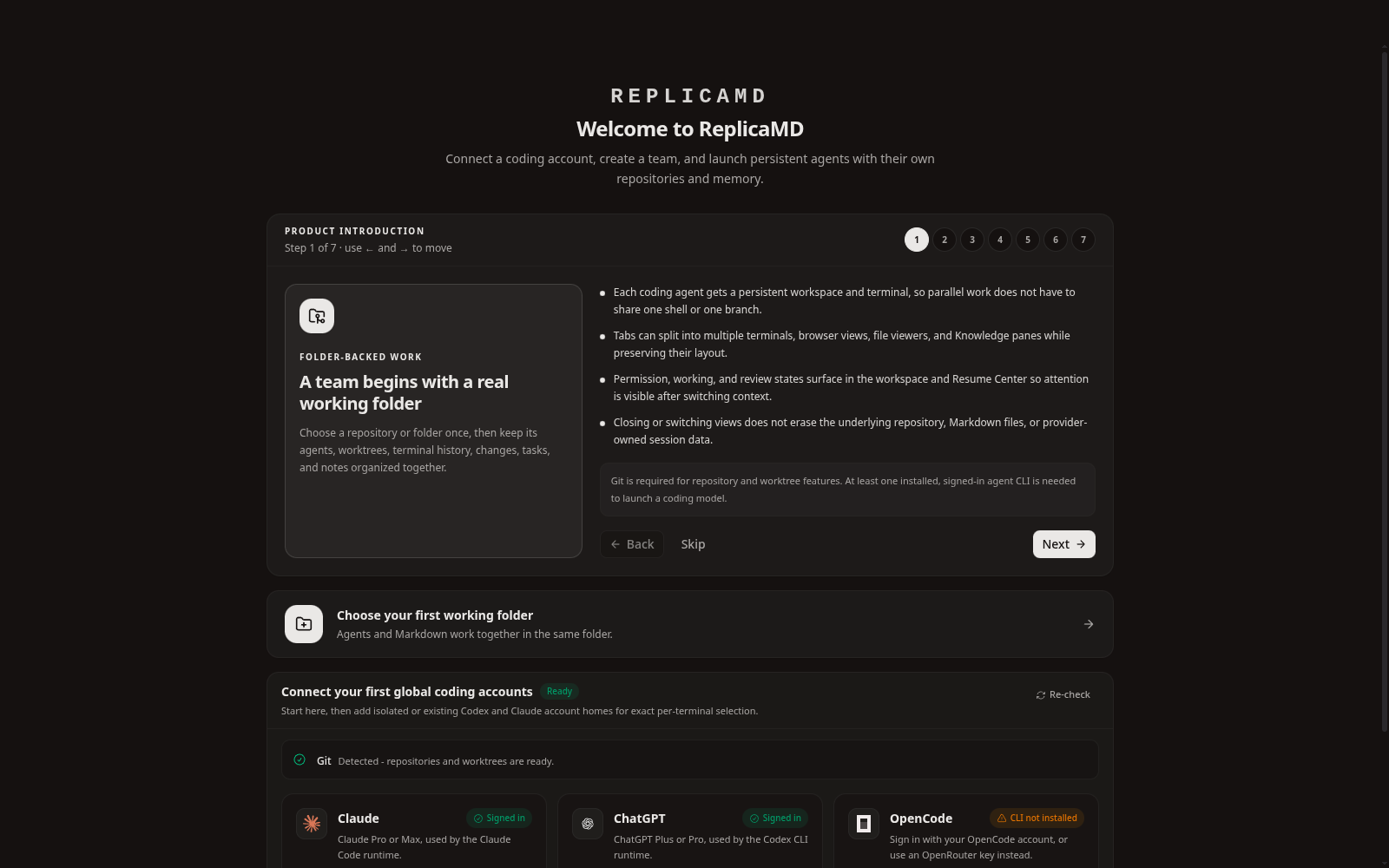
Straight into the introduction
Once the profile exists the app moves to a seven-step product introduction.
Product introduction
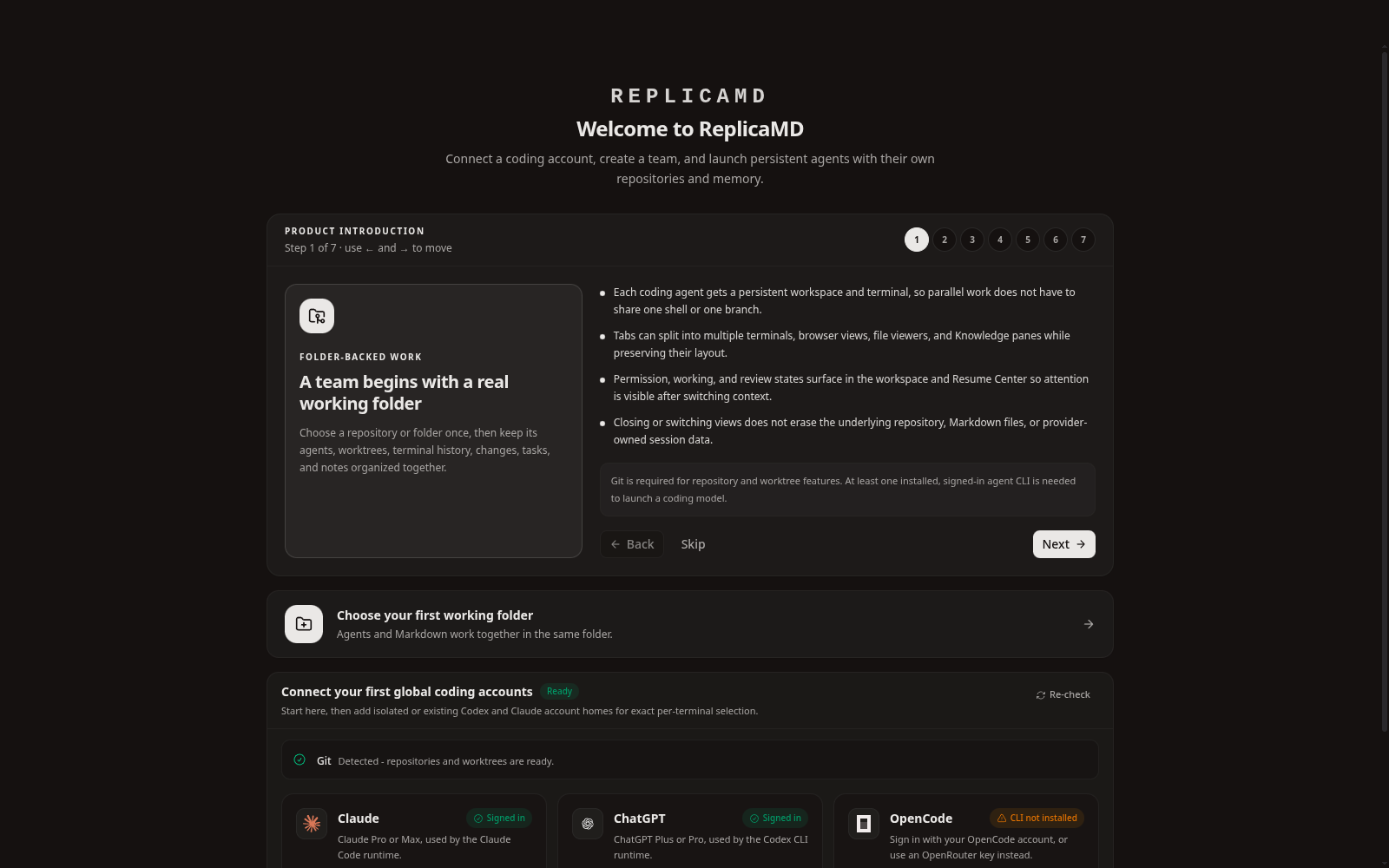
Seven steps that explain the model before any agent is launched: folders, worktrees, terminals, knowledge, accounts, notifications, and continuity.
 Full size
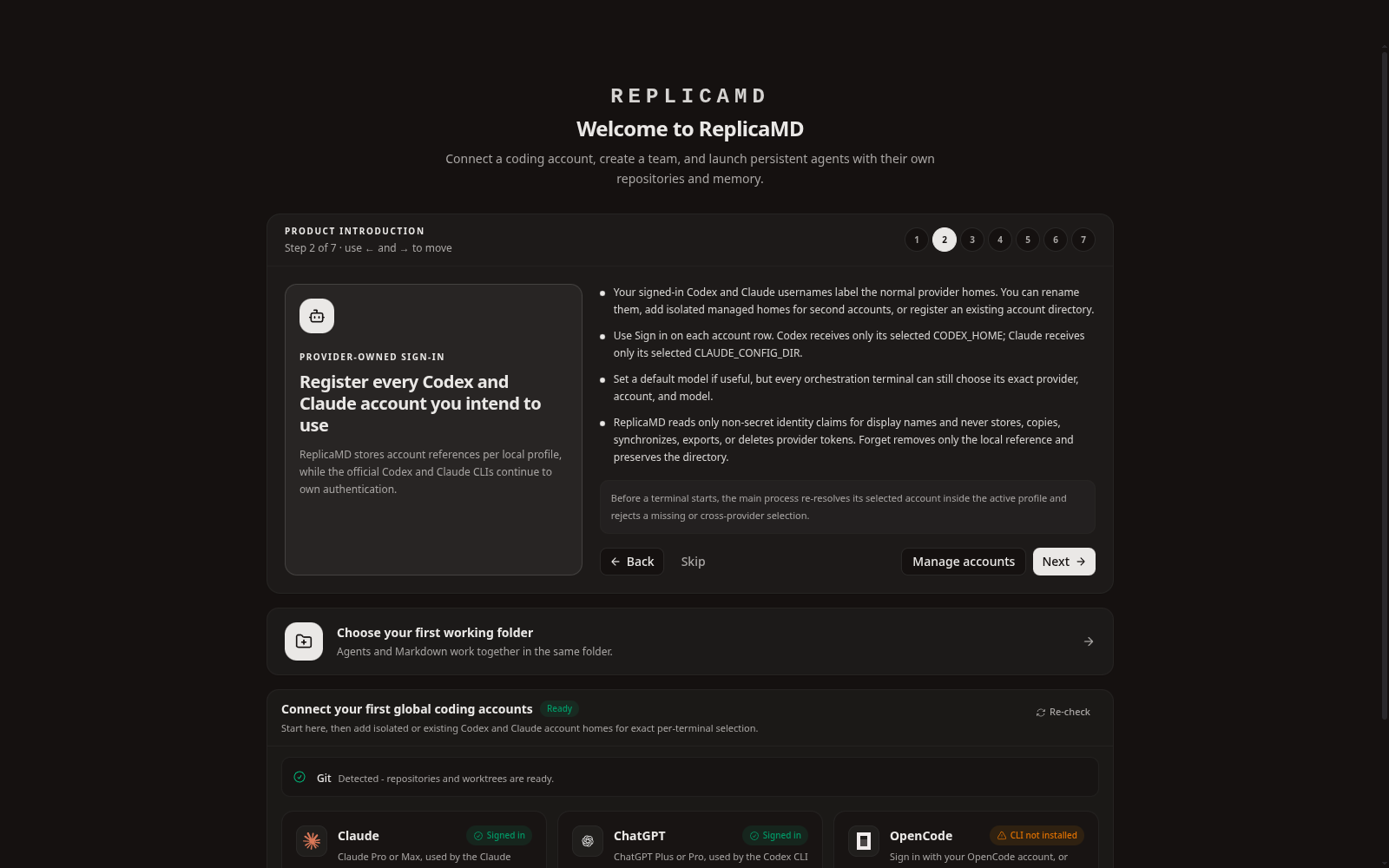
Step 1 - folder-backed work
A team begins with a real working folder; agents, worktrees, and notes stay organised together.
 Full size
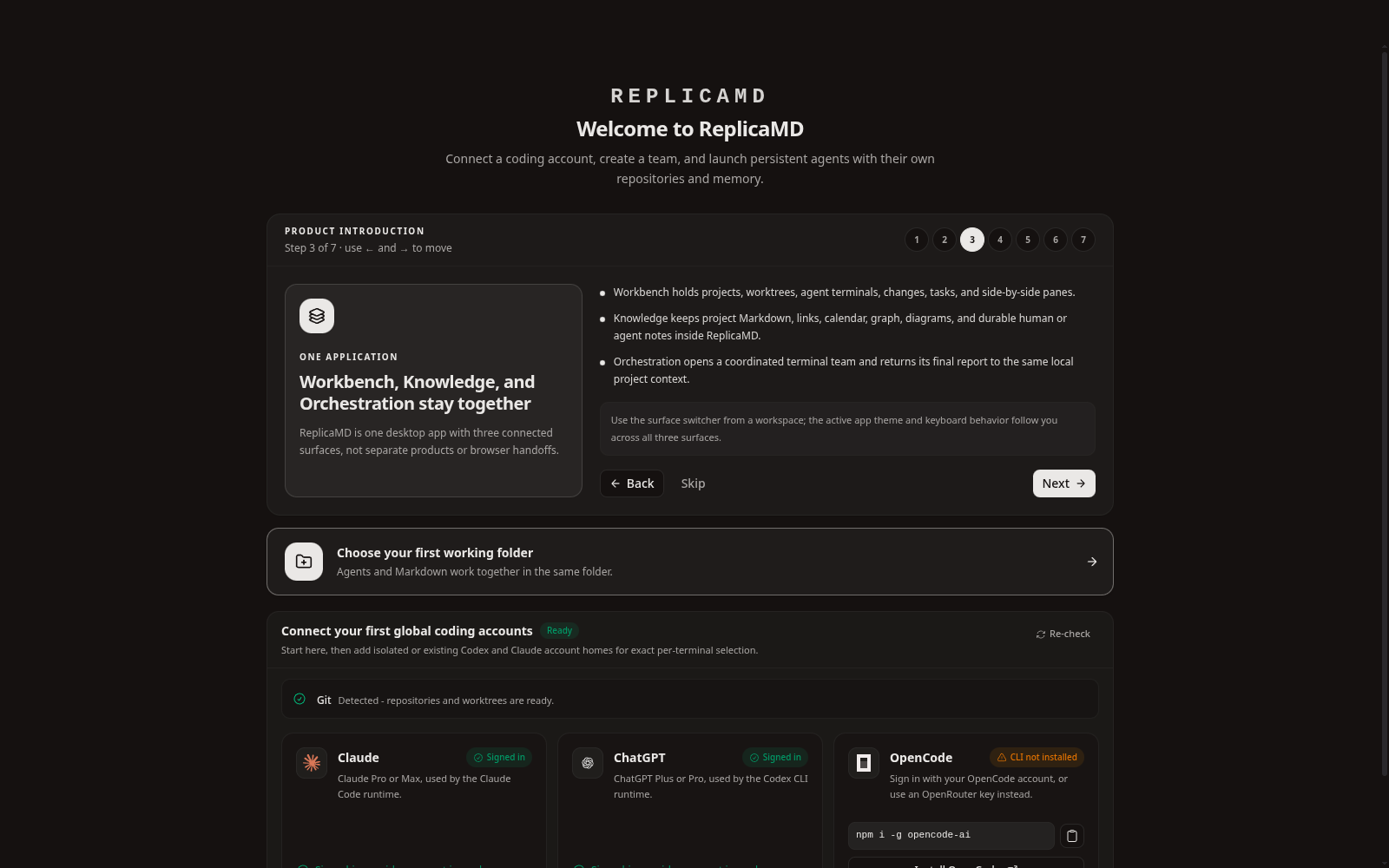
Step 2
Each coding agent gets a persistent workspace and terminal rather than sharing one shell.
 Full size
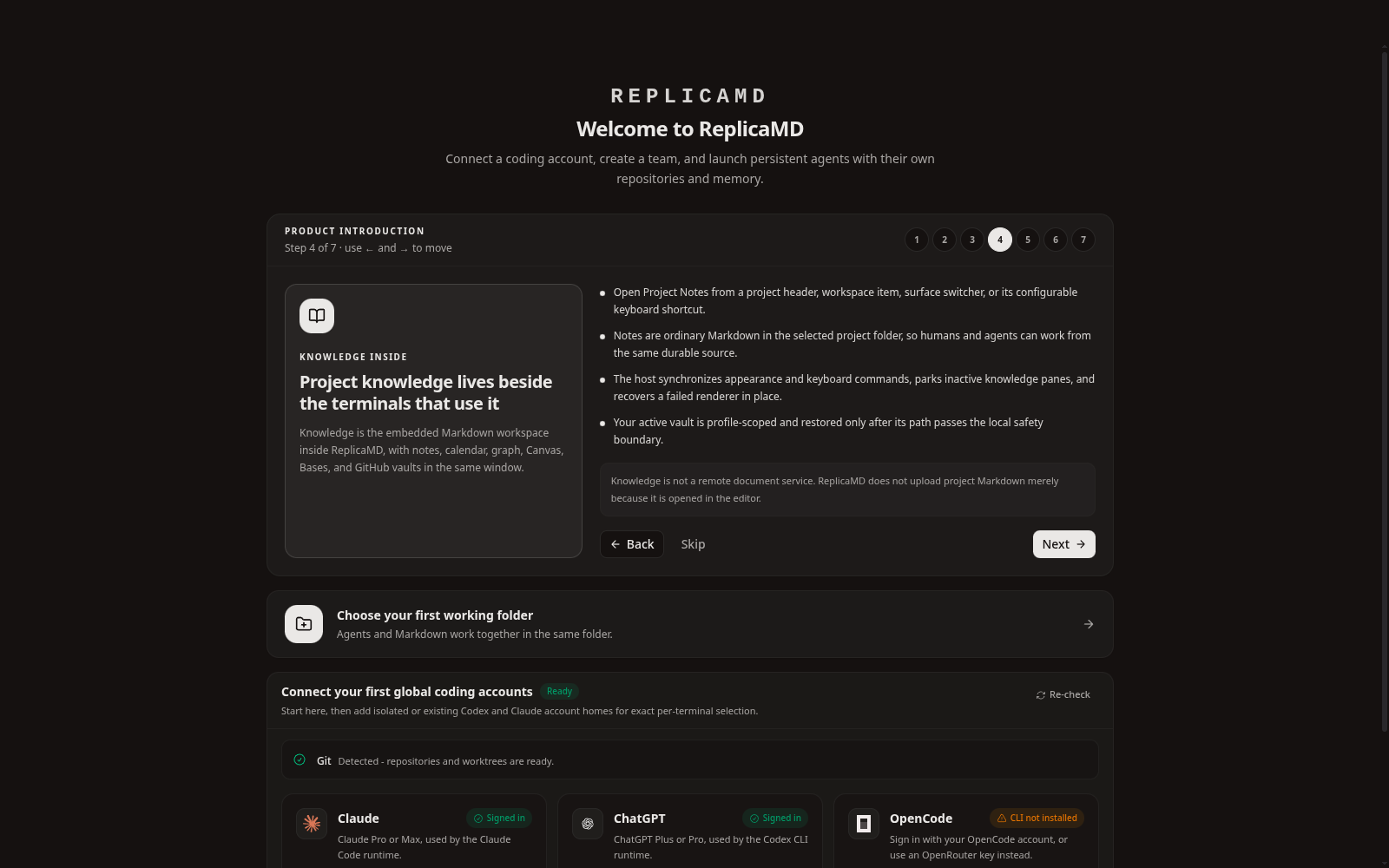
Step 3
Tabs split into terminals, browser views, file viewers, and Knowledge panes while preserving layout.
 Full size
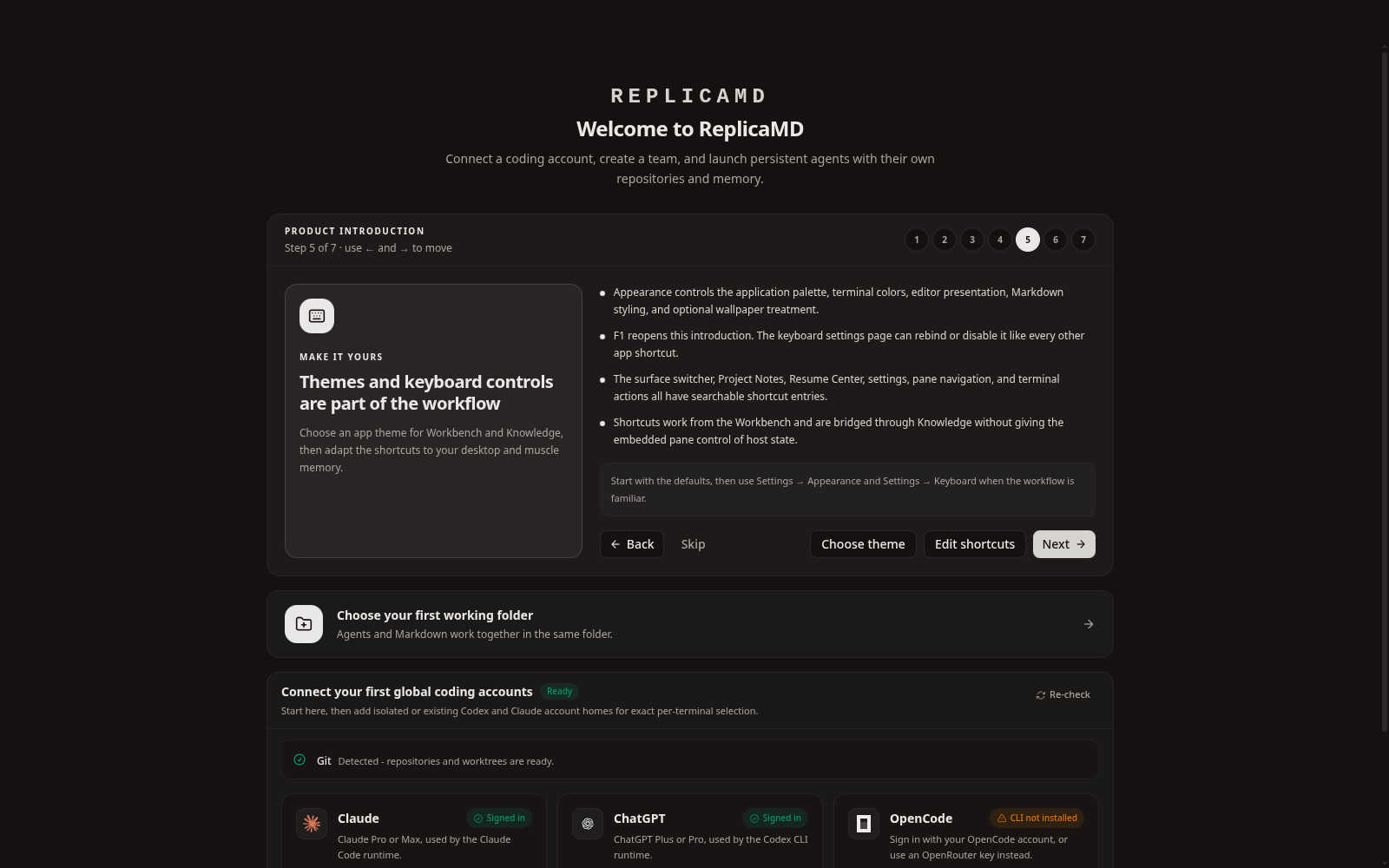
Step 4 - knowledge inside
Project knowledge lives beside the terminals that use it, as ordinary Markdown in the project folder.
 Full size
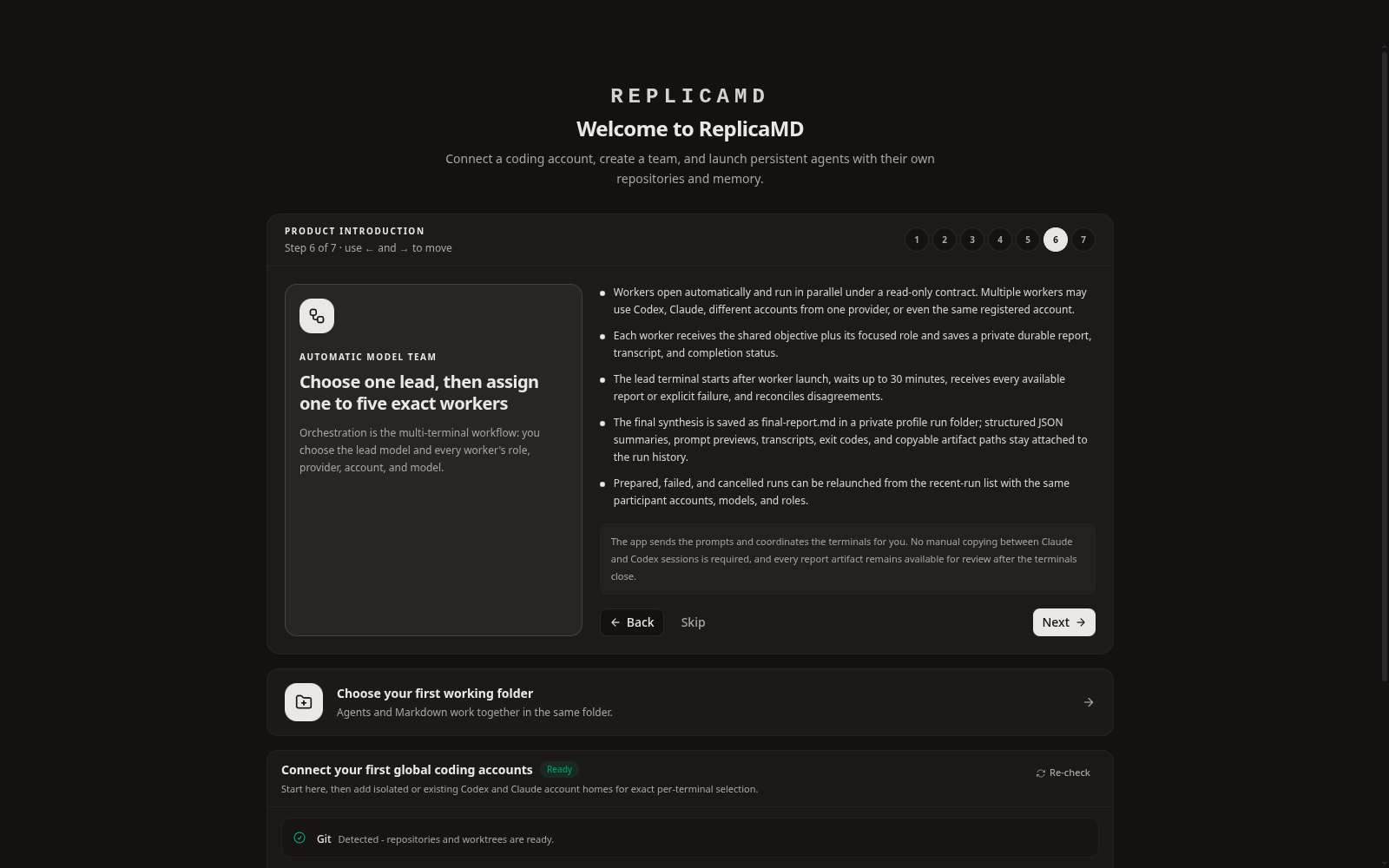
Step 5
Provider accounts are connected once and reused across agents; each provider owns its own auth.
 Full size
Step 6
Permission, working, and review states surface so attention stays visible after a context switch.
 Full size
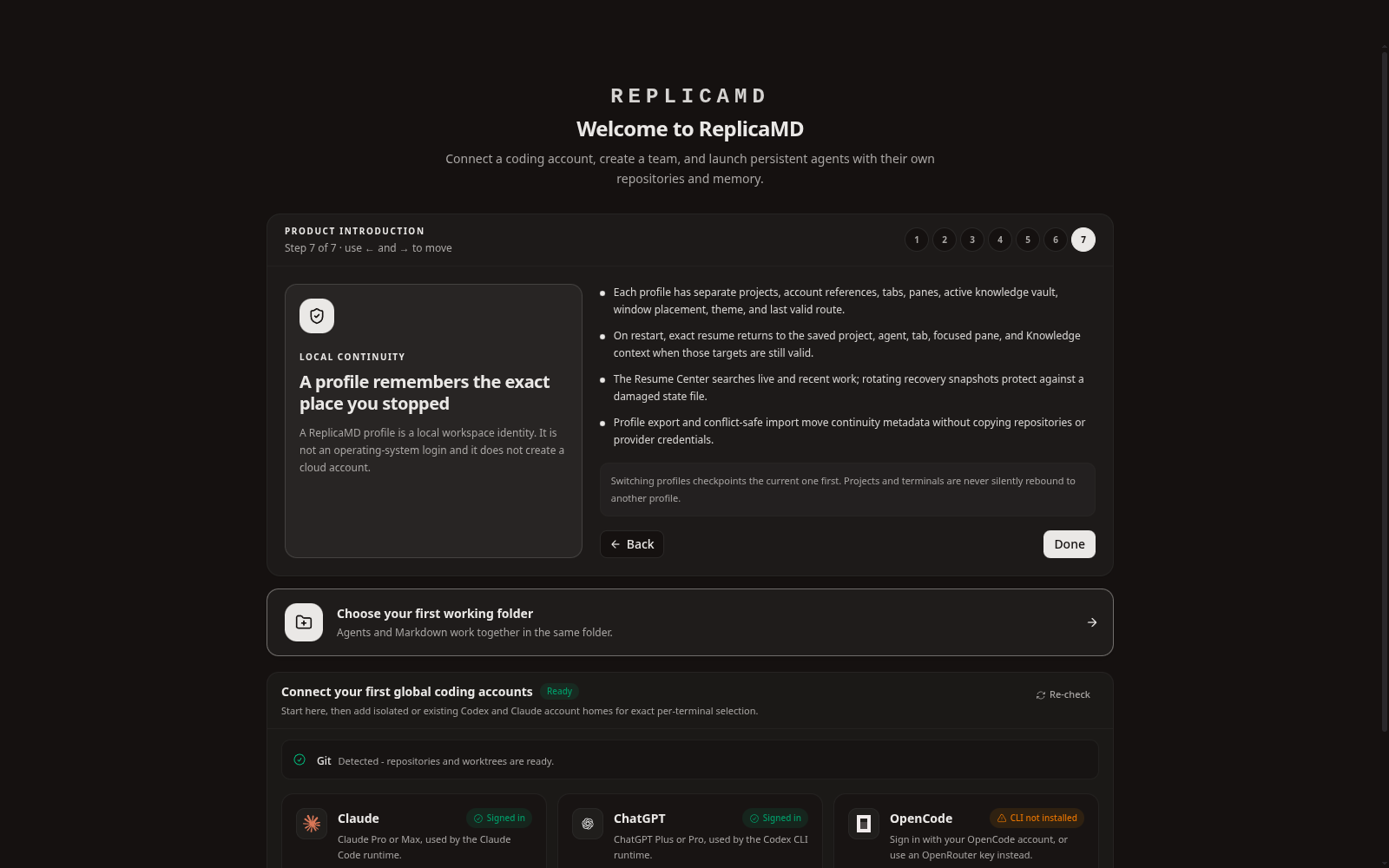
Step 7 - local continuity
A profile remembers the exact route, tab, and focused pane you stopped at.
Workspace and terminals
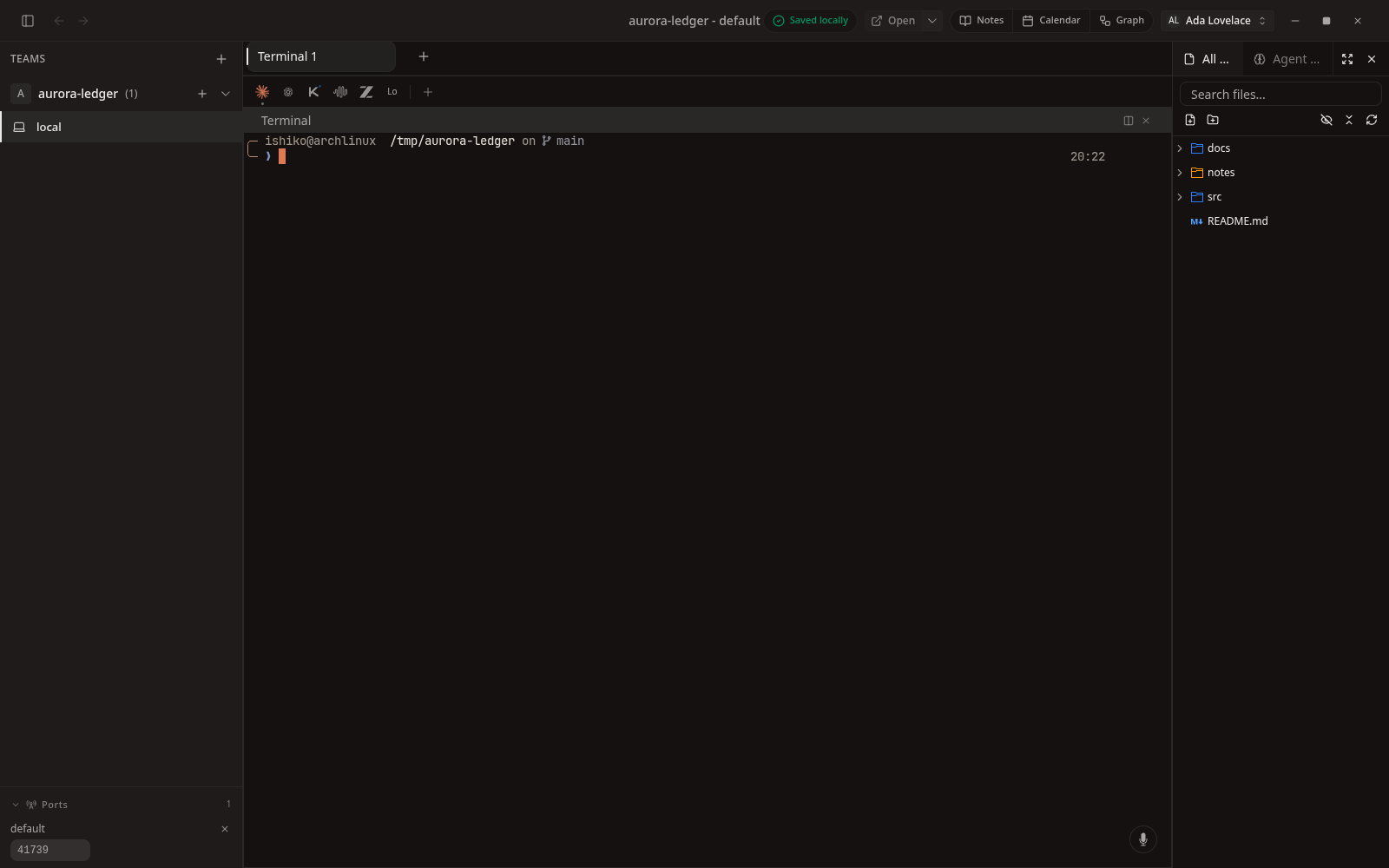
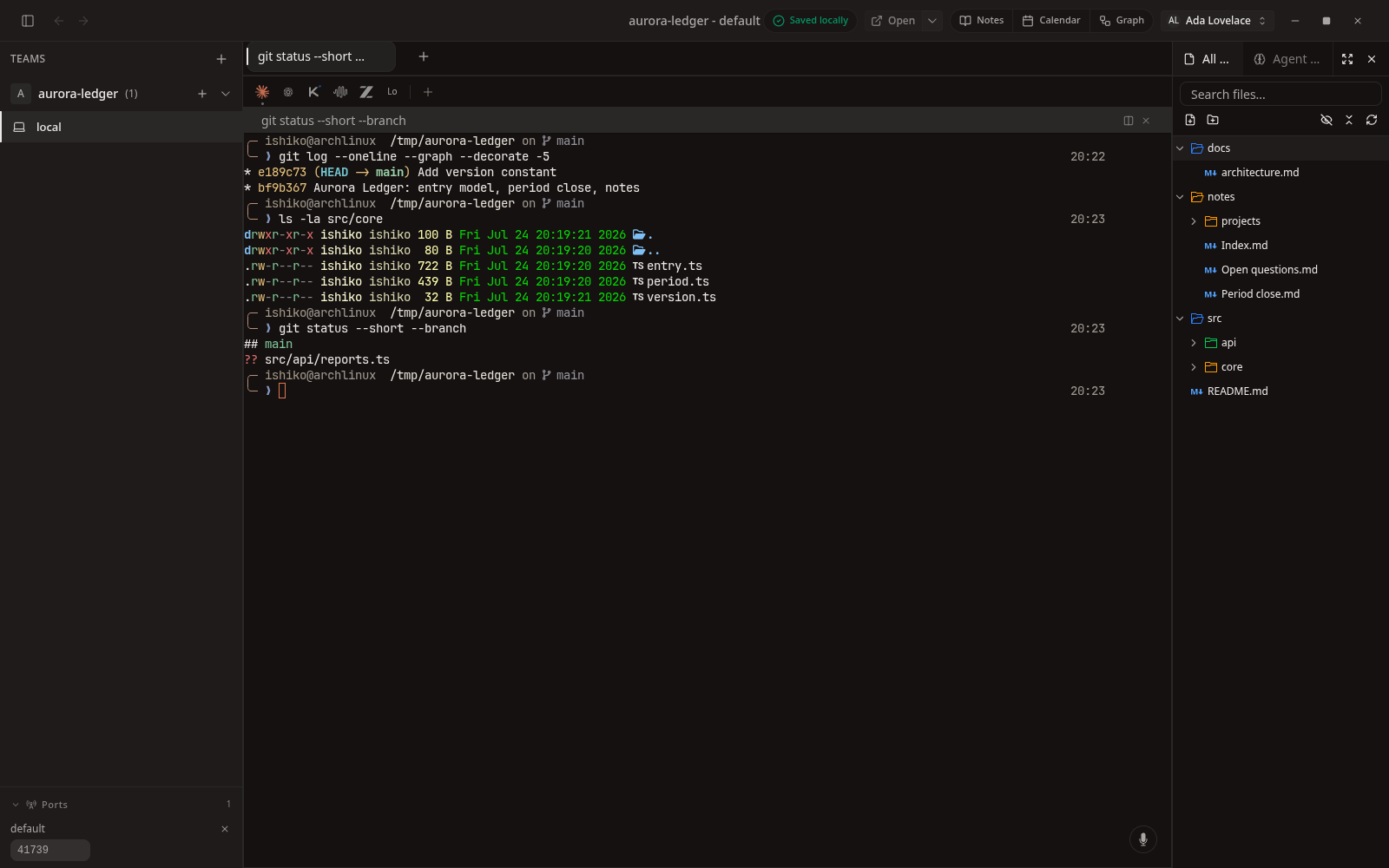
The main surface: a team rail, tabbed panes, real ptys running in the project folder, and a file tree. Every terminal below is a live shell, not a rendering.
 Full size
The workspace
Team rail, tab strip, model bar, a live terminal, the file tree, and the ports panel.
 Full size
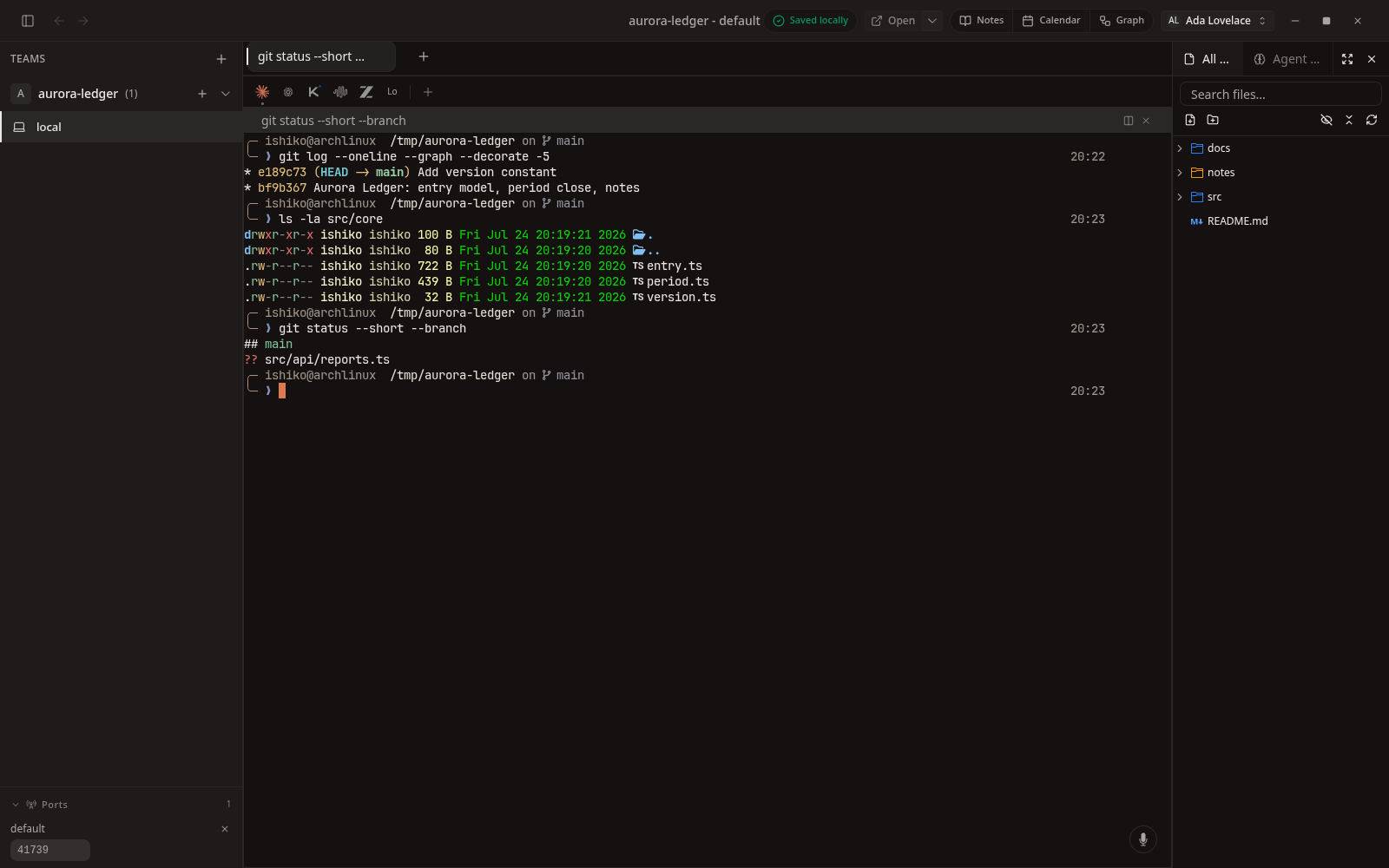
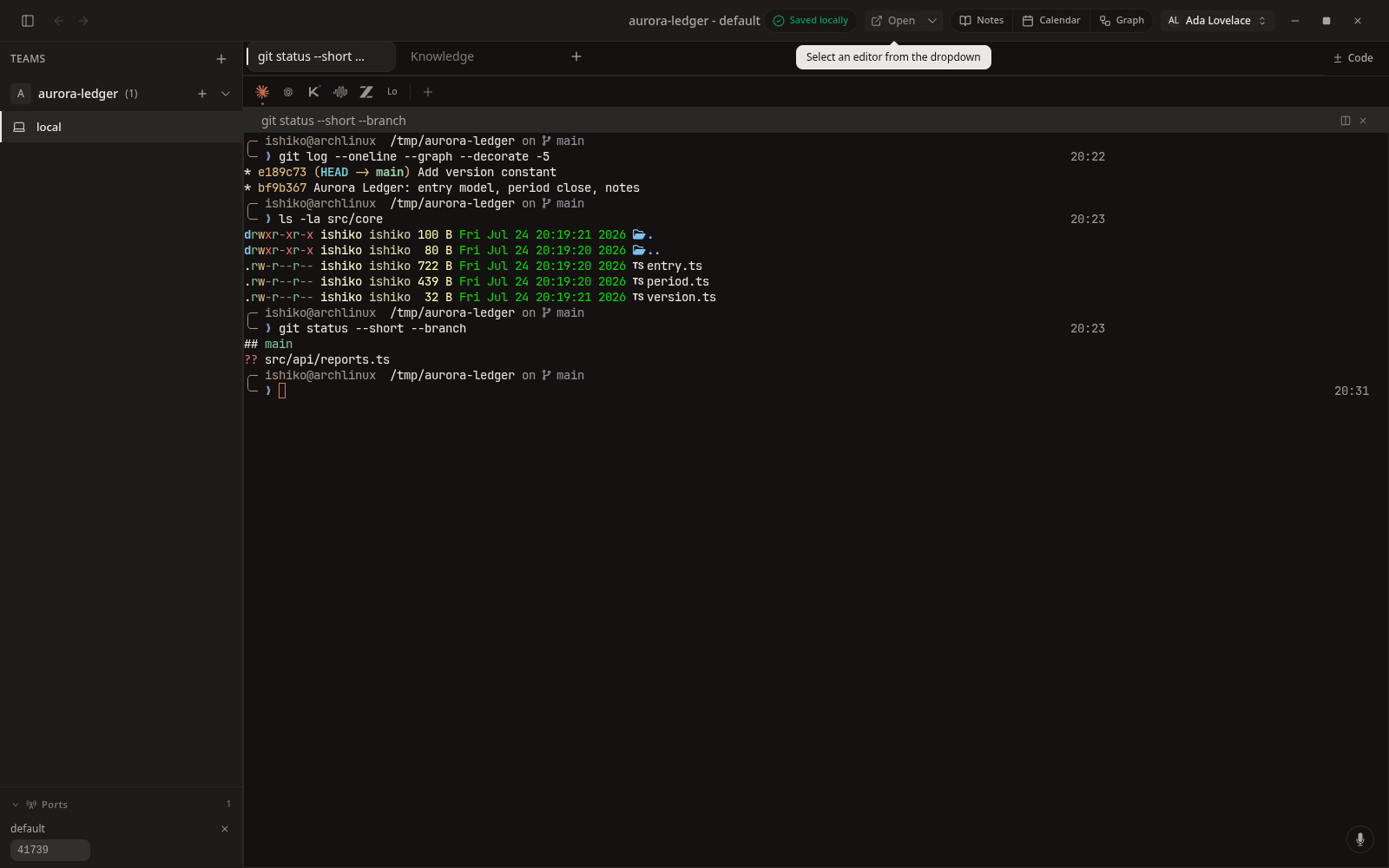
A real shell
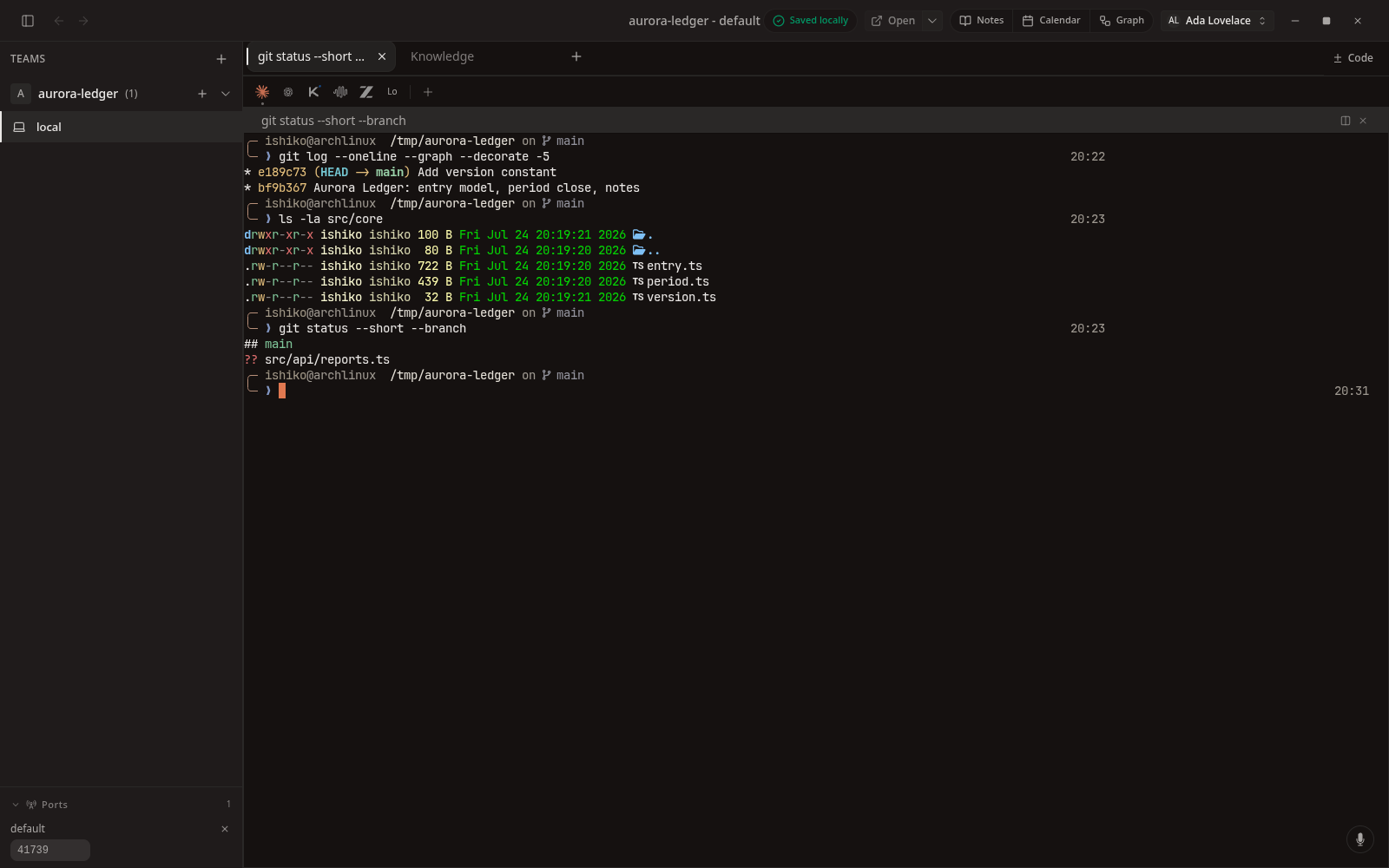
git log, ls, and git status executed in the pane - actual process output, captured live.
 Full size
File tree
The project tree resolves the folder the agent is working in, including nested sources and notes.
 Full size
Tabs
Terminal and Knowledge live side by side as tabs in the same workspace.
 Full size
Split panes
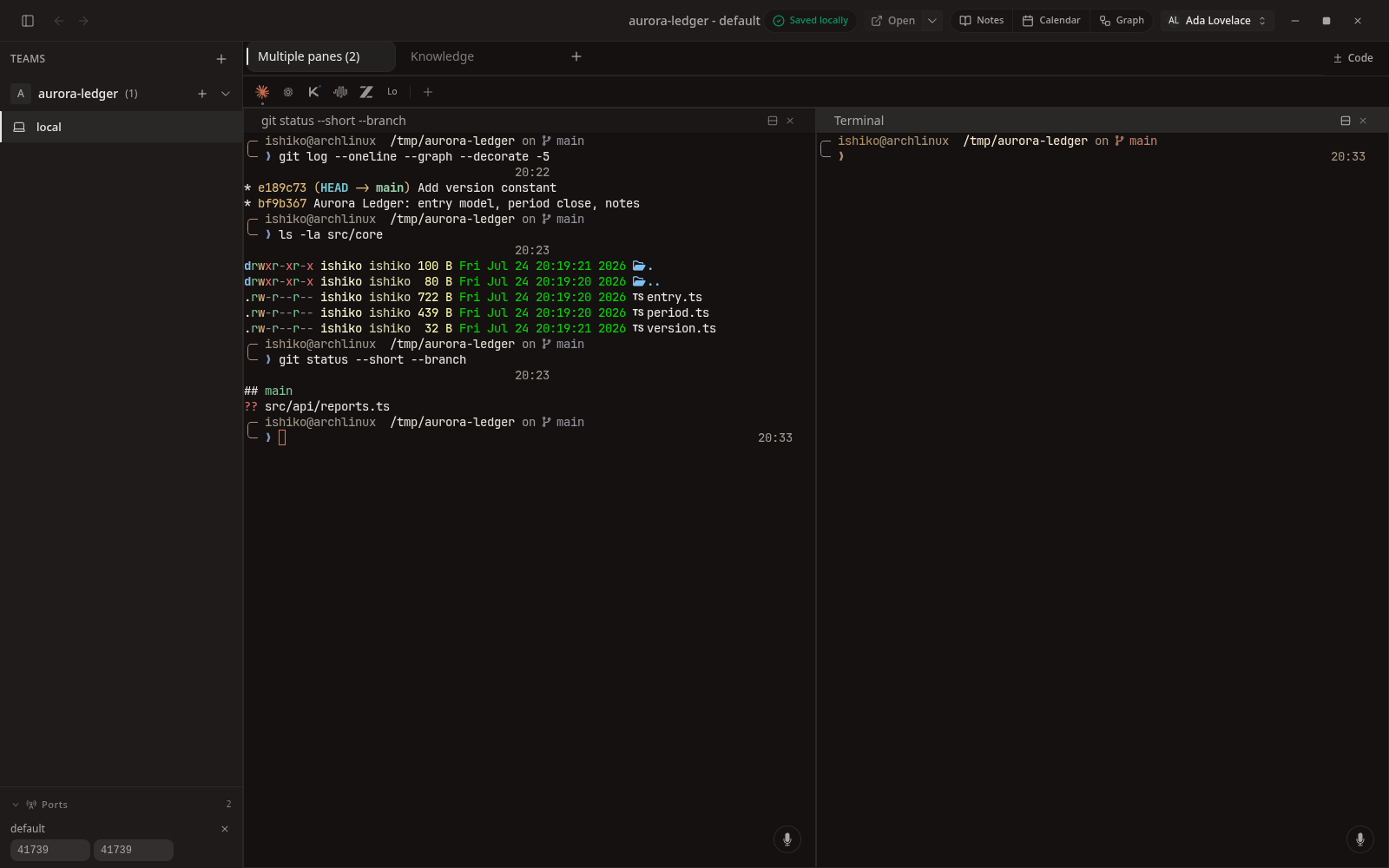
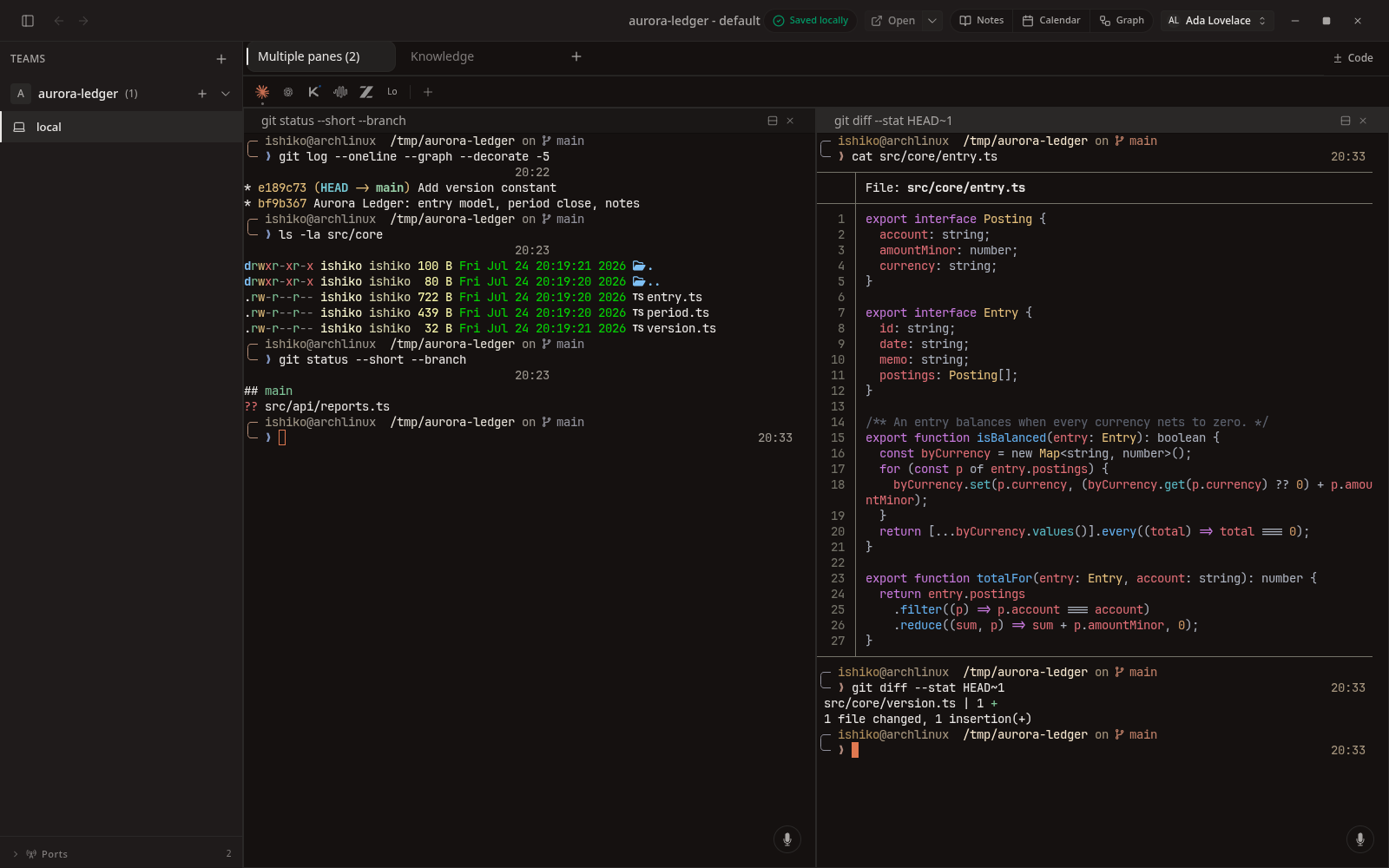
One tab holding two independent terminals, each with its own scrollback and process.
 Full size
Both panes working
Source printed on the left, a diff summary on the right - two live shells in one tab.
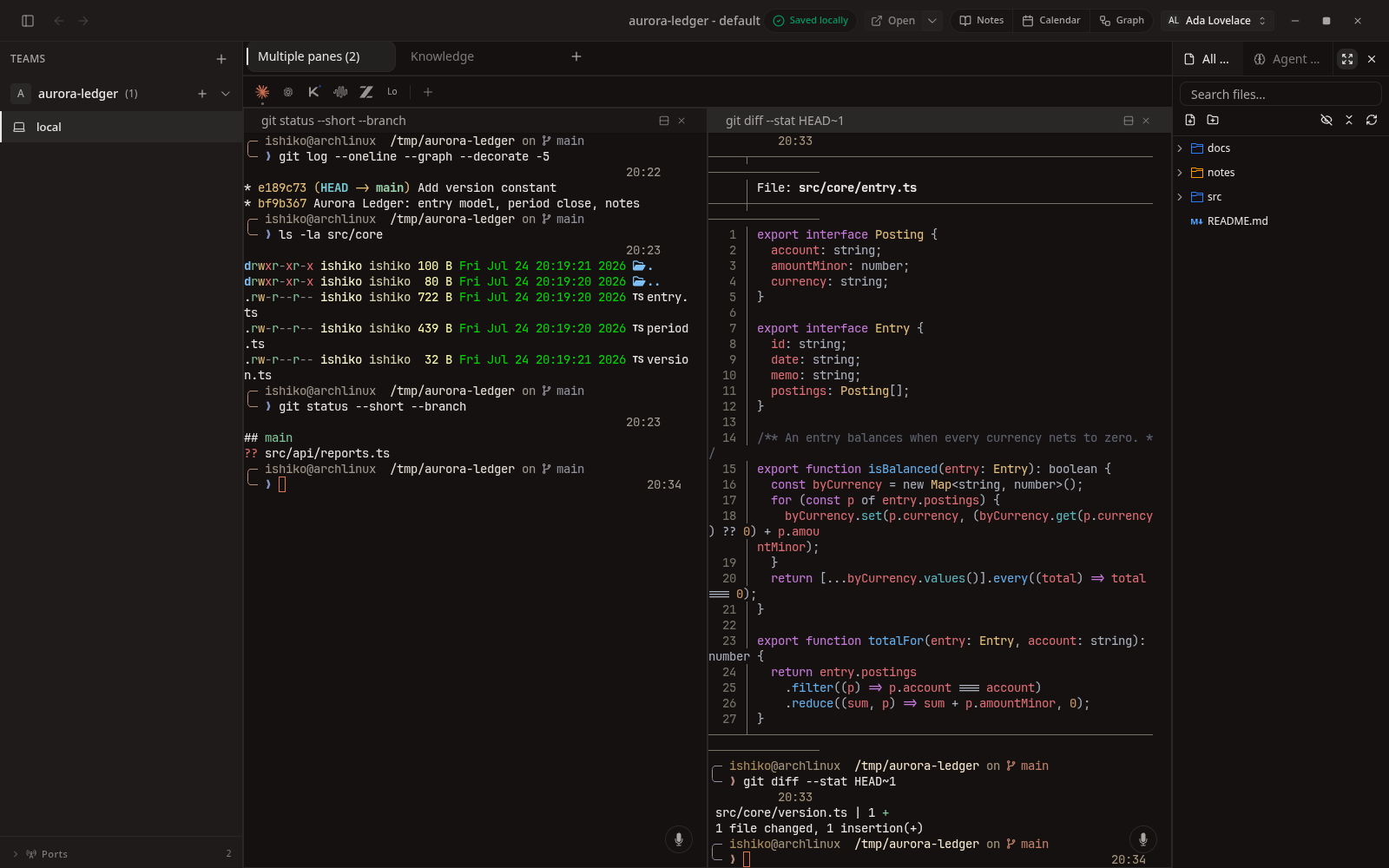 Full size
Reading code and diffs
Syntax-highlighted source and git diff output inside the workspace, no external editor.
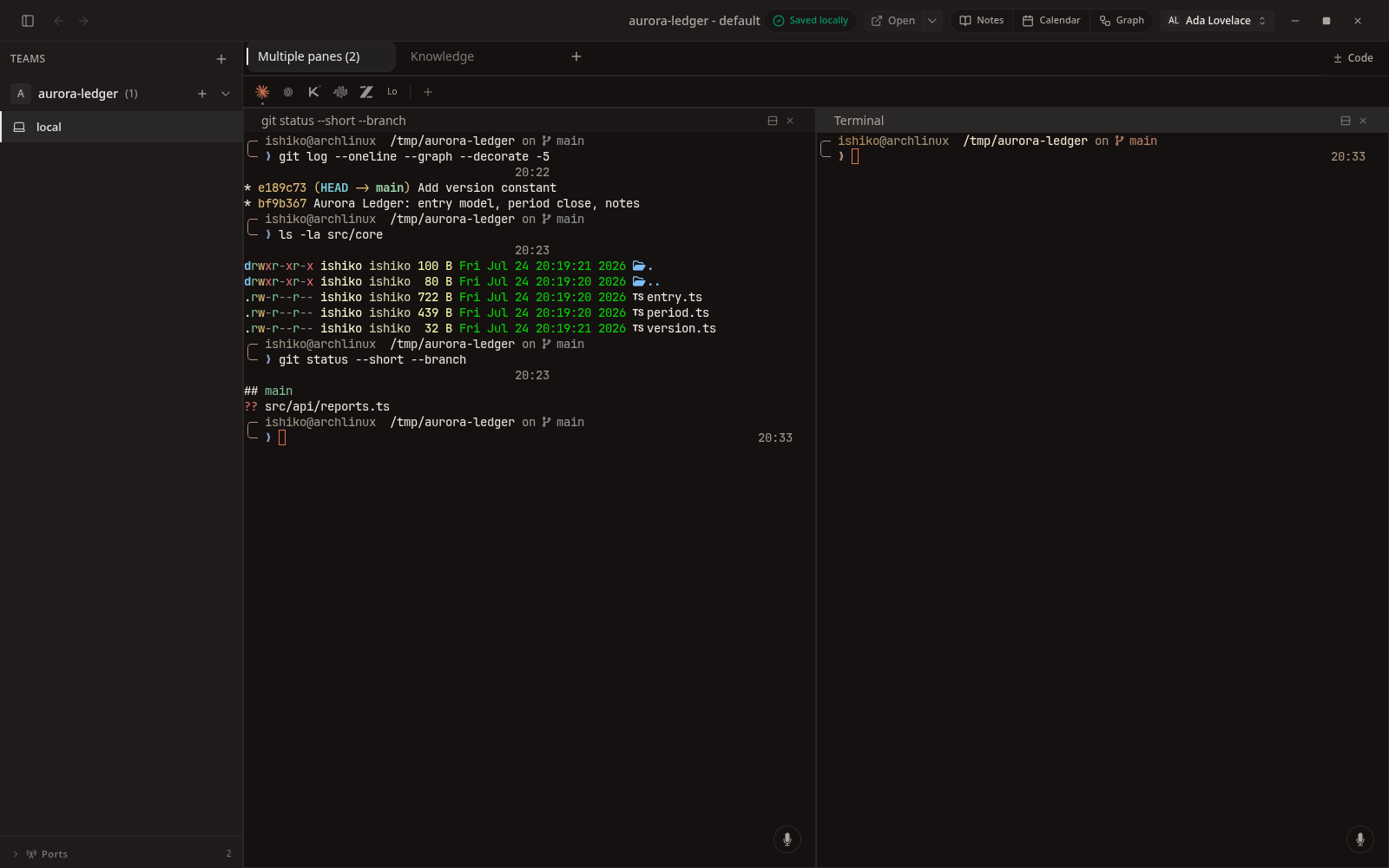 Full size
Ports
Ports opened by the workspace are tracked and listed per agent.
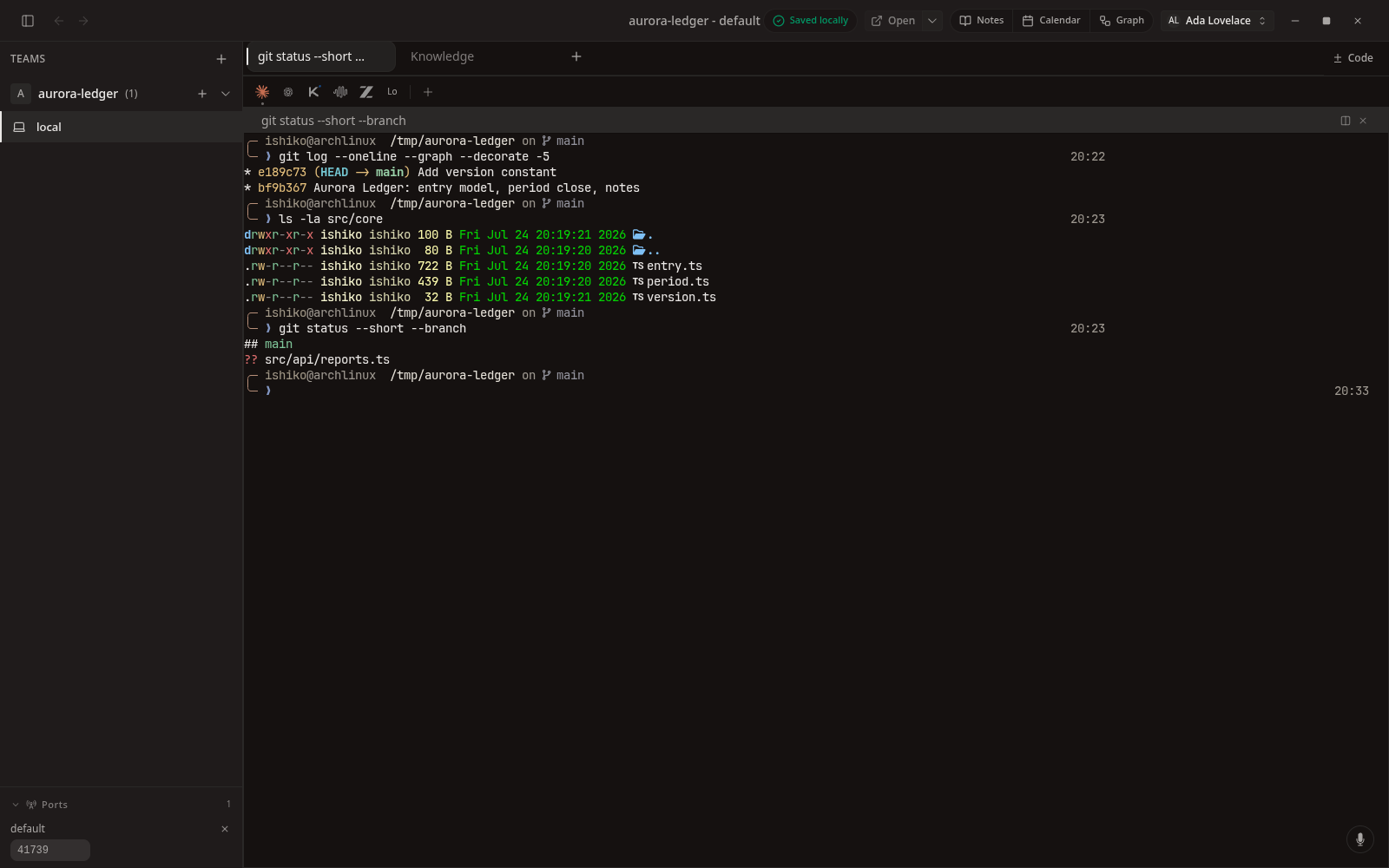 Full size
Exact resume
After a restart the app returns to the same workspace, tab, and focused pane.
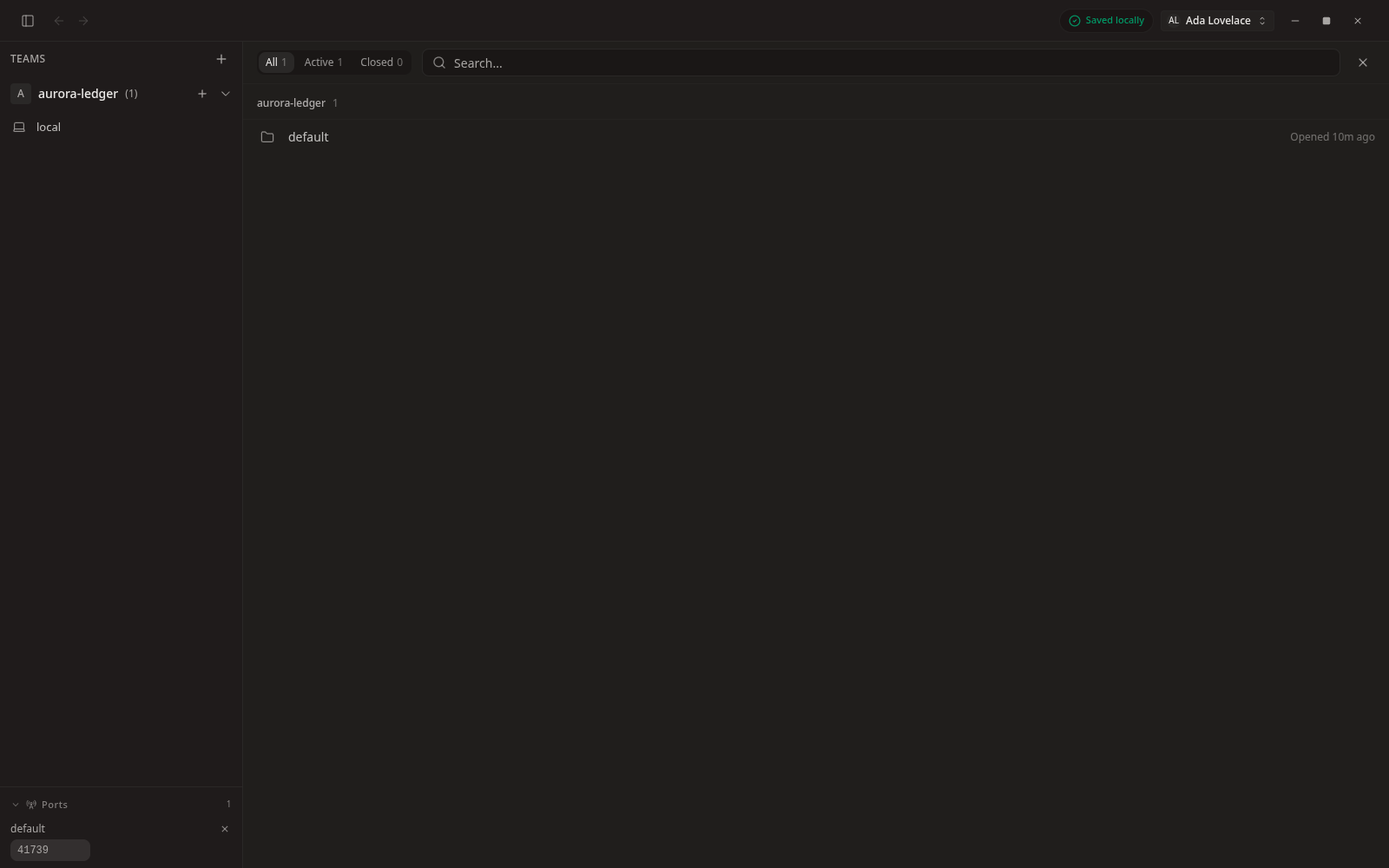 Full size
Agents list
Every agent grouped under the team that owns it.
 Full size
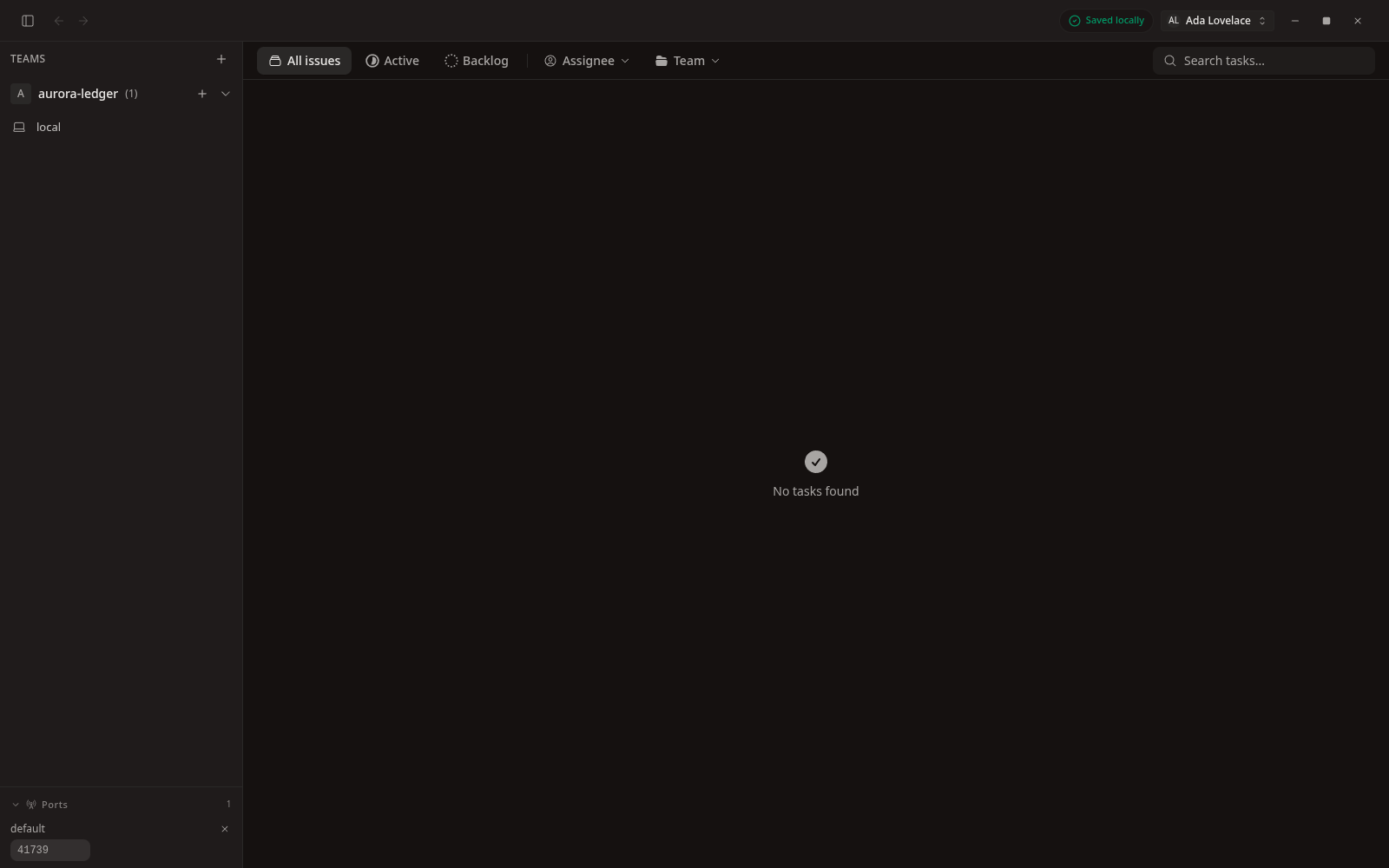
Tasks
The task surface for tracking work across agents.
The manager
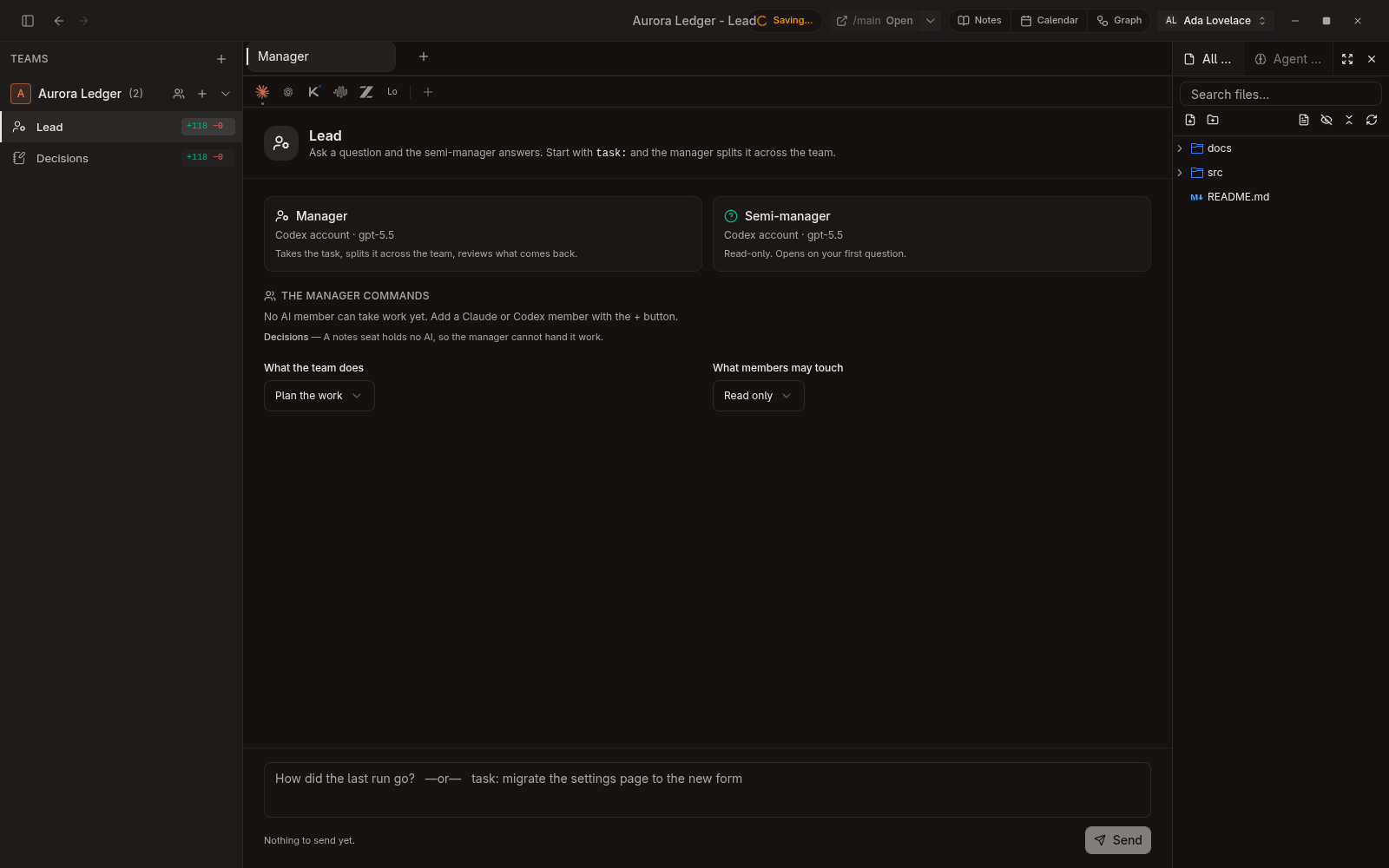
One seat leads the rest. A message starting with `task:` goes to the manager, which splits the work across every AI member; anything else goes to the semi-manager, which answers questions once a run is done.
 Full size
The manager desk
The manager and its semi-manager, the mode and permission the team runs under, and one composer for both - the prefix decides where a message goes, so there is no mode to switch.
 Full size
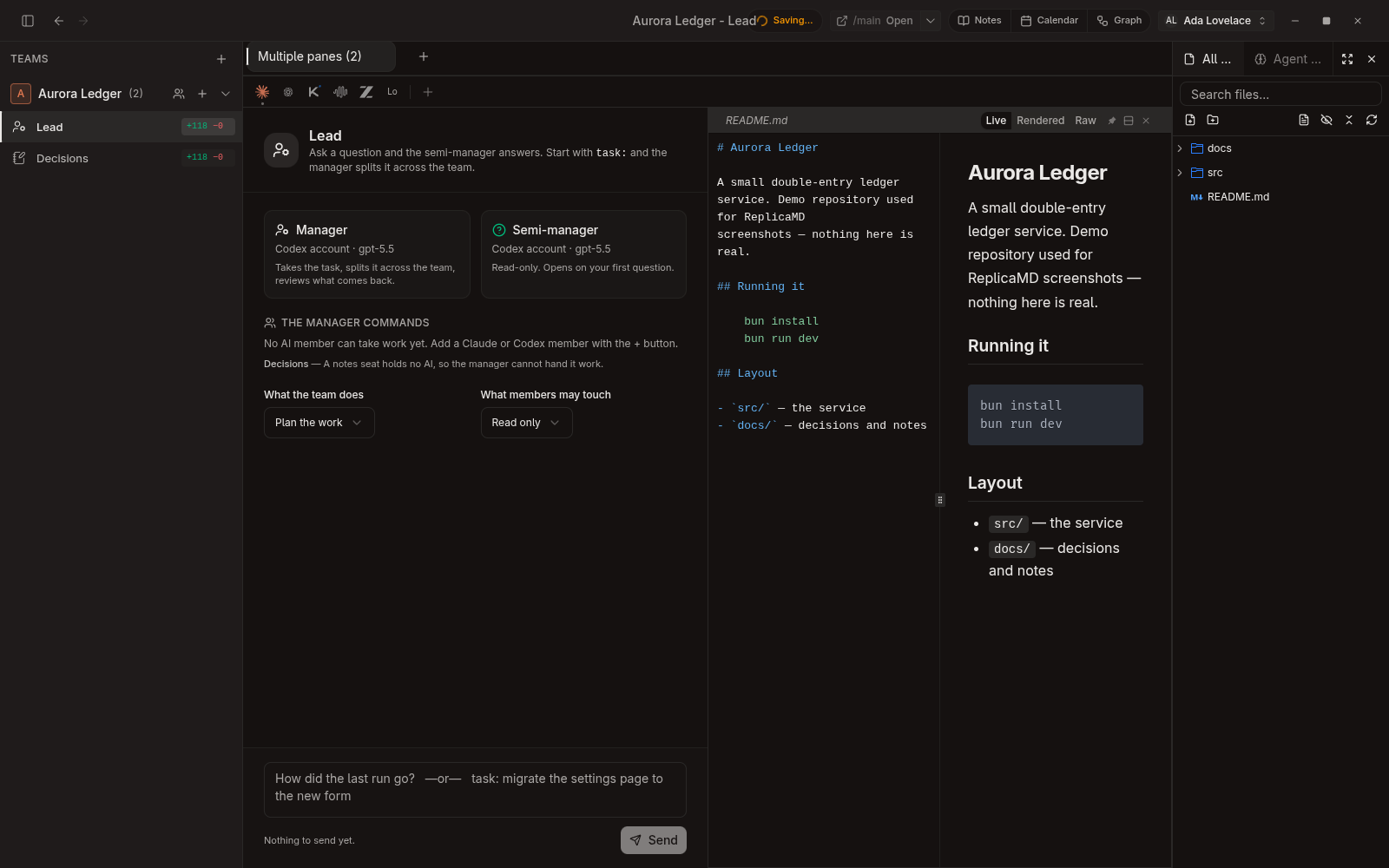
Live preview beside the manager
Clicking a Markdown file opens edit-and-preview in one pane, updating as you type. Here it sits next to the manager desk, and the roster below explains in plain words why a notes seat cannot be handed work.
Knowledge
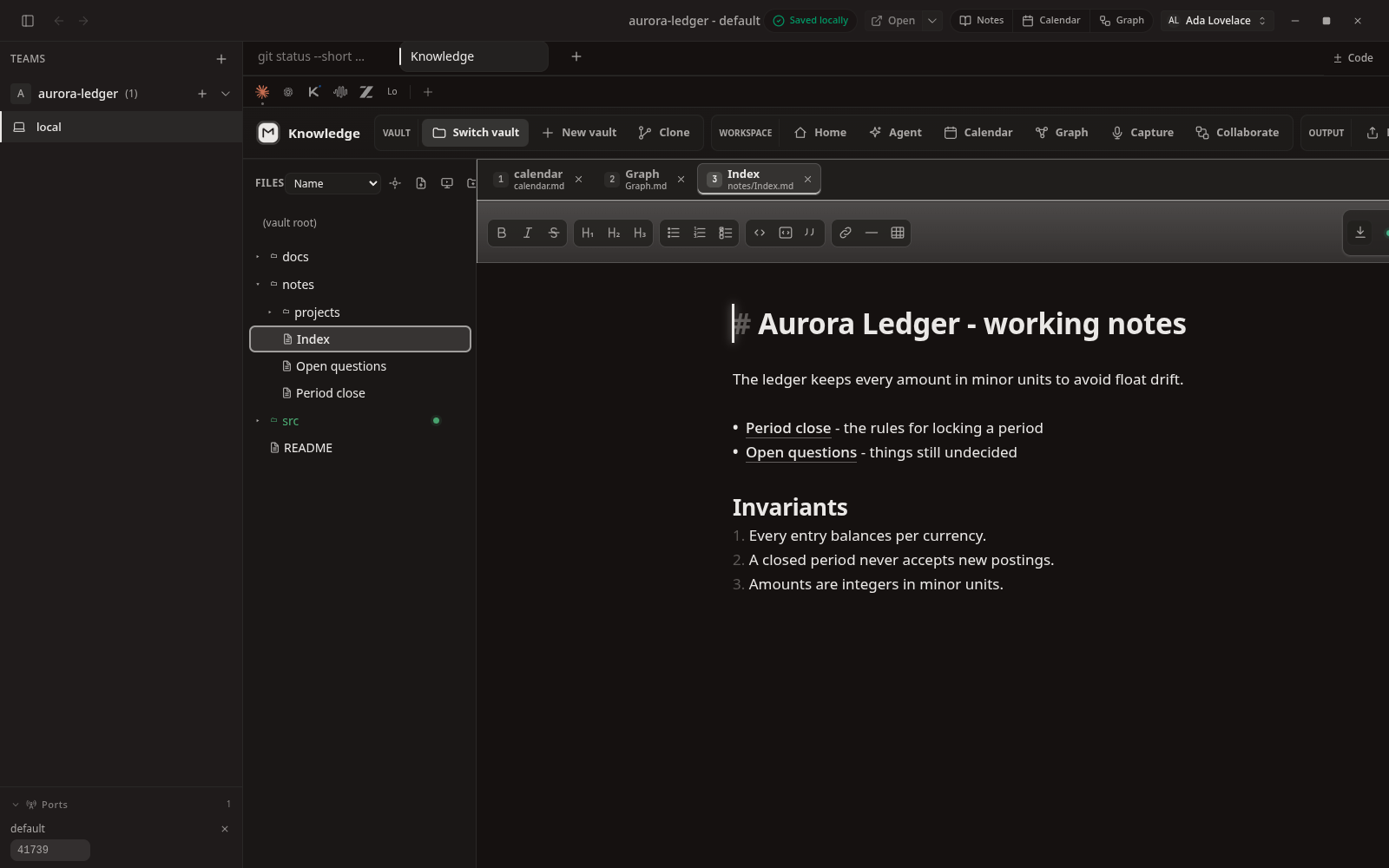
The embedded Markdown workspace. Notes are ordinary files in the project folder - editor, graph, calendar, and capture all read the same source.
 Full size
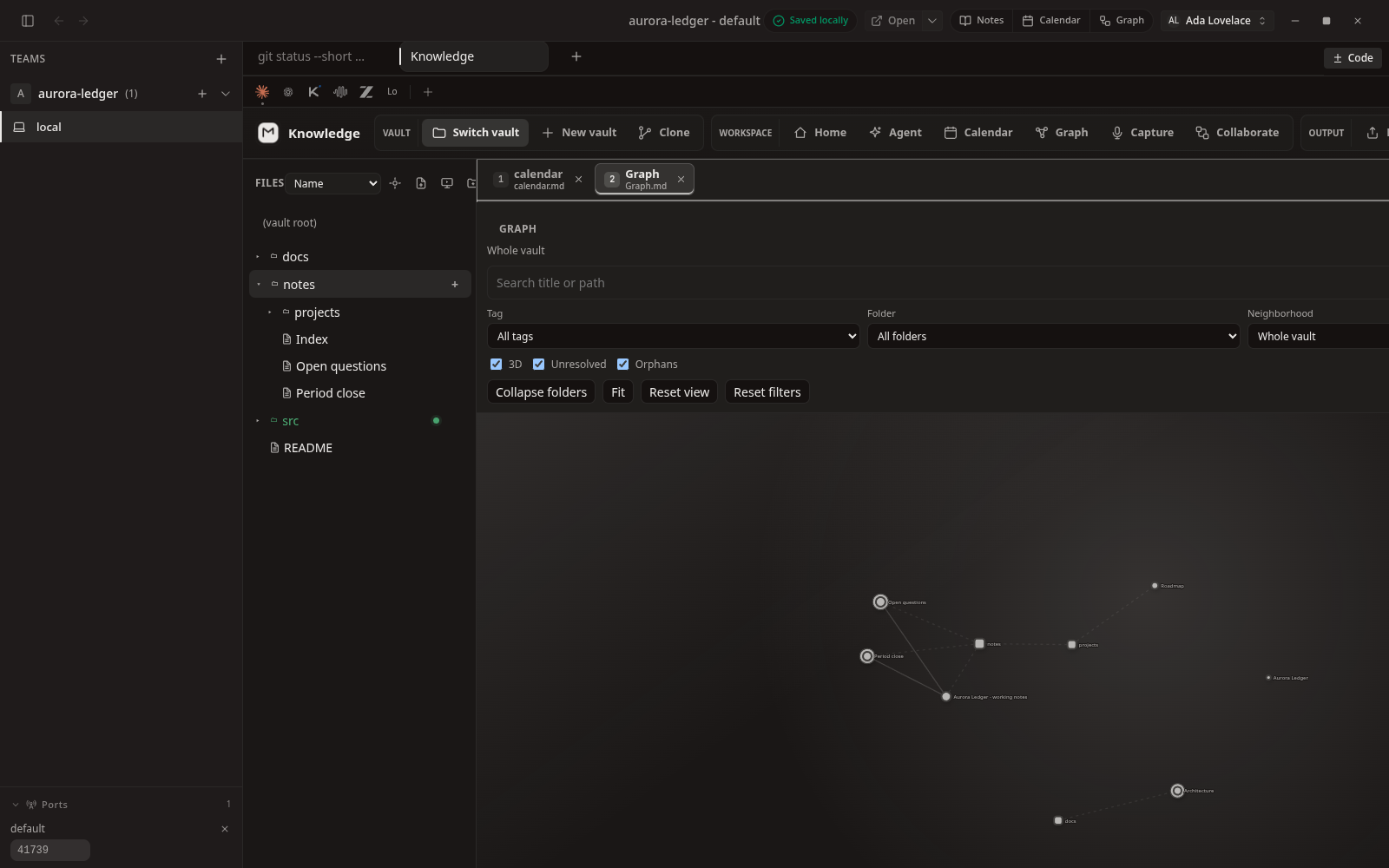
Markdown editor
Live preview with rendered wikilinks. The underlying file is plain Markdown on disk.
 Full size
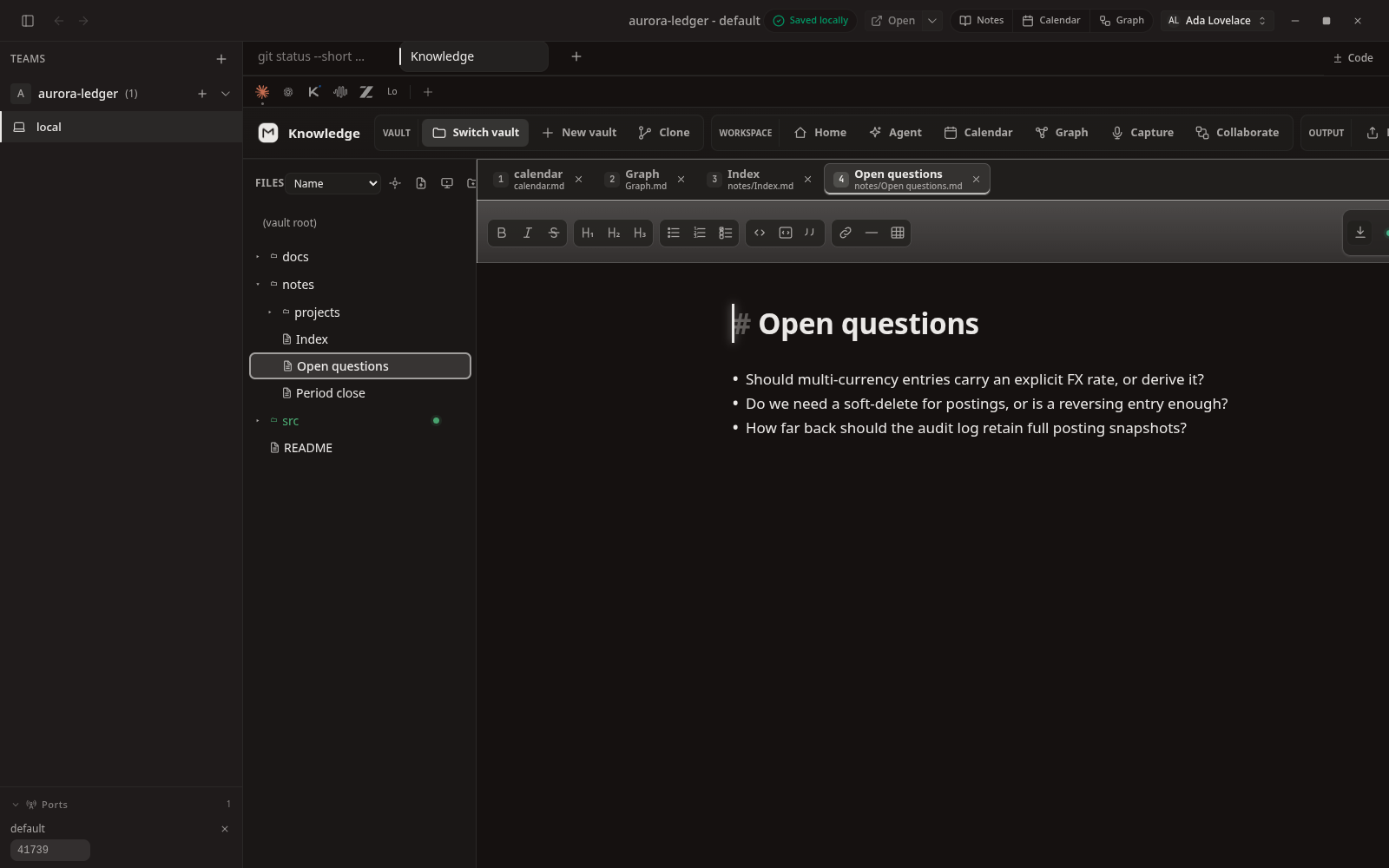
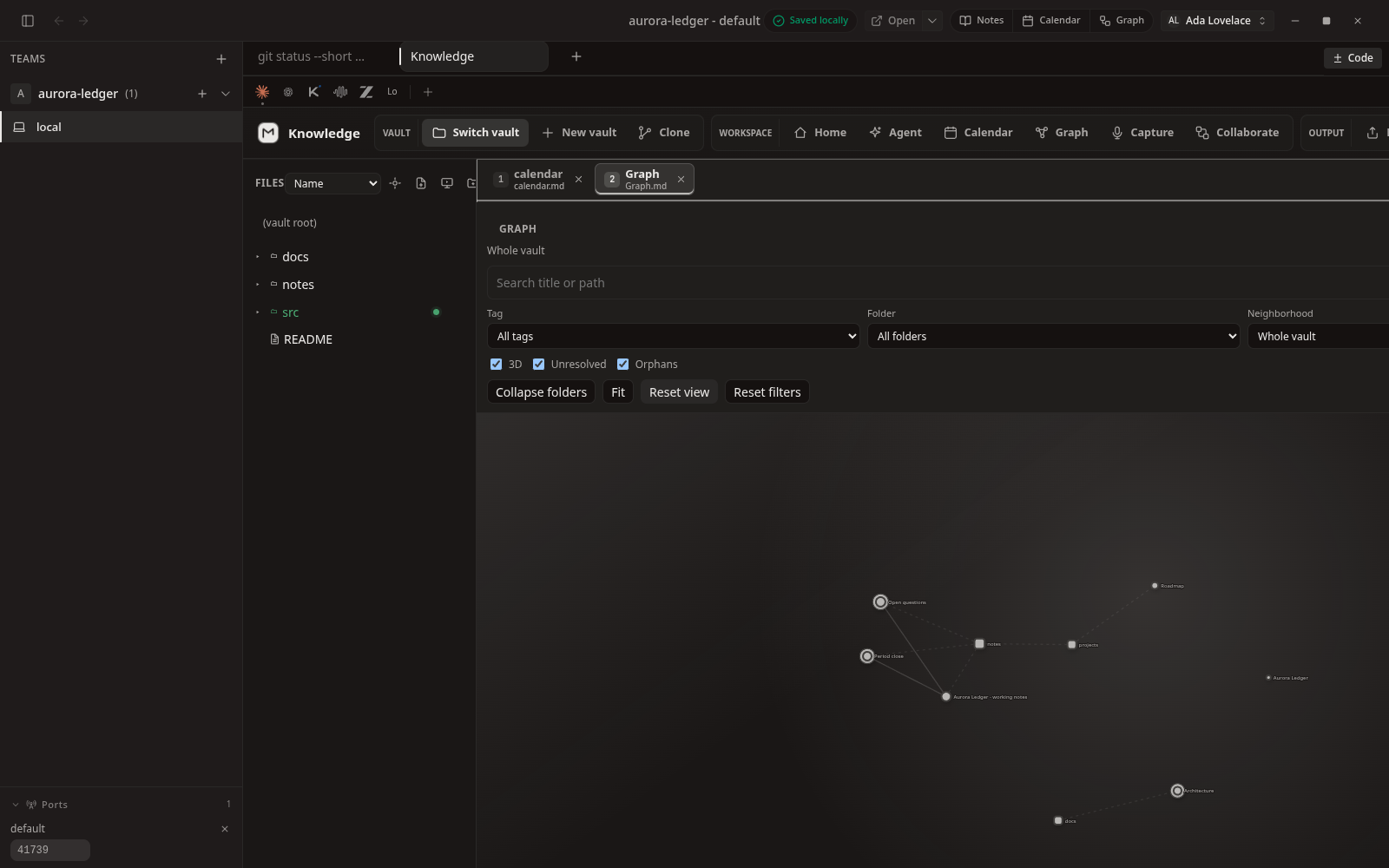
Vault graph
Links between notes rendered as a navigable graph, built from the demo vault's own wikilinks.
 Full size
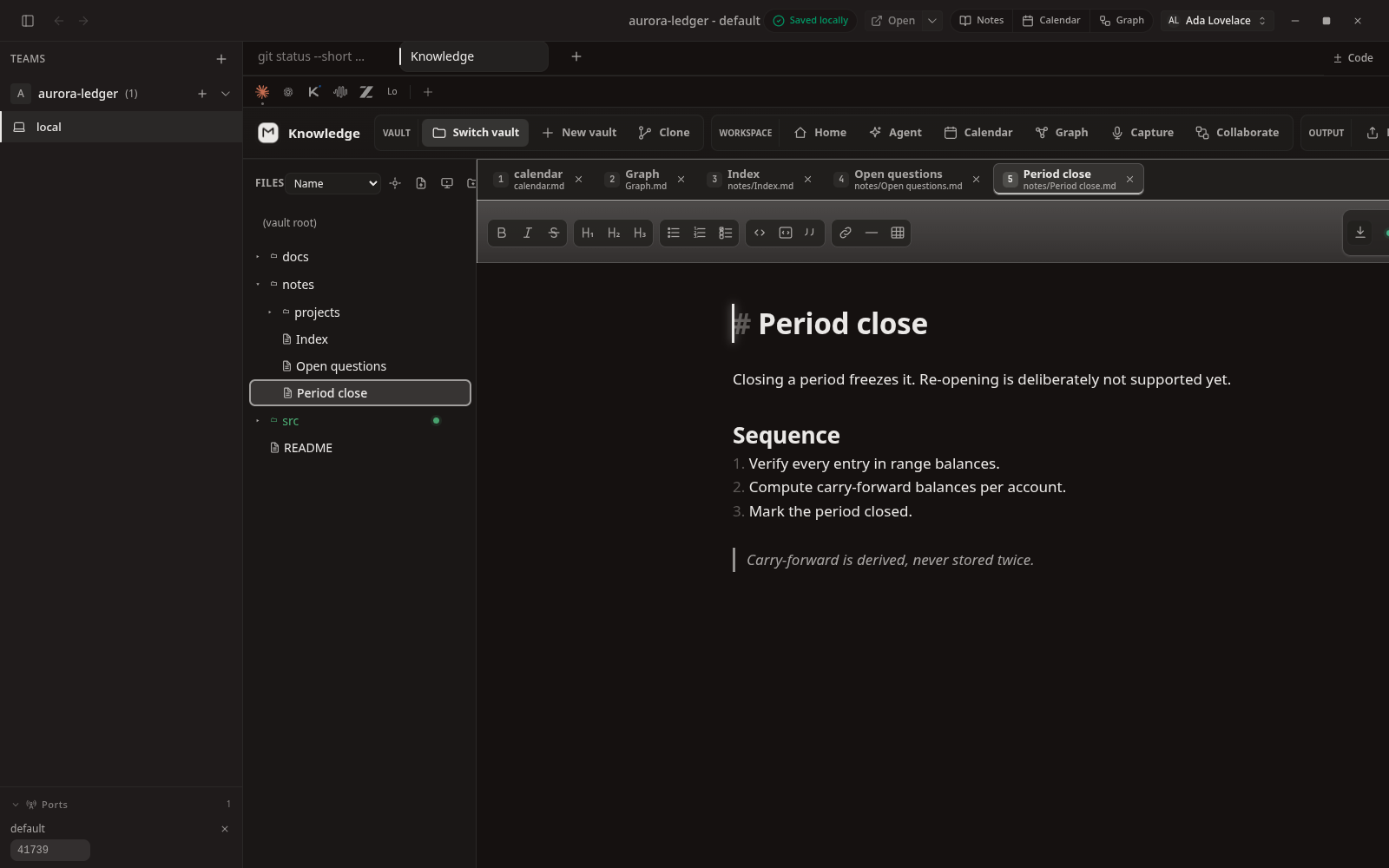
A working note
Free-form notes sit next to the code they describe.
 Full size
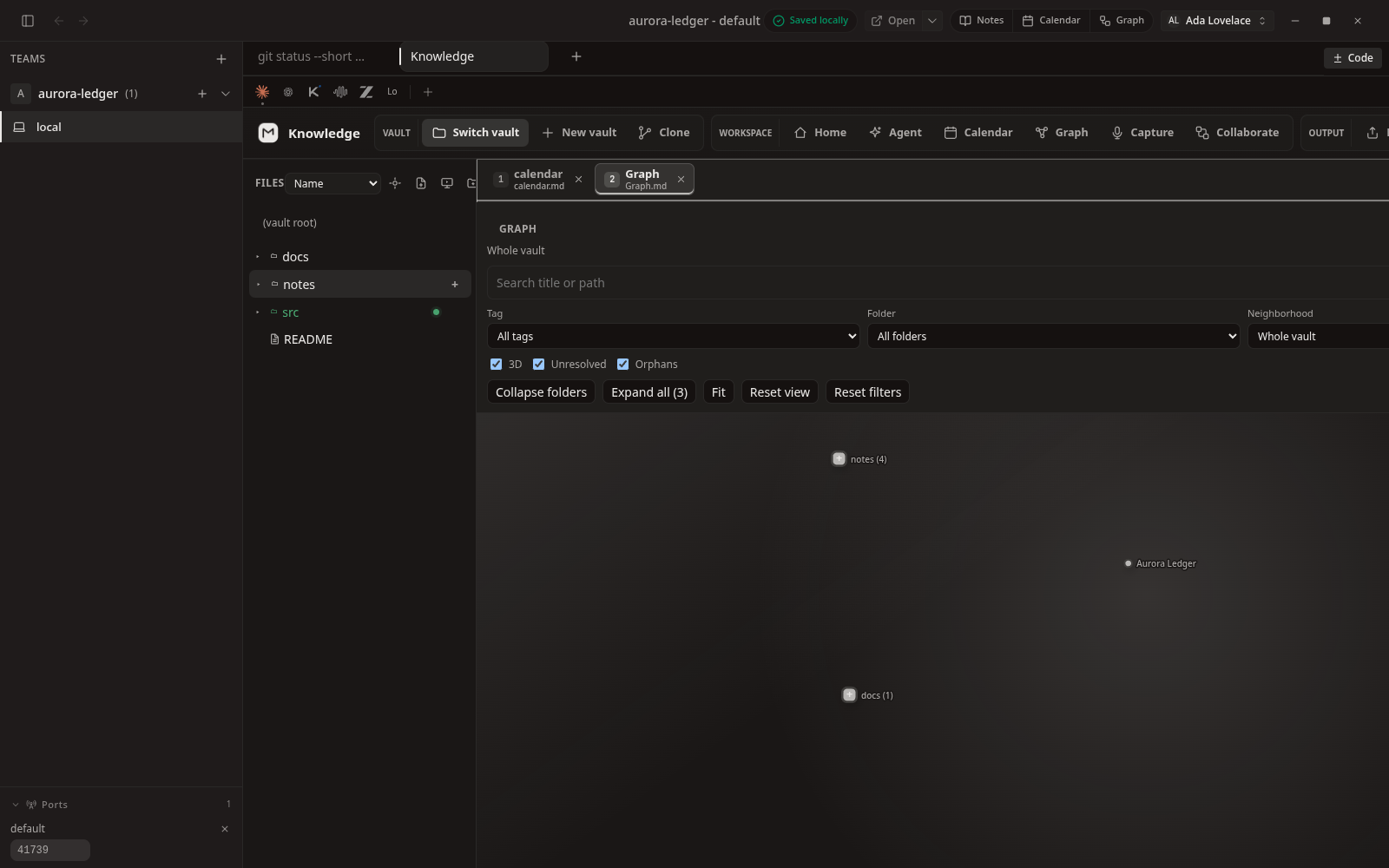
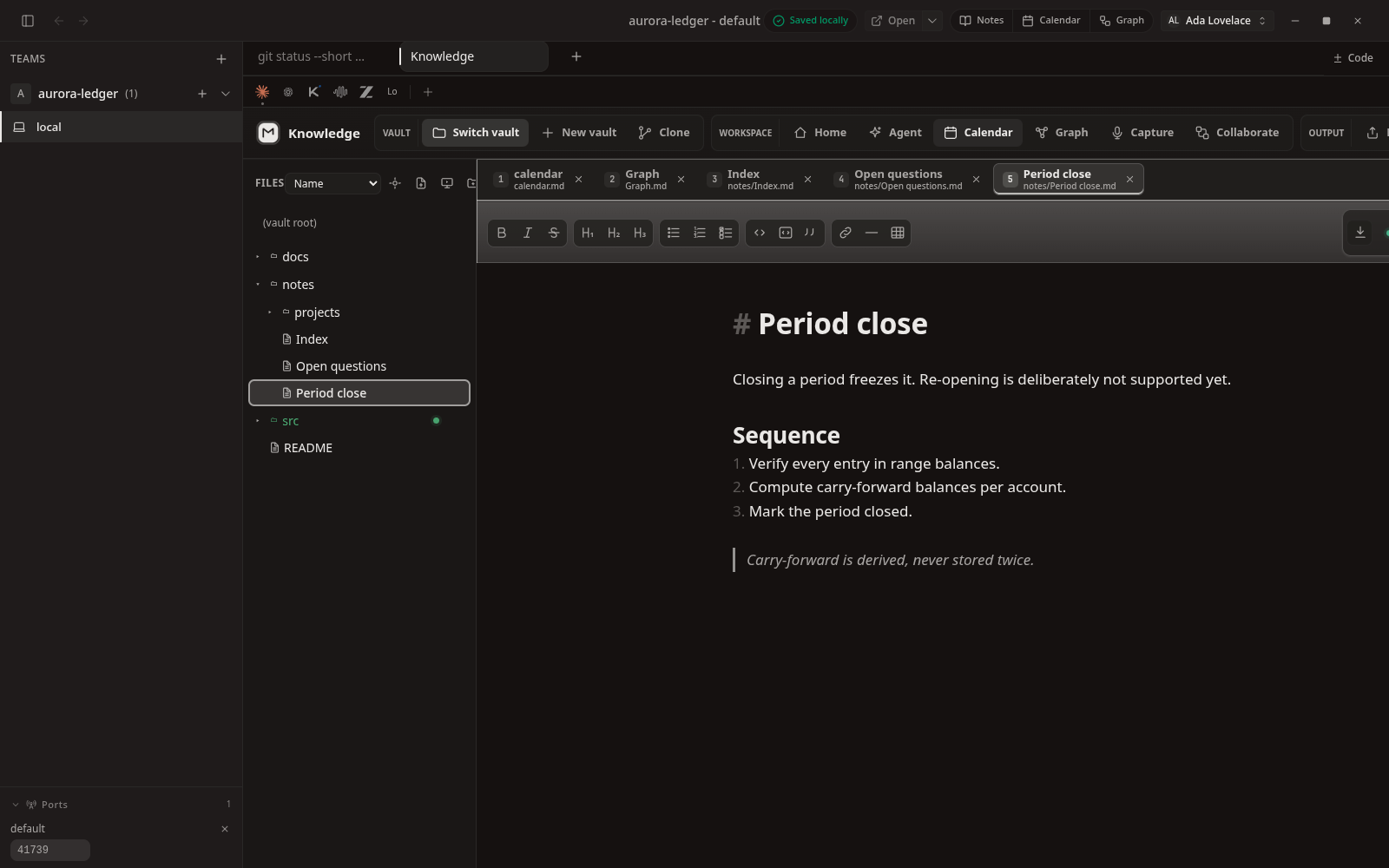
Structure and quotes
Headings, ordered lists, and block quotes rendered inline while editing.
 Full size
Vault tree
Folders and notes in the vault, filtered and sorted.
 Full size
Graph controls
Tag, folder, and neighbourhood filters with 3D, orphan, and unresolved-link toggles.
 Full size
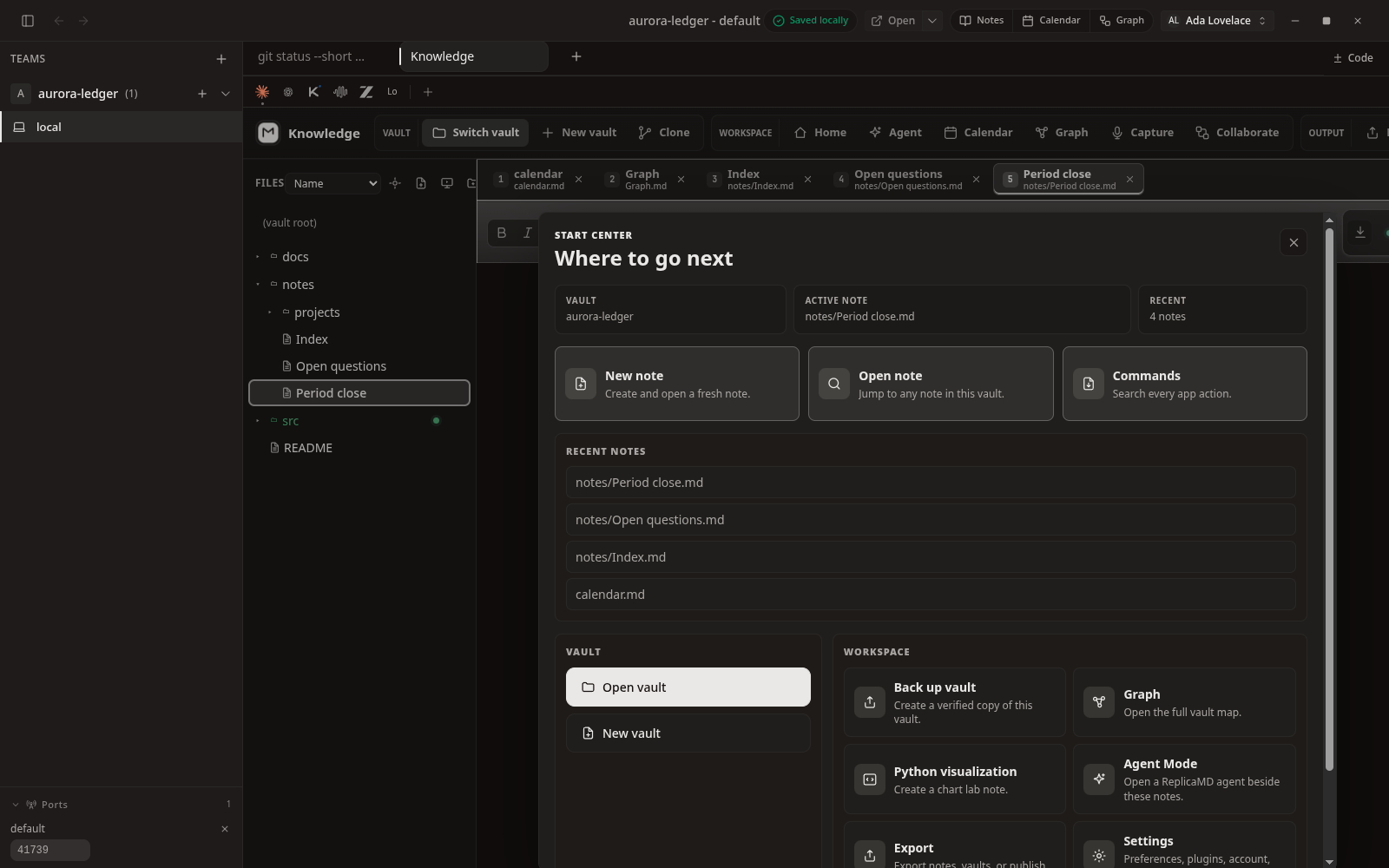
Start centre
Recent notes and vault actions on entry.
 Full size
Calendar
Notes placed on a calendar for date-driven work.
 Full size
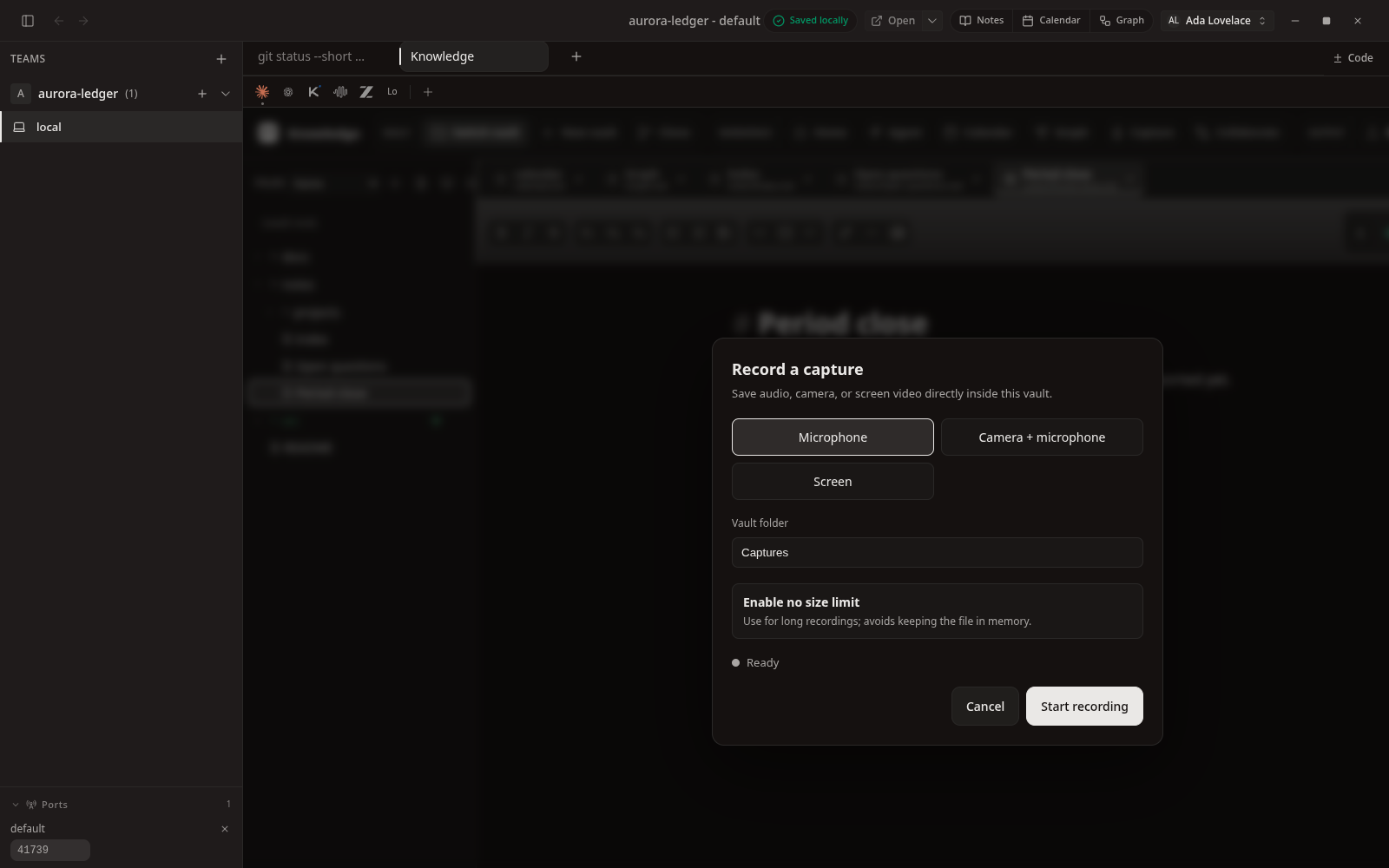
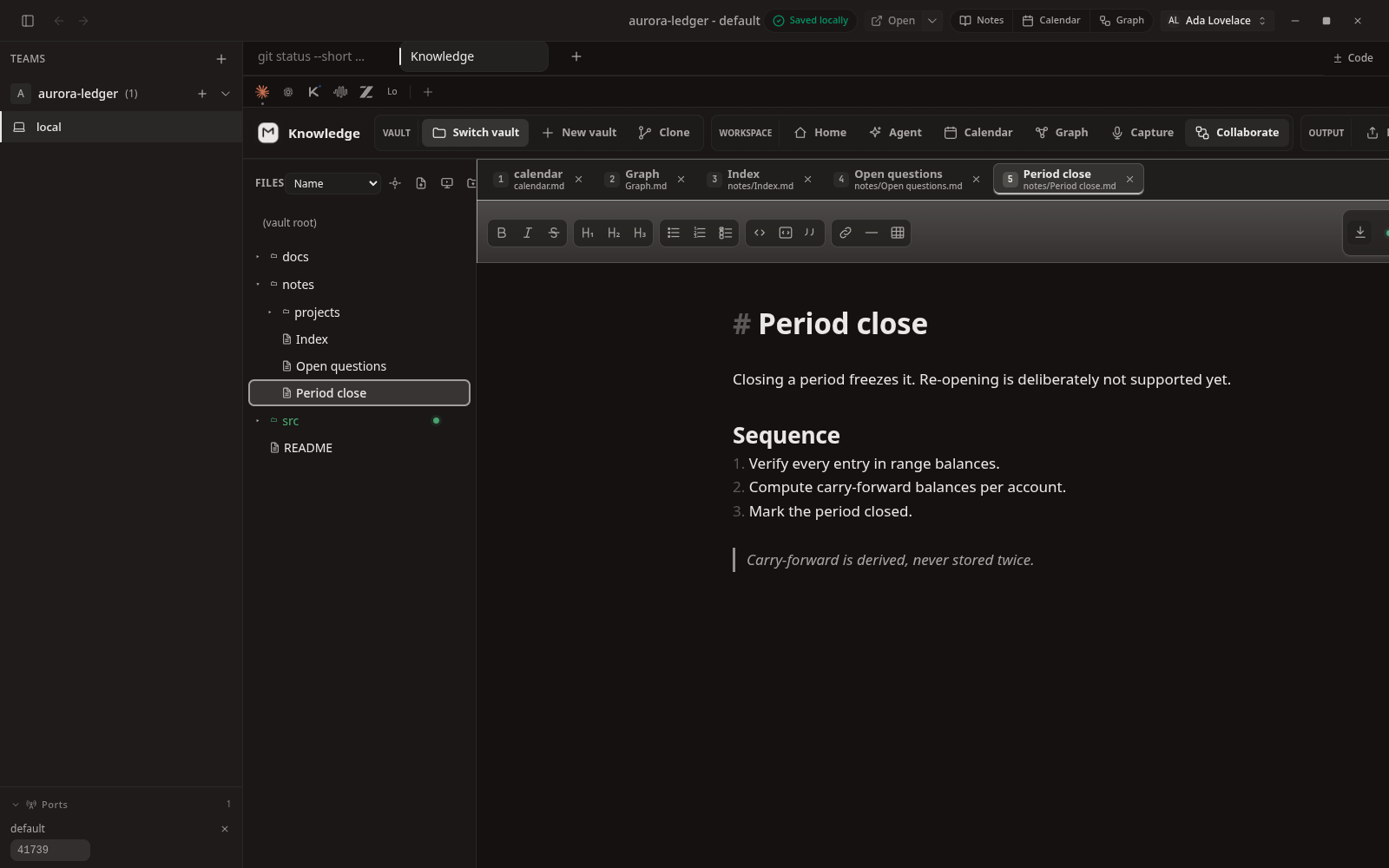
Capture
Quick capture into the active vault.
 Full size
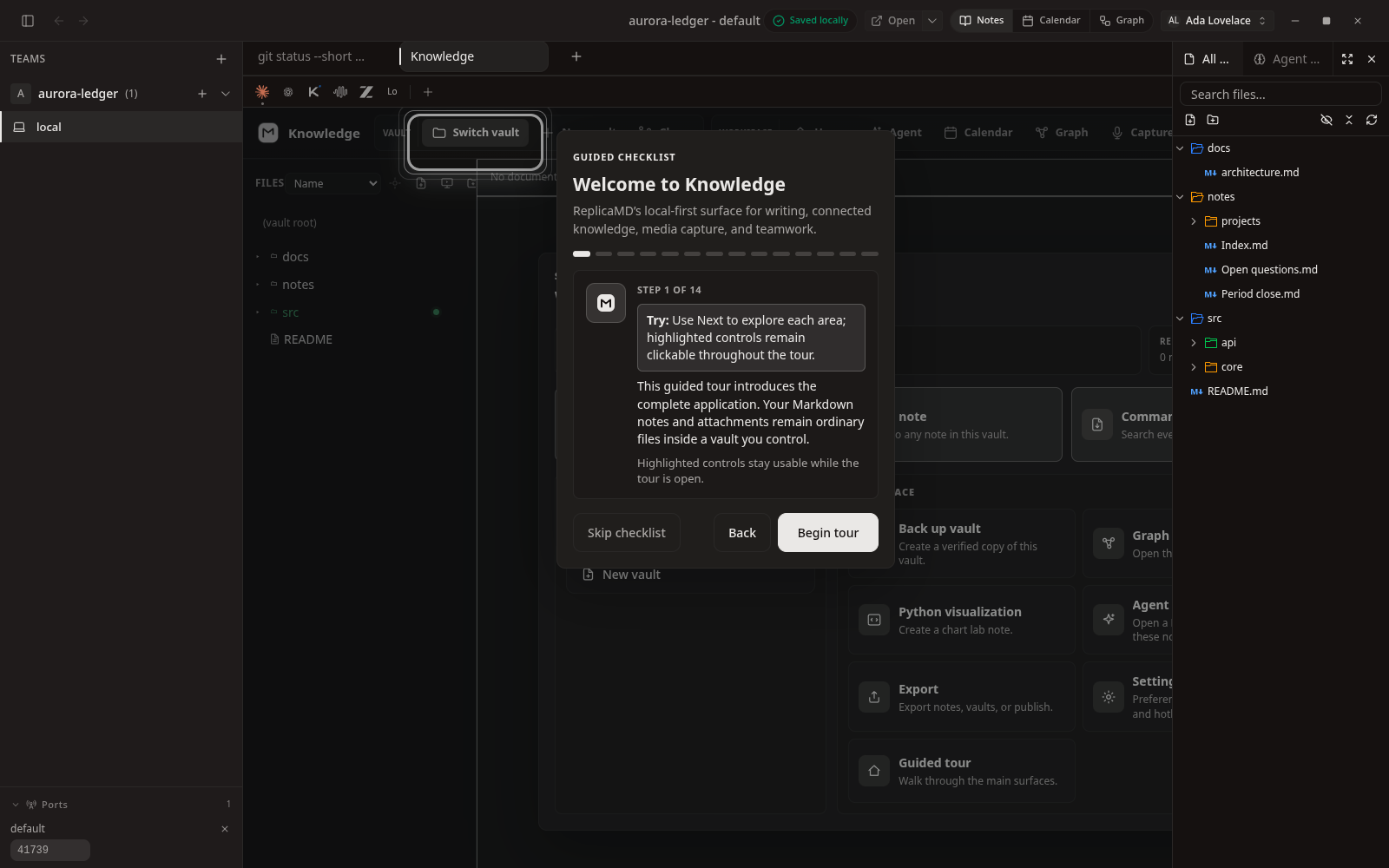
Collaborate
The local-first collaboration manifest, shared as an ordinary file.
 Full size
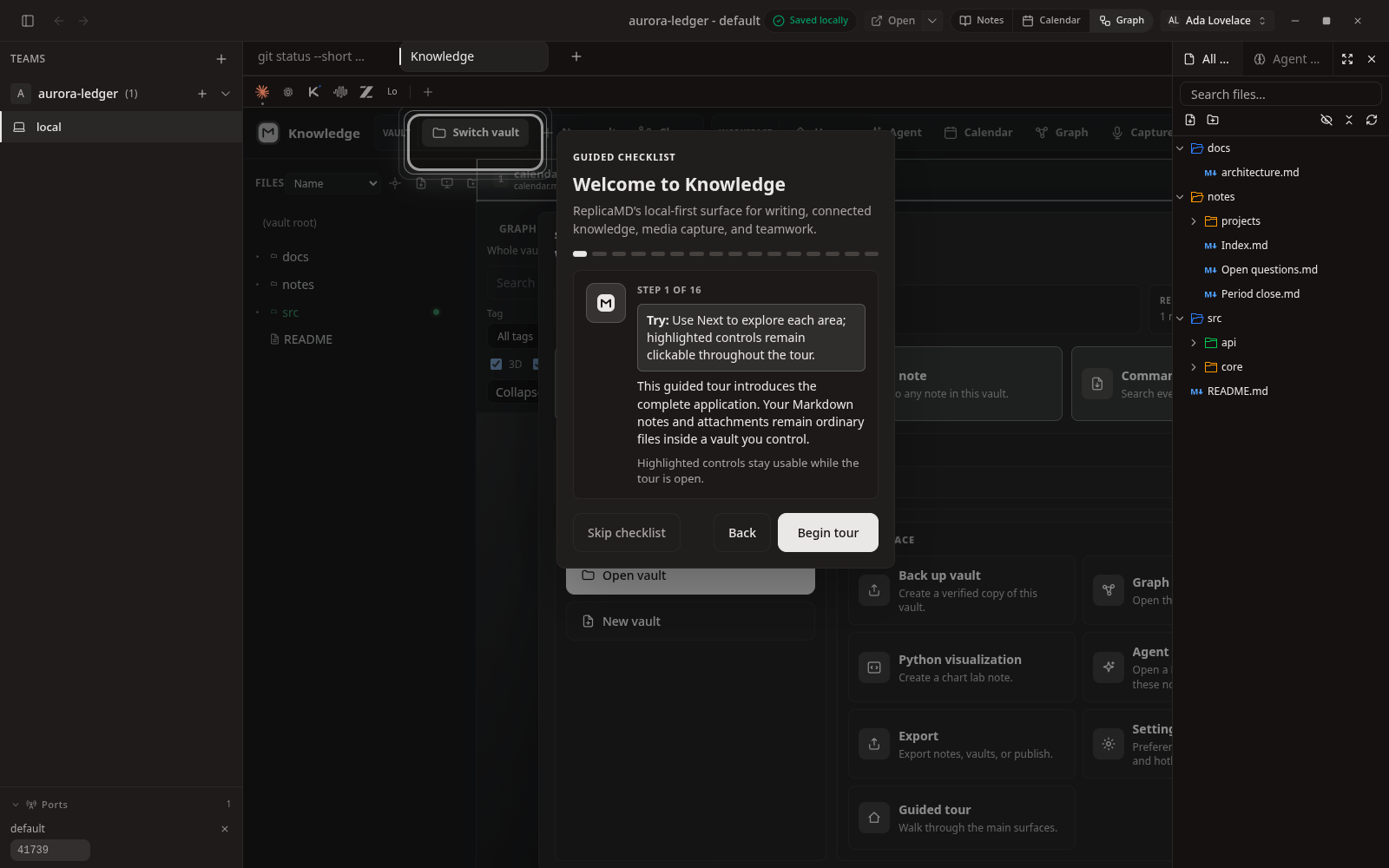
Opening Knowledge
Knowledge opens as a pane inside the workspace, sharing the host's theme.
 Full size
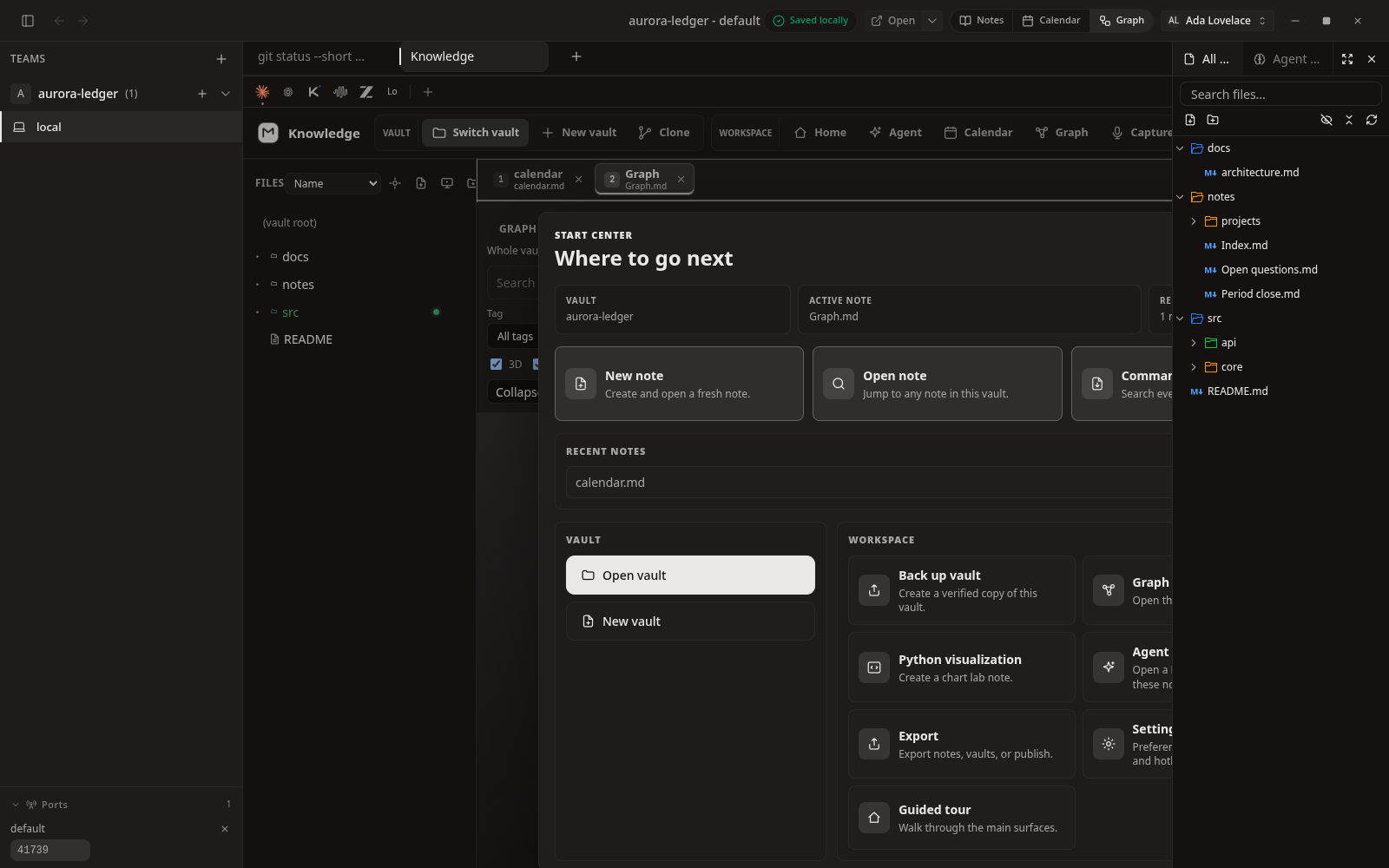
Guided tour
A fourteen-step tour of the Markdown surface.
 Full size
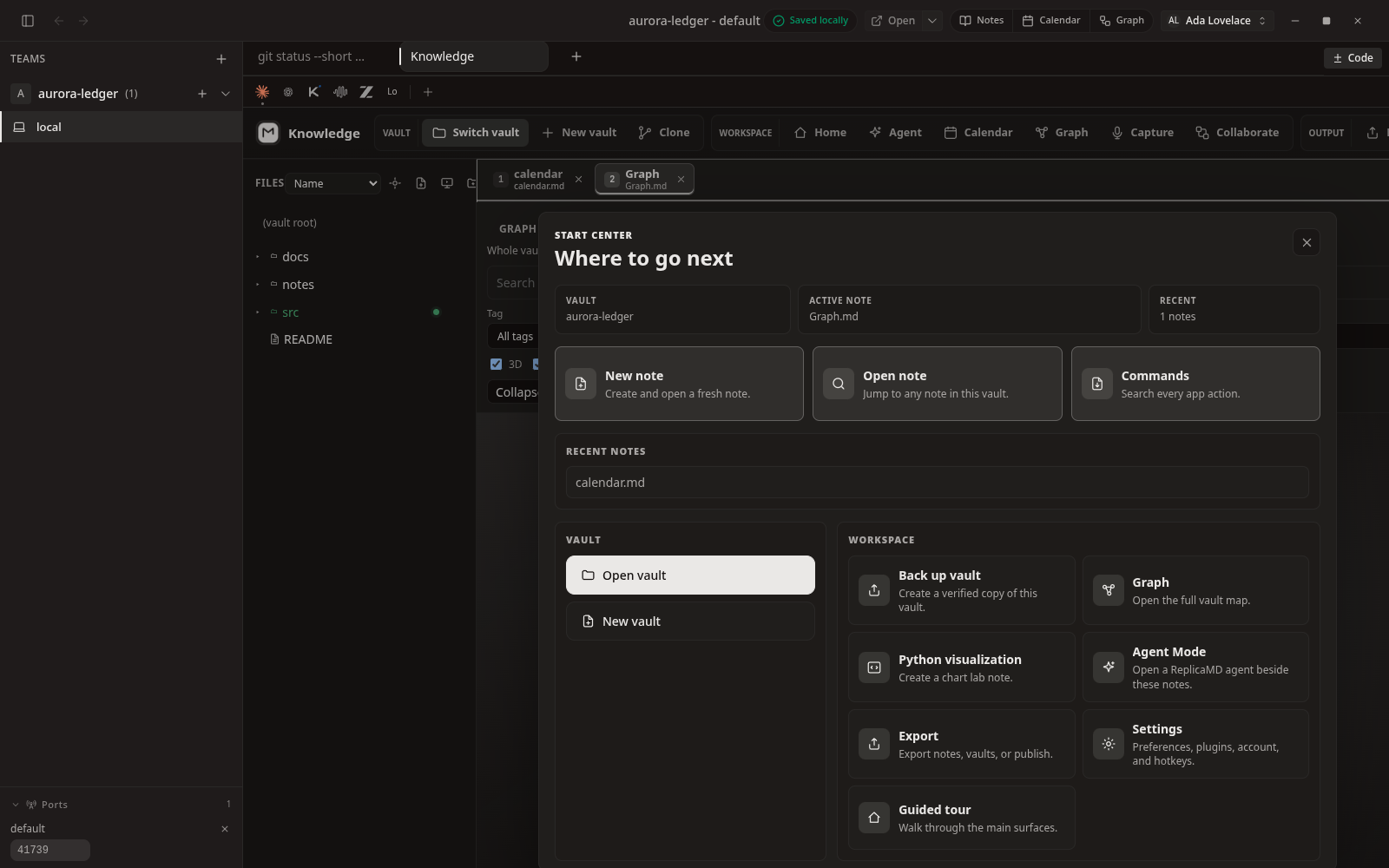
After the tour
The full Knowledge surface once the checklist is dismissed.
 Full size
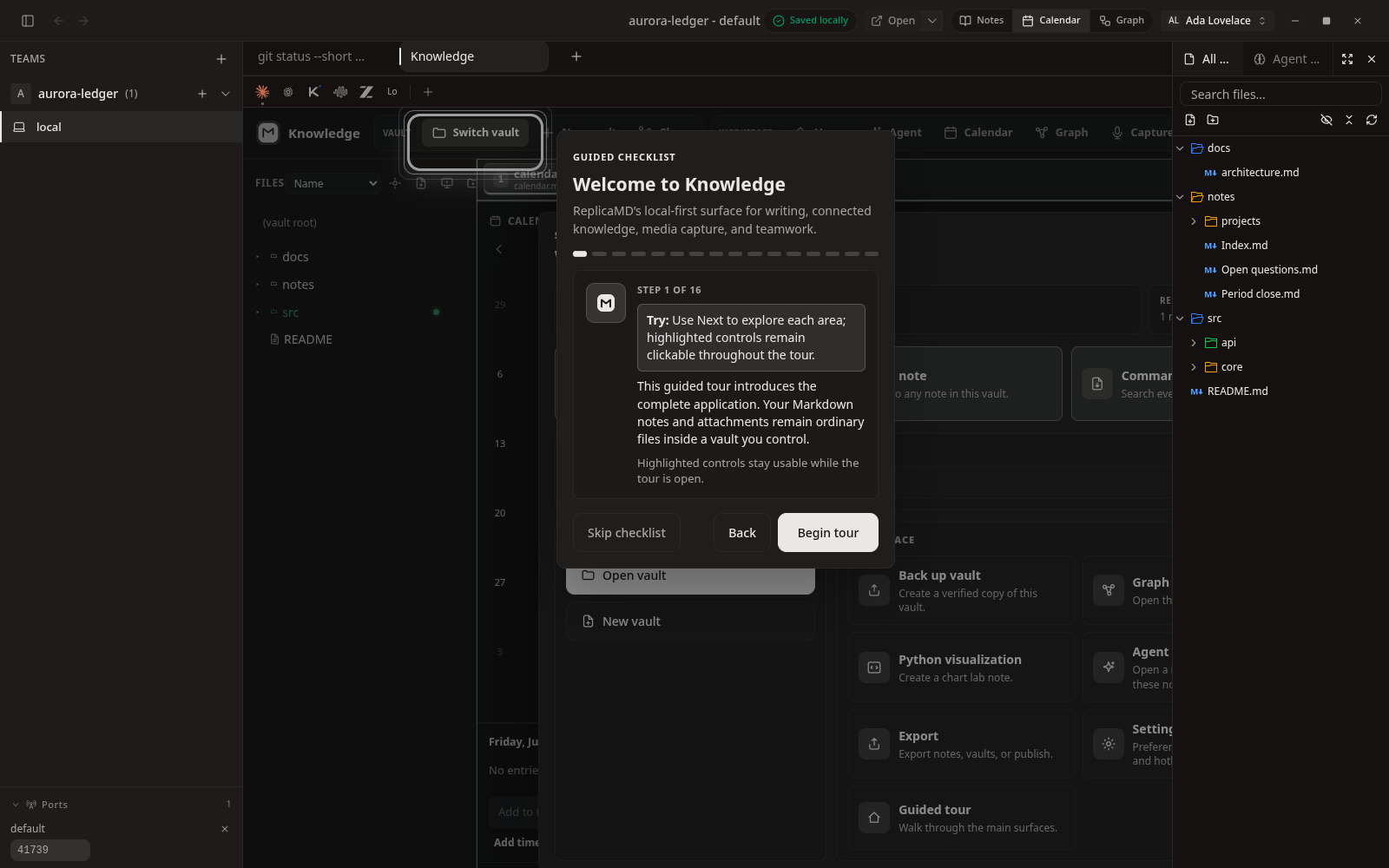
Full width
Collapsing the host panels gives Knowledge the whole window.
 Full size
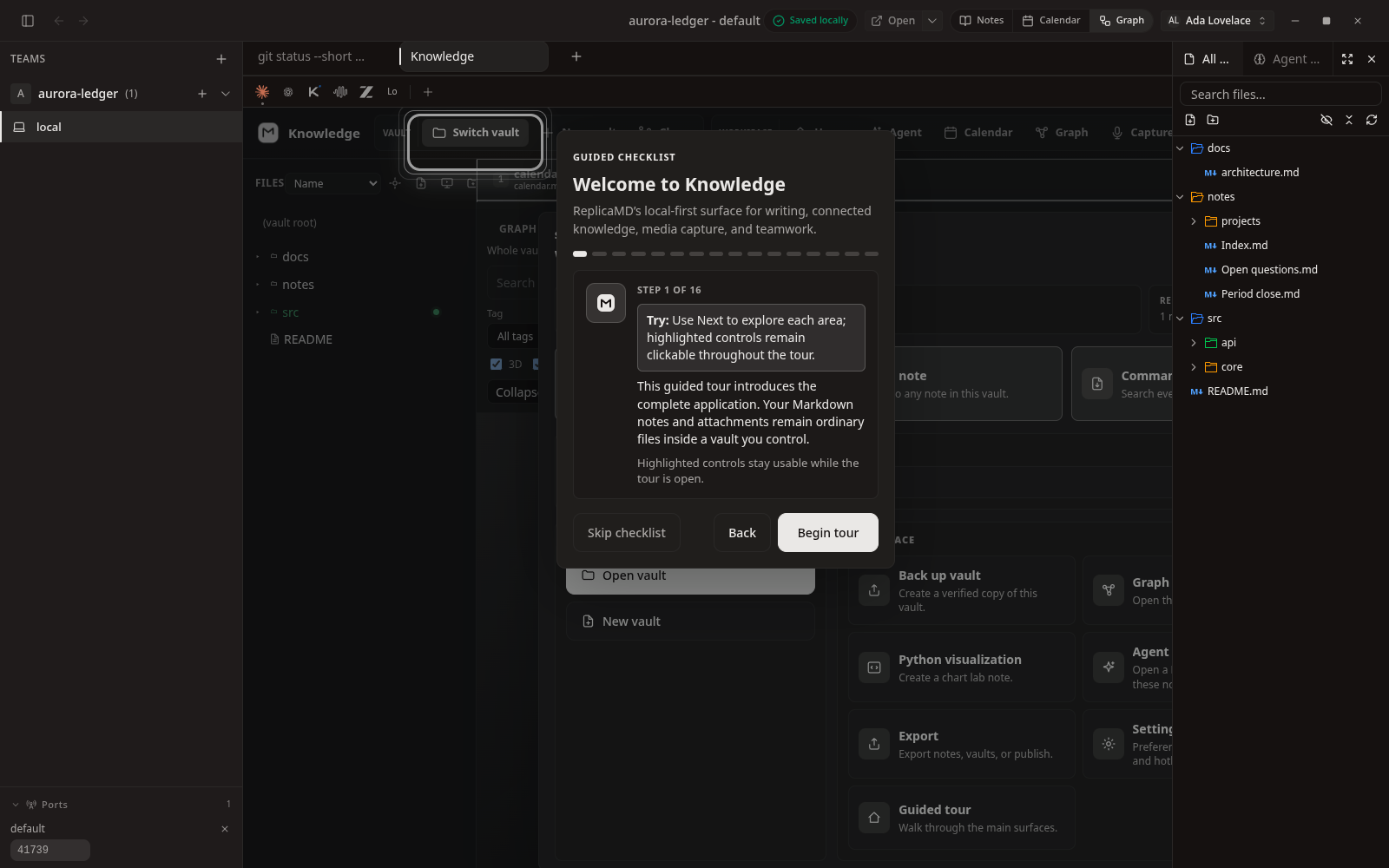
Calendar pane
The calendar surface hosted inside the workspace.
 Full size
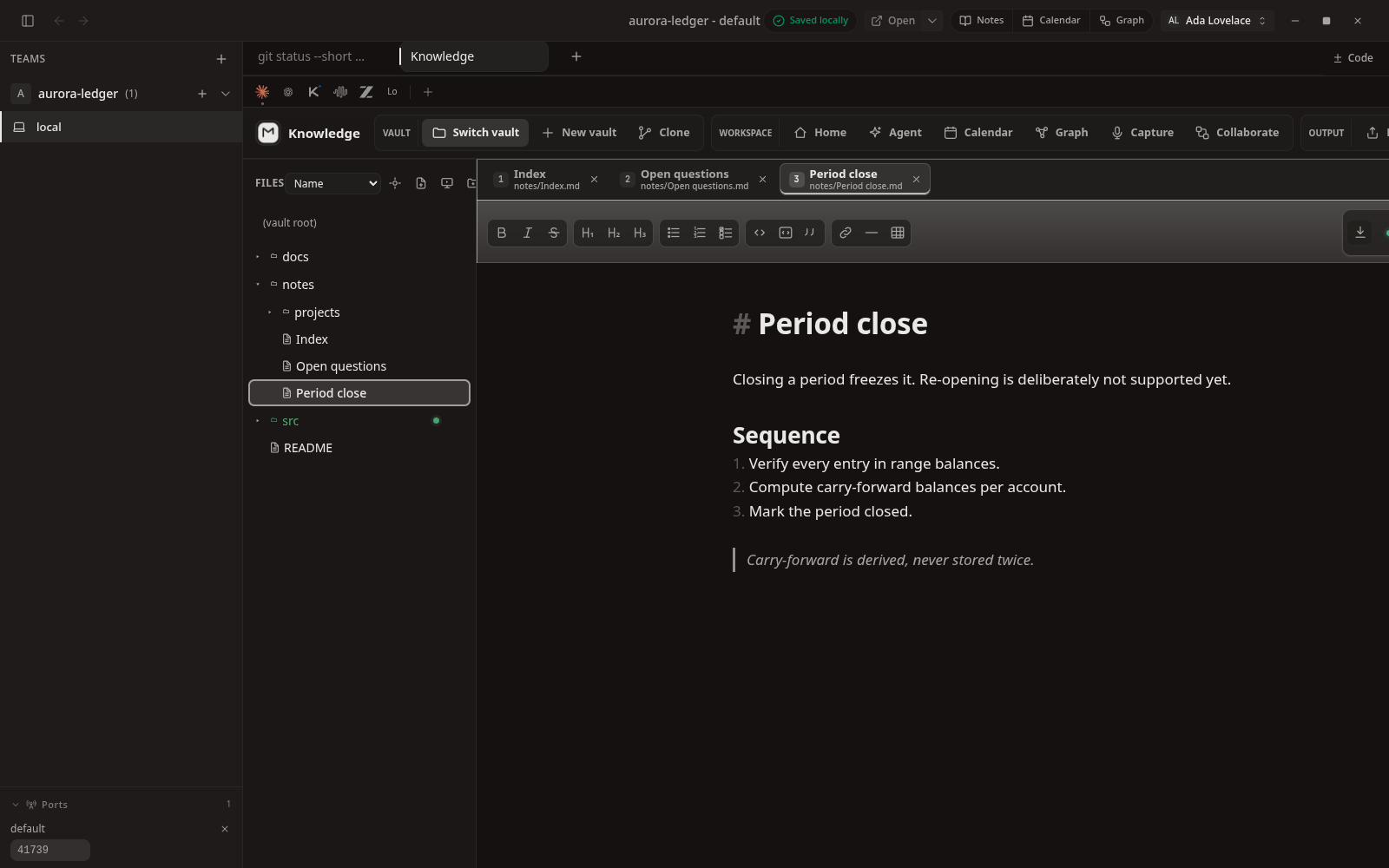
Graph pane
The graph surface hosted inside the workspace.
Themes
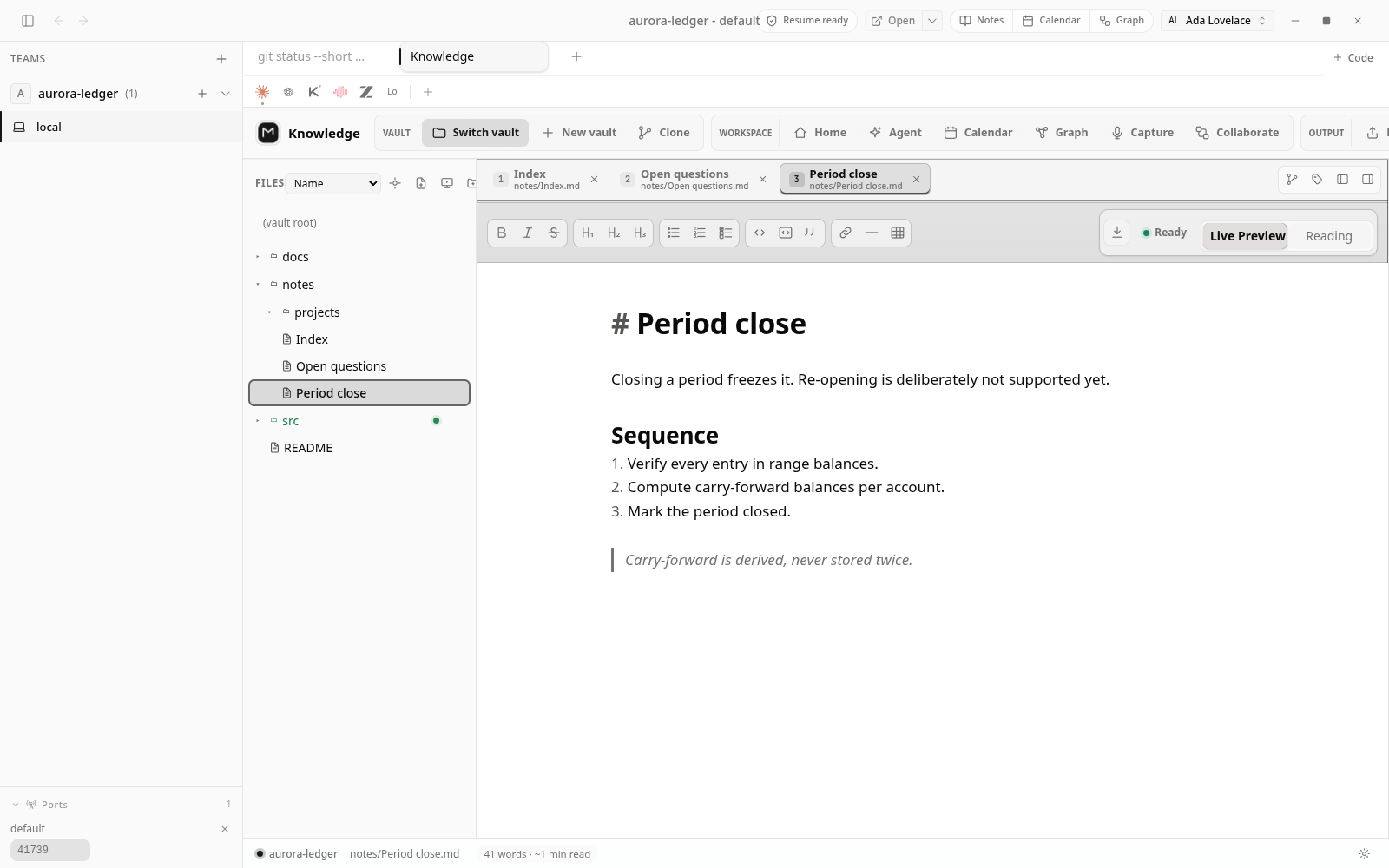
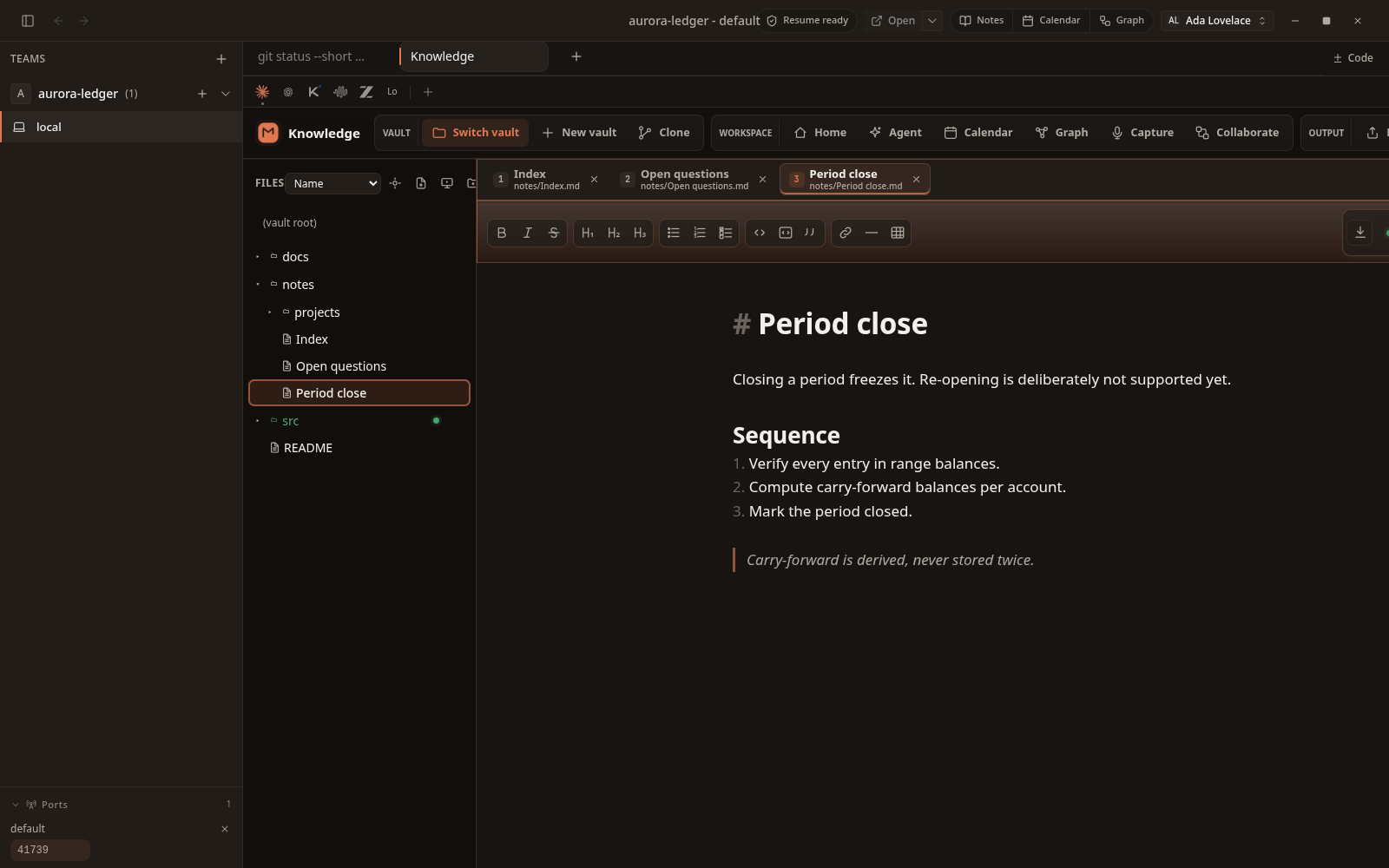
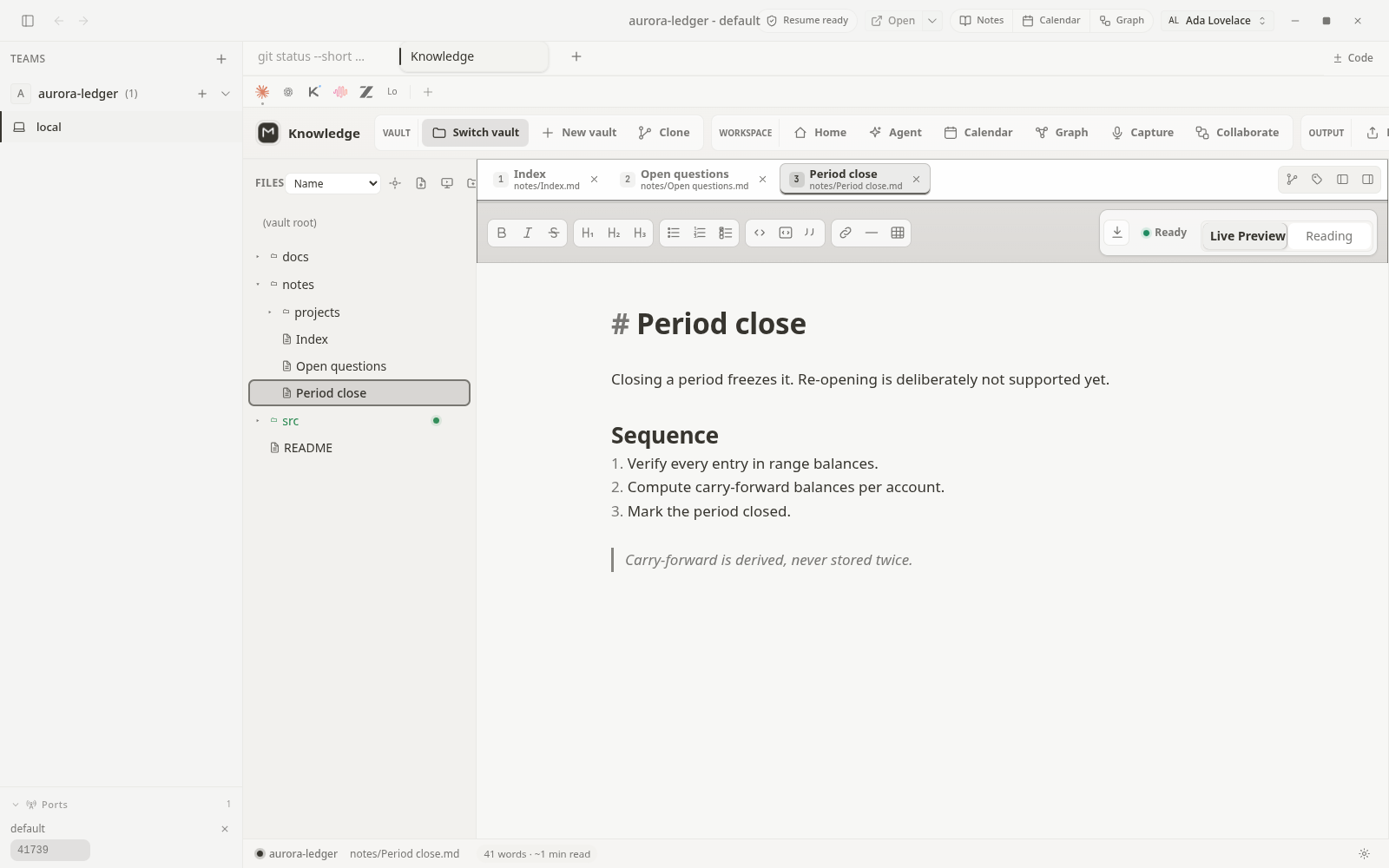
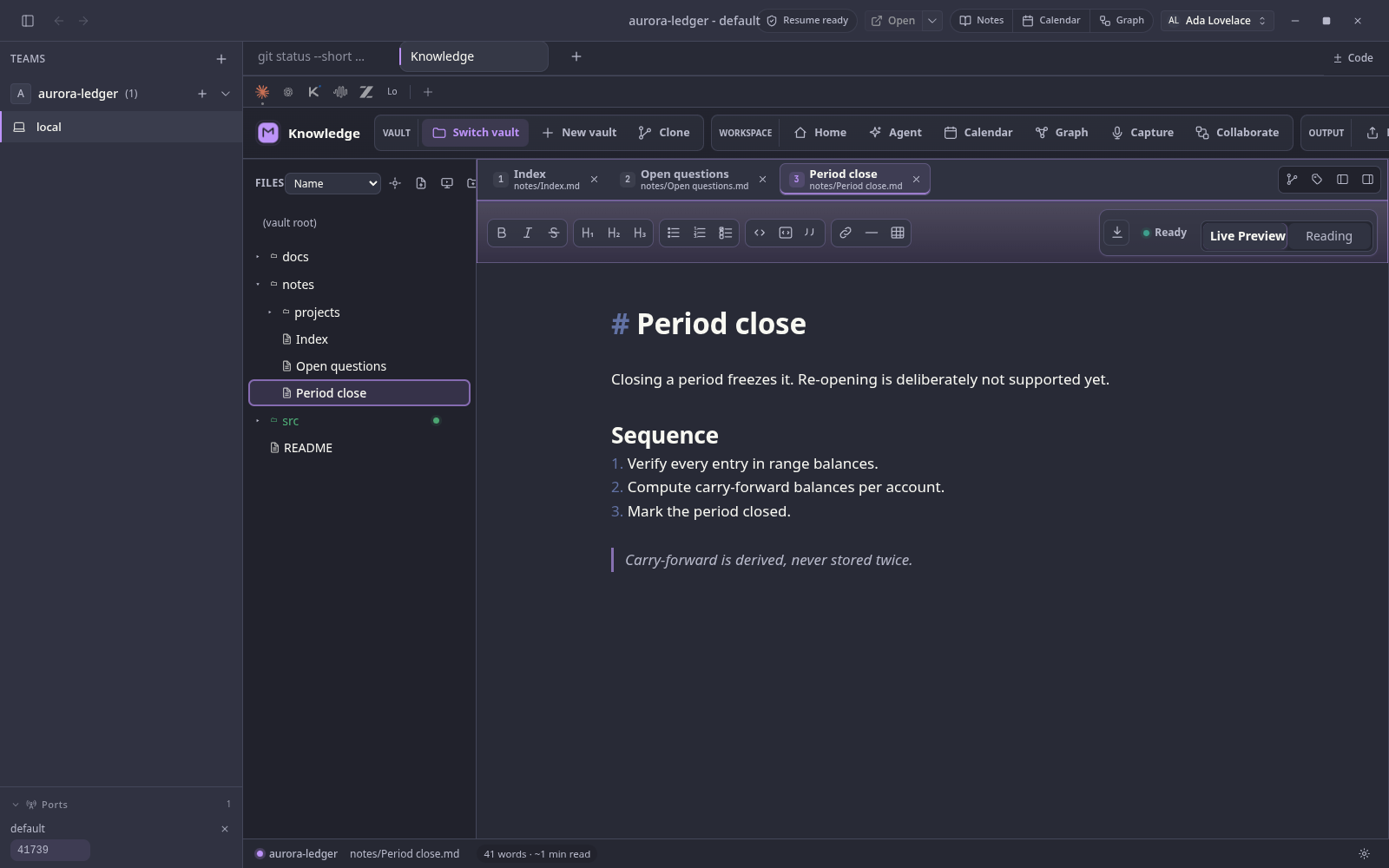
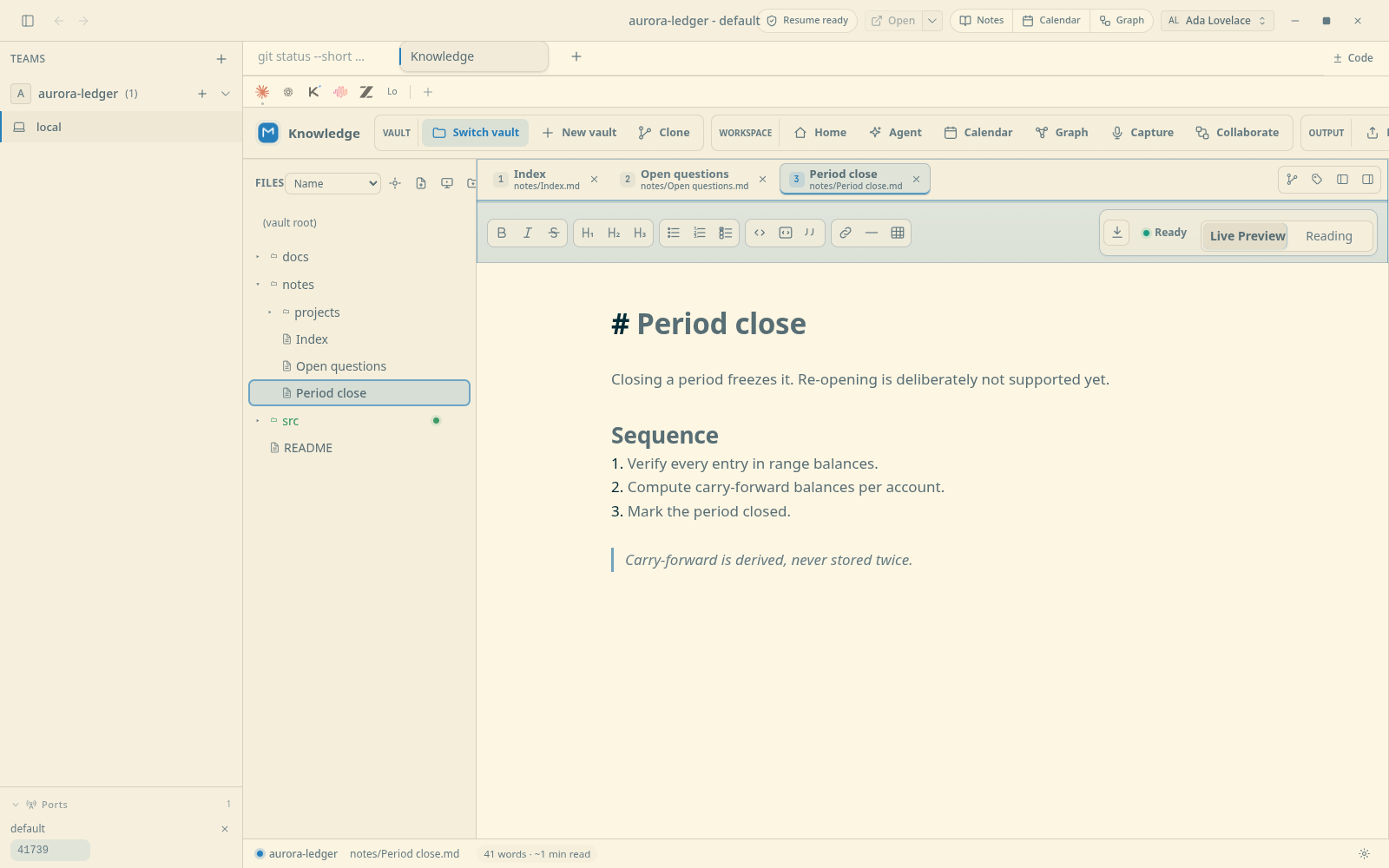
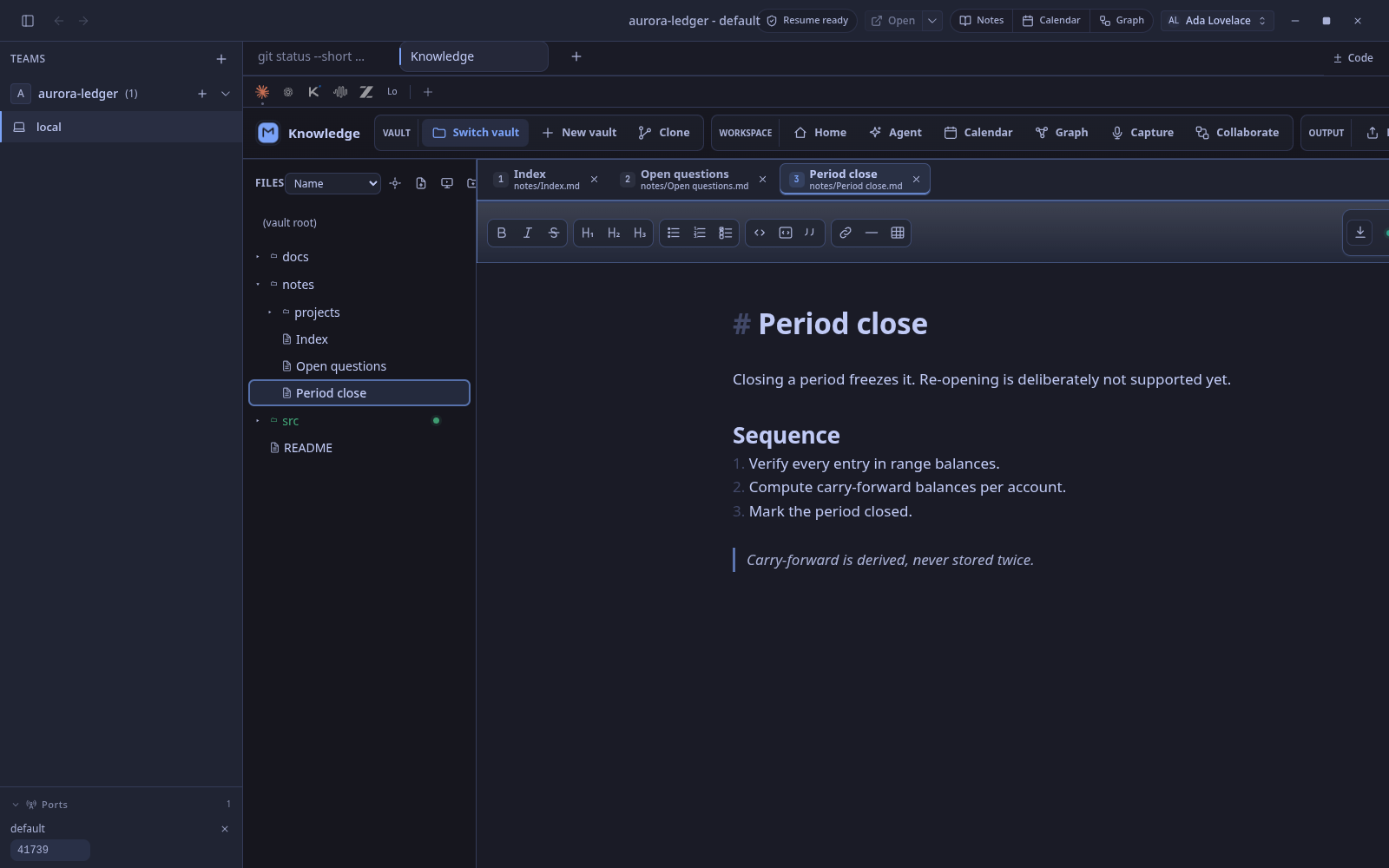
Eleven built-in themes. Each one restyles the app, the editor, and the terminal together - every frame below is the same workspace under a different theme.
 Full size
Dark
The default warm, low-contrast dark theme.
 Full size
Light
A clean neutral theme for bright environments.
 Full size
Hive Dark
Deep ember with layered surfaces and a glowing accent.
 Full size
Hive Light
Warm paper surfaces with the ember accent.
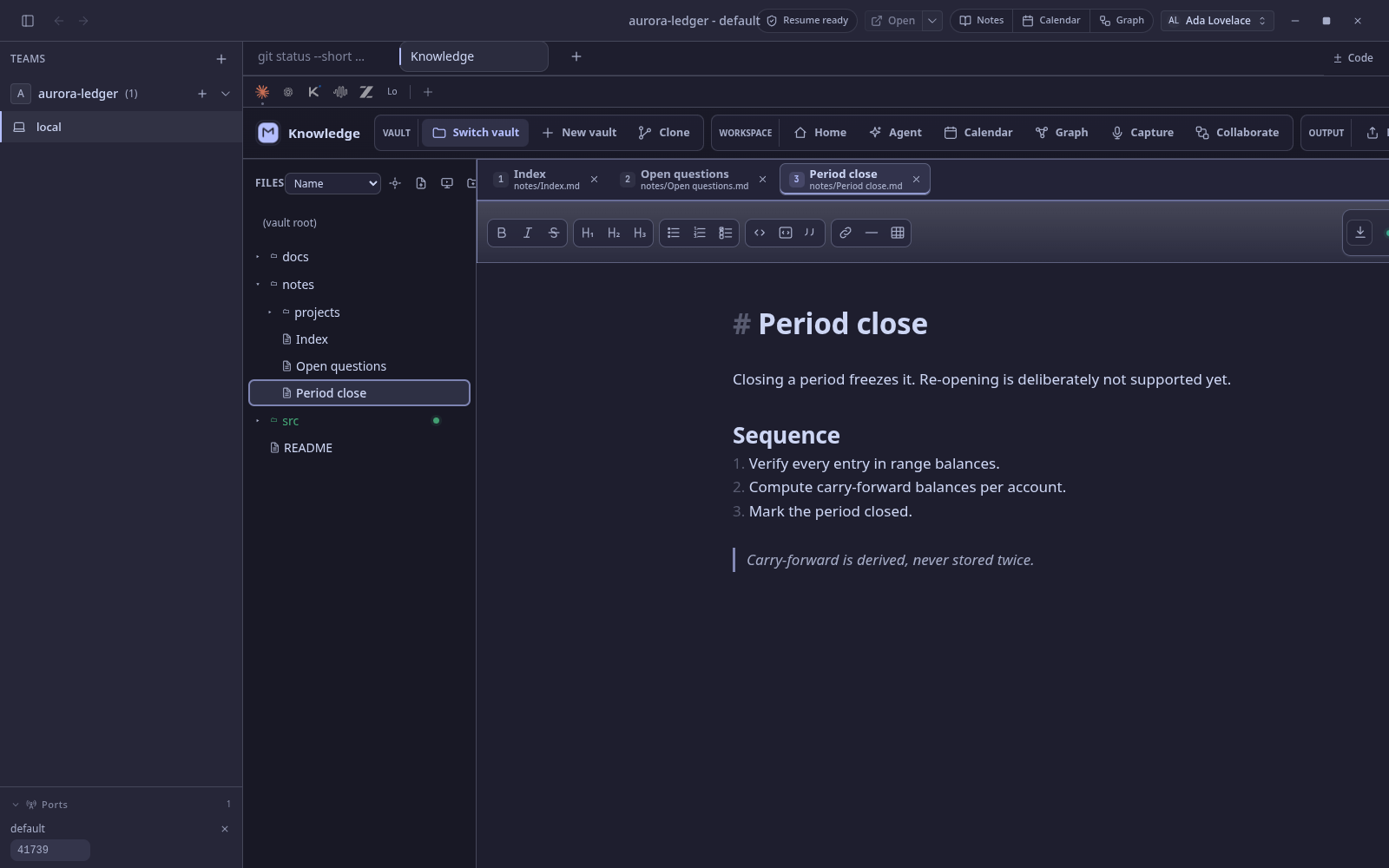
 Full size
Dracula
Deep violet with bright, expressive accents.
 Full size
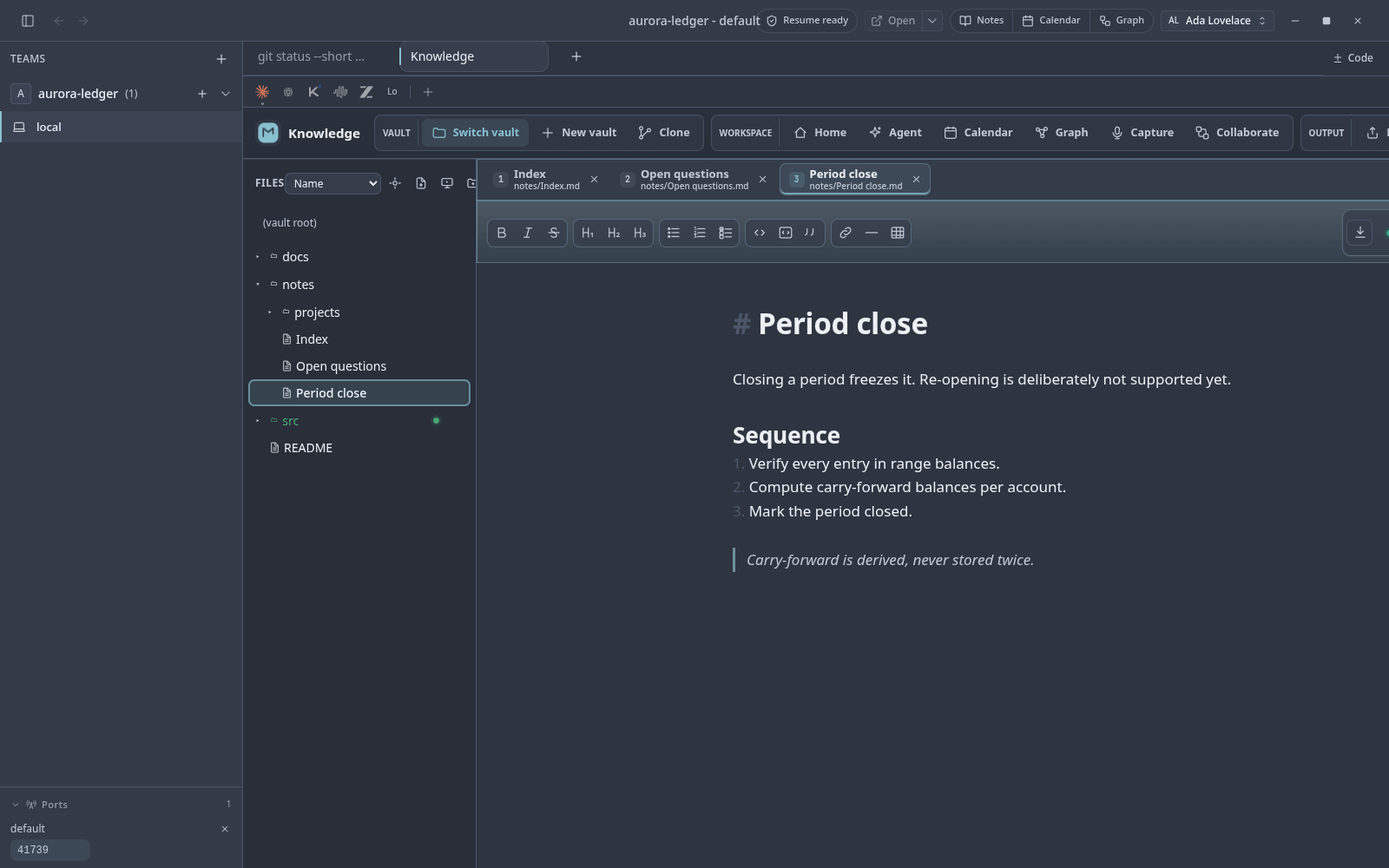
Catppuccin Mocha
A soft pastel theme with a calm lavender accent.
 Full size
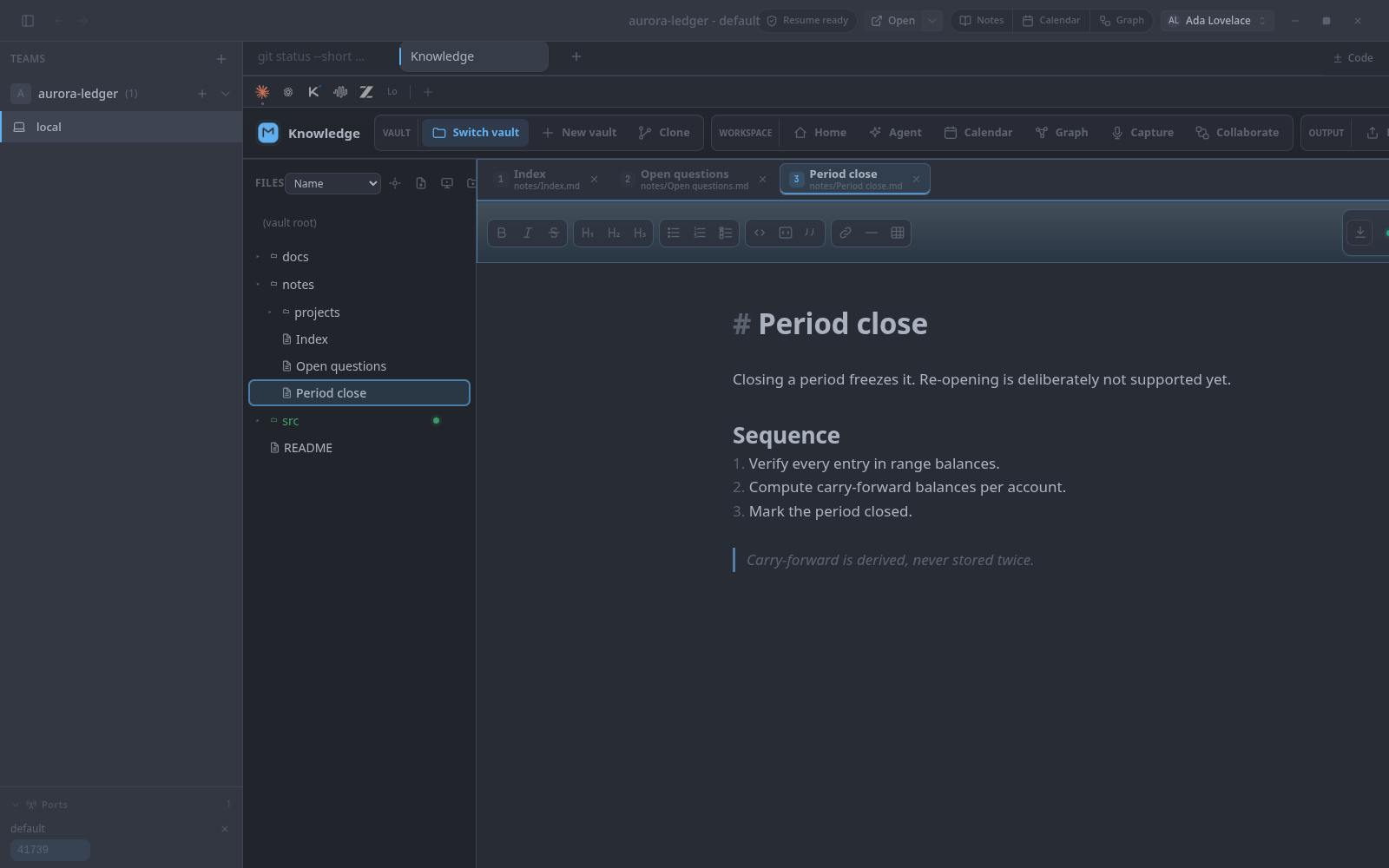
Nord
Cool arctic blues at low contrast.
 Full size
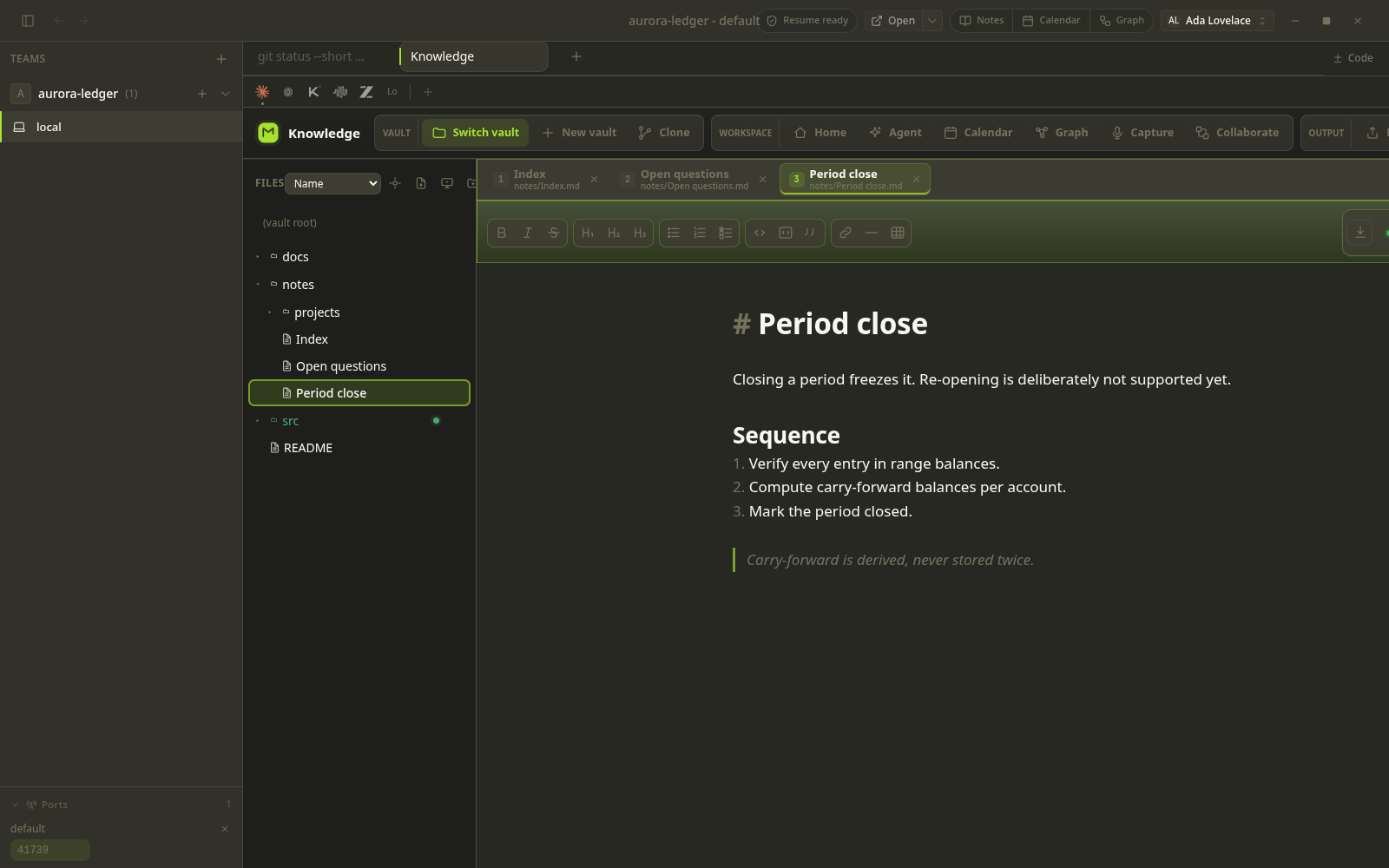
One Dark Pro
Atom's iconic One Dark theme.
 Full size
Monokai
Sublime Text's iconic dark theme.
 Full size
Solarized Light
The theme reaches the embedded Markdown editor too, not just the shell.
 Full size
Tokyo Night
Muted neon against a deep blue base.
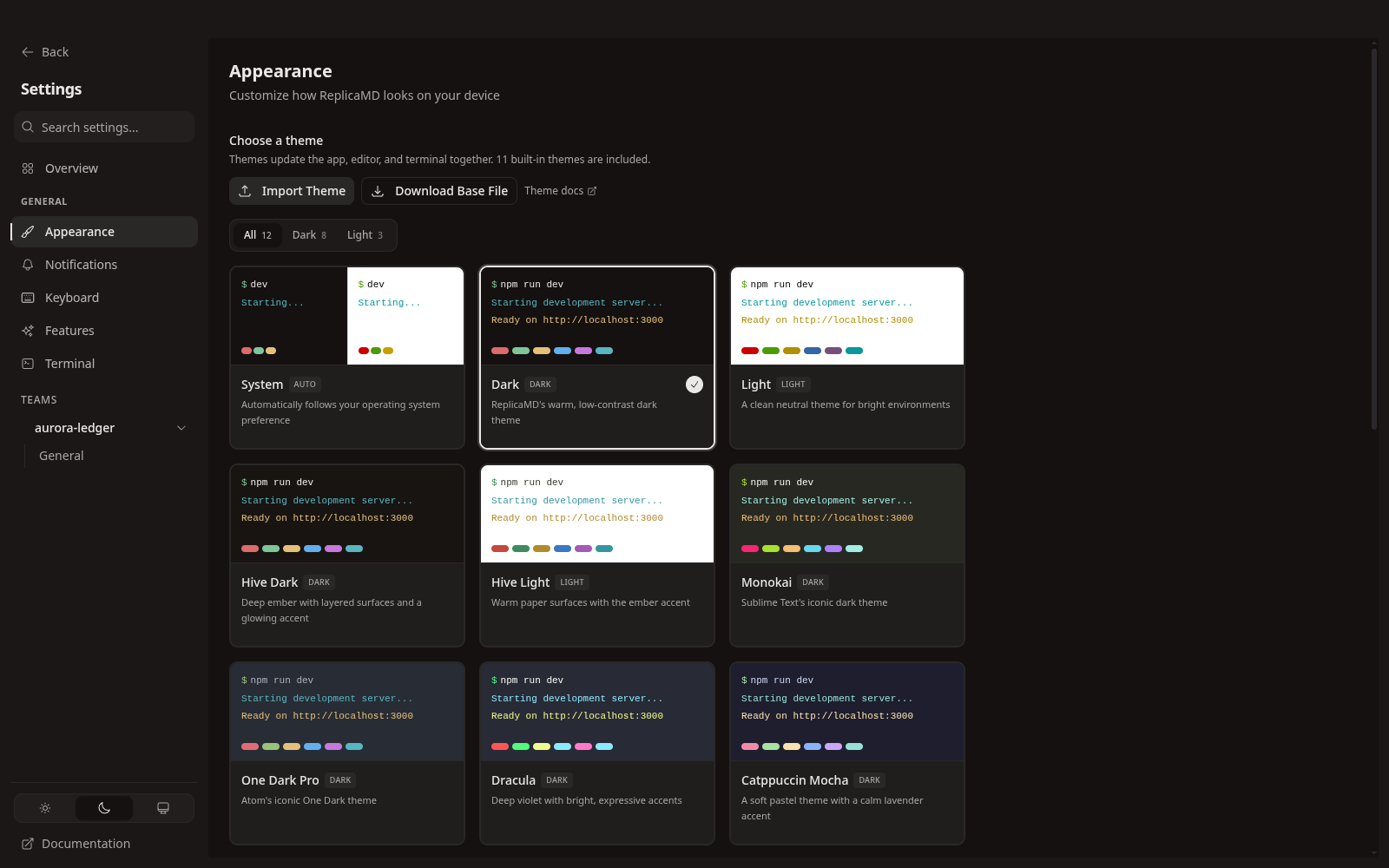
Settings
Configuration surfaces, captured page by page from the running application.
 Full size
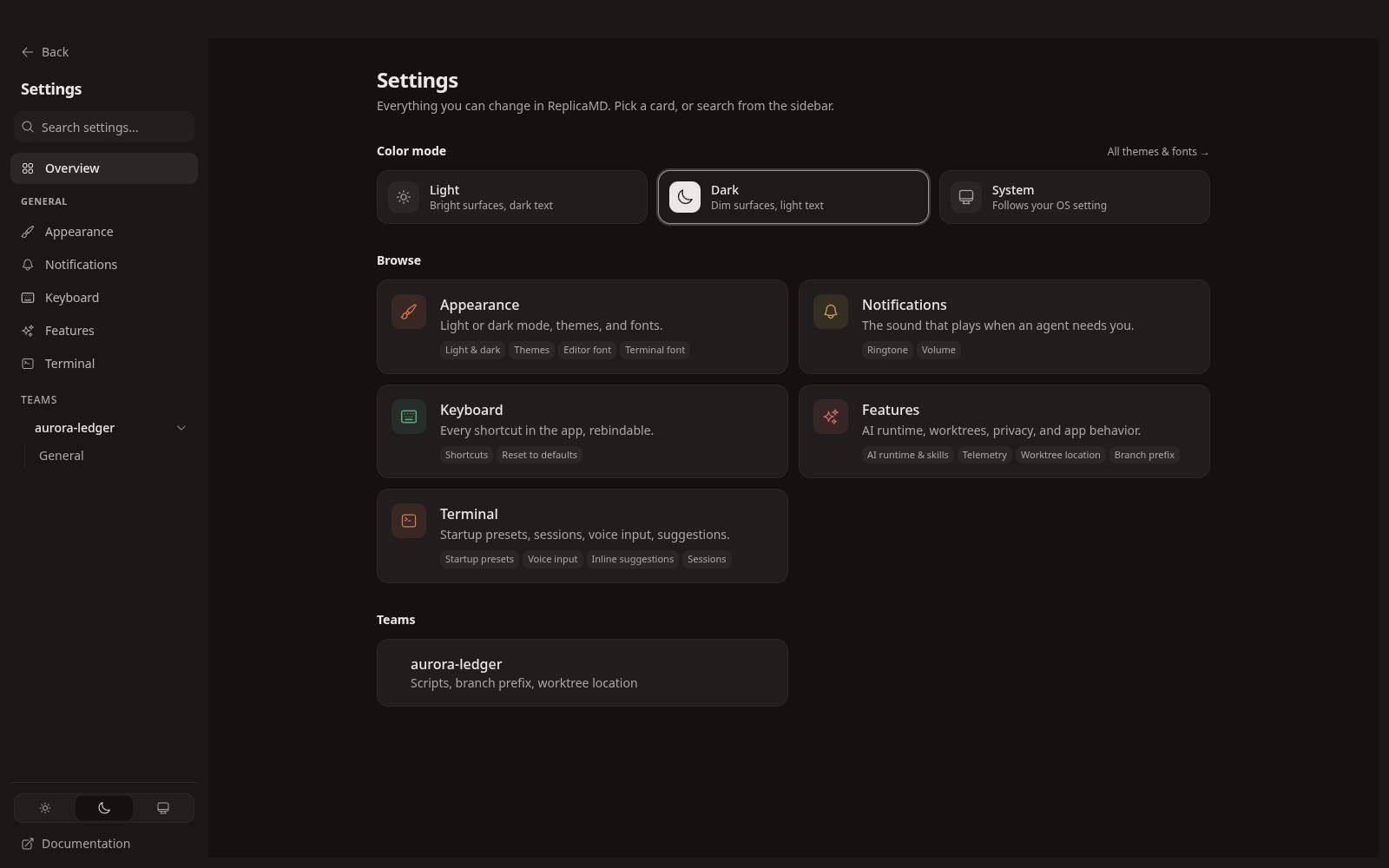
Appearance
The theme gallery, with live terminal previews rendered per theme.
 Full size
Overview
The settings entry point and its section index.
 Full size
Notifications
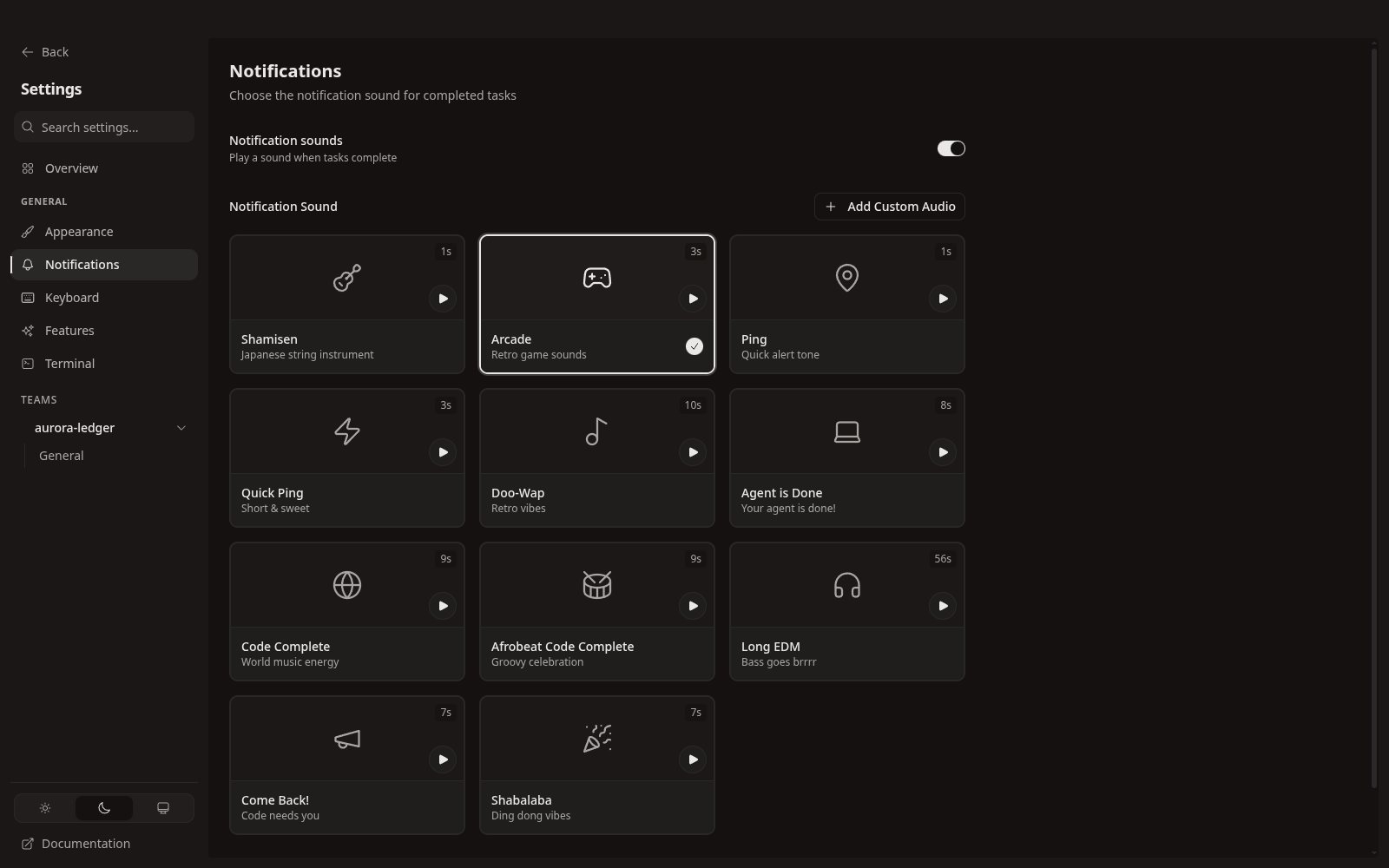
The sound that plays when an agent finishes or needs you, per event.
 Full size
Terminal
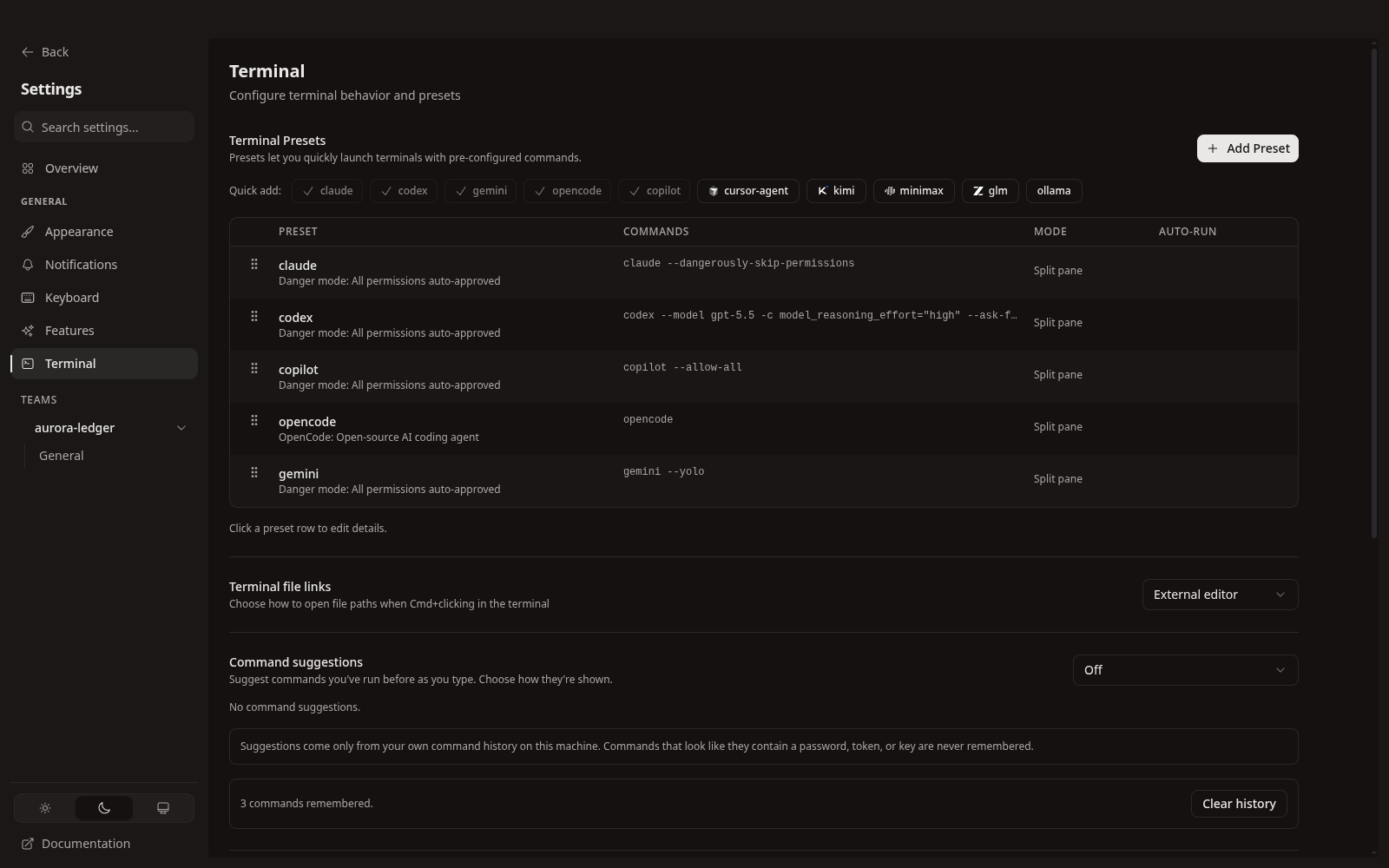
Shell, font, and terminal behaviour.
 Full size
Keyboard
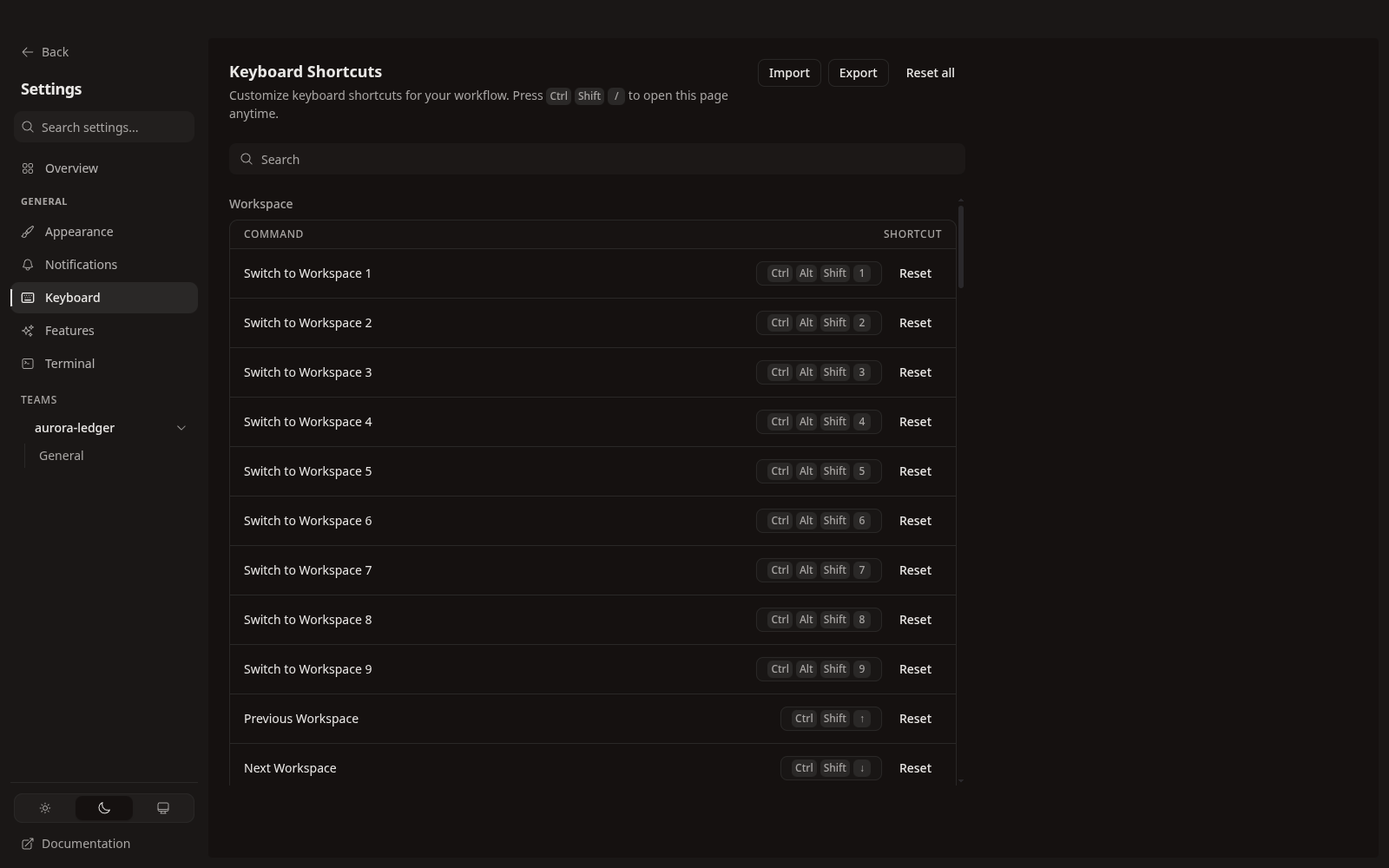
Rebindable shortcuts, per platform.
 Full size
Permissions
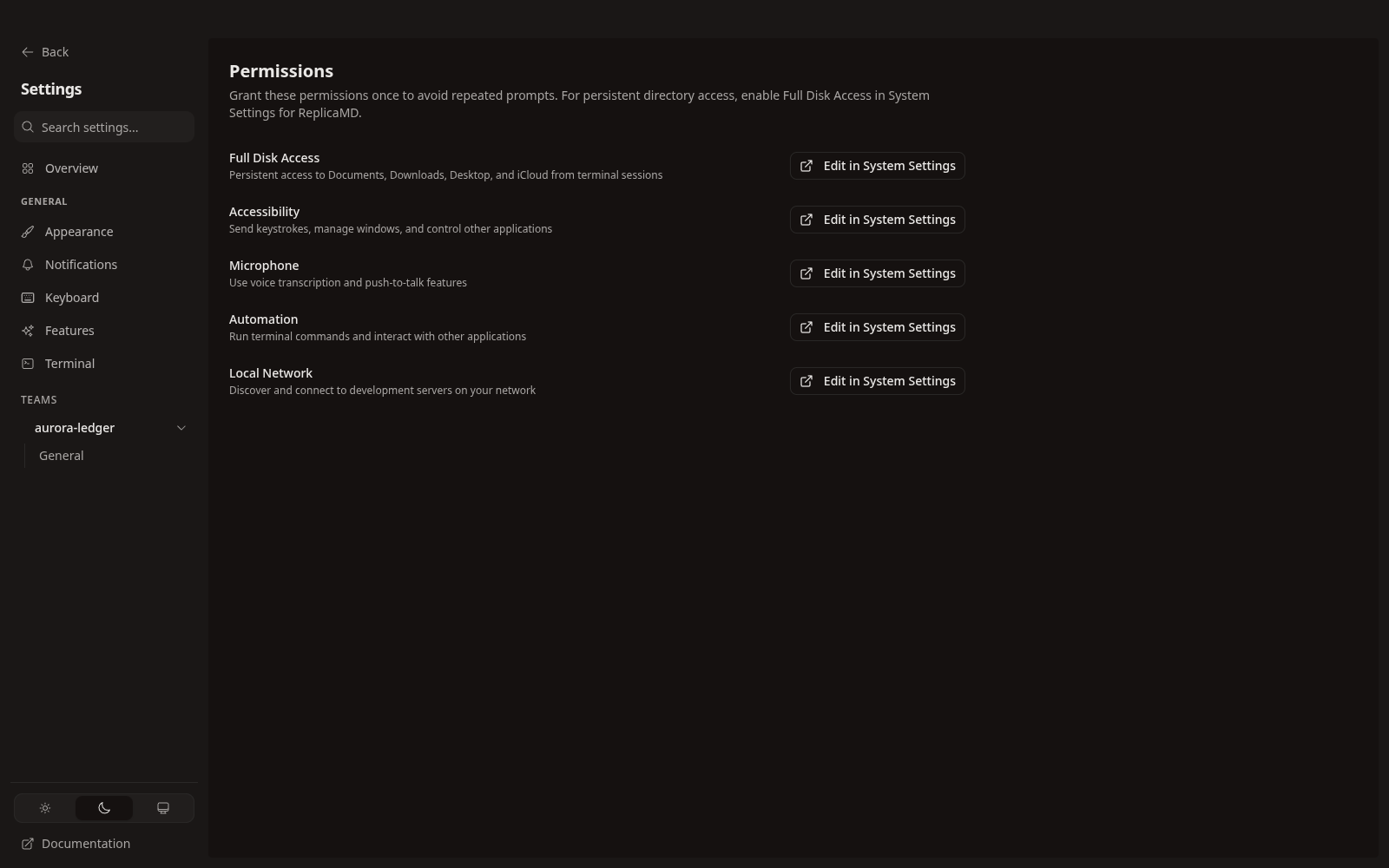
Operating-system grants the app needs once, instead of prompting repeatedly.
Dialogs and menus
The controls that create and route work, opened from the running app.
 Full size
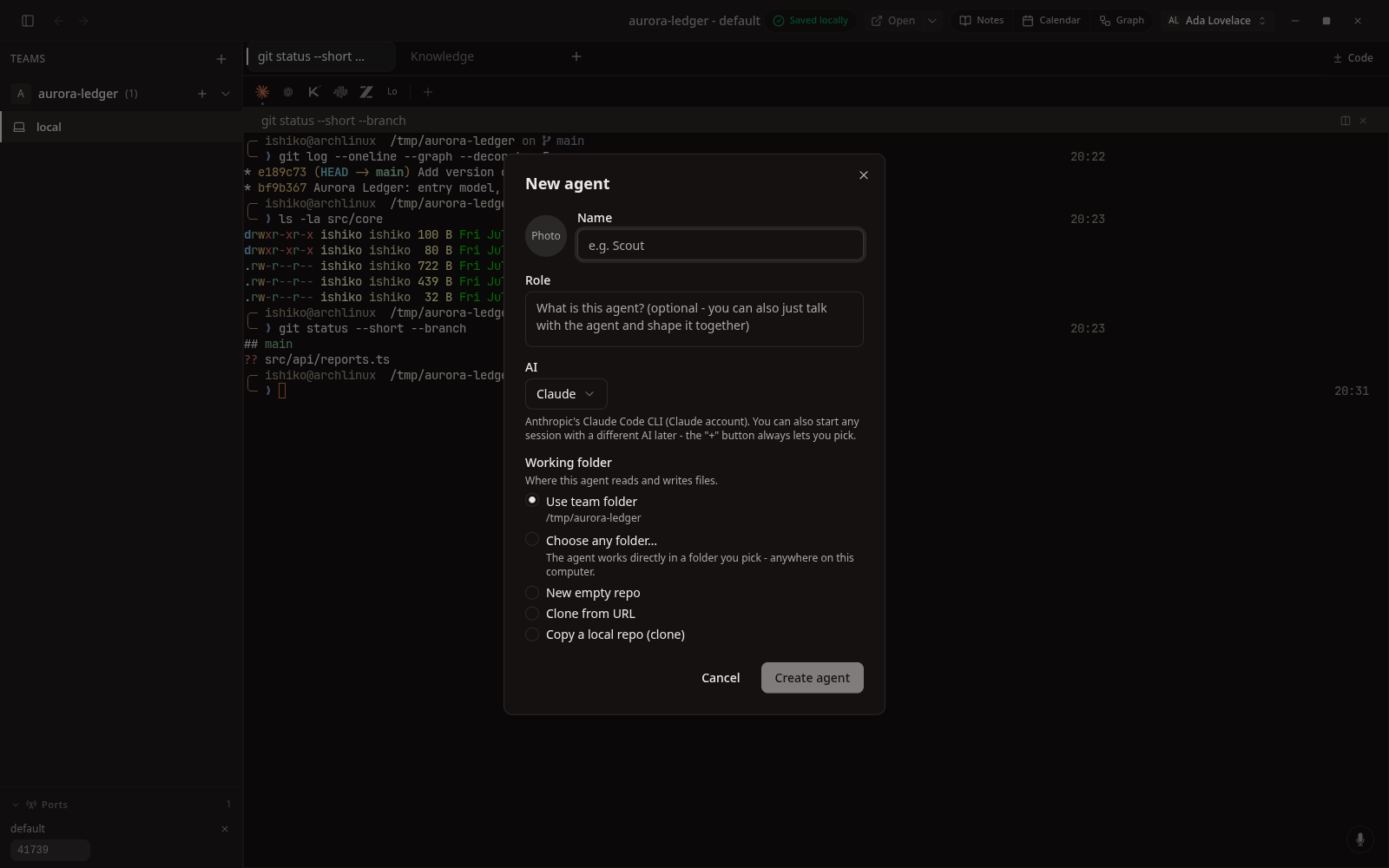
New agent
Name, role, runtime, and working folder - team folder, any folder, a new repo, or a clone.
 Full size
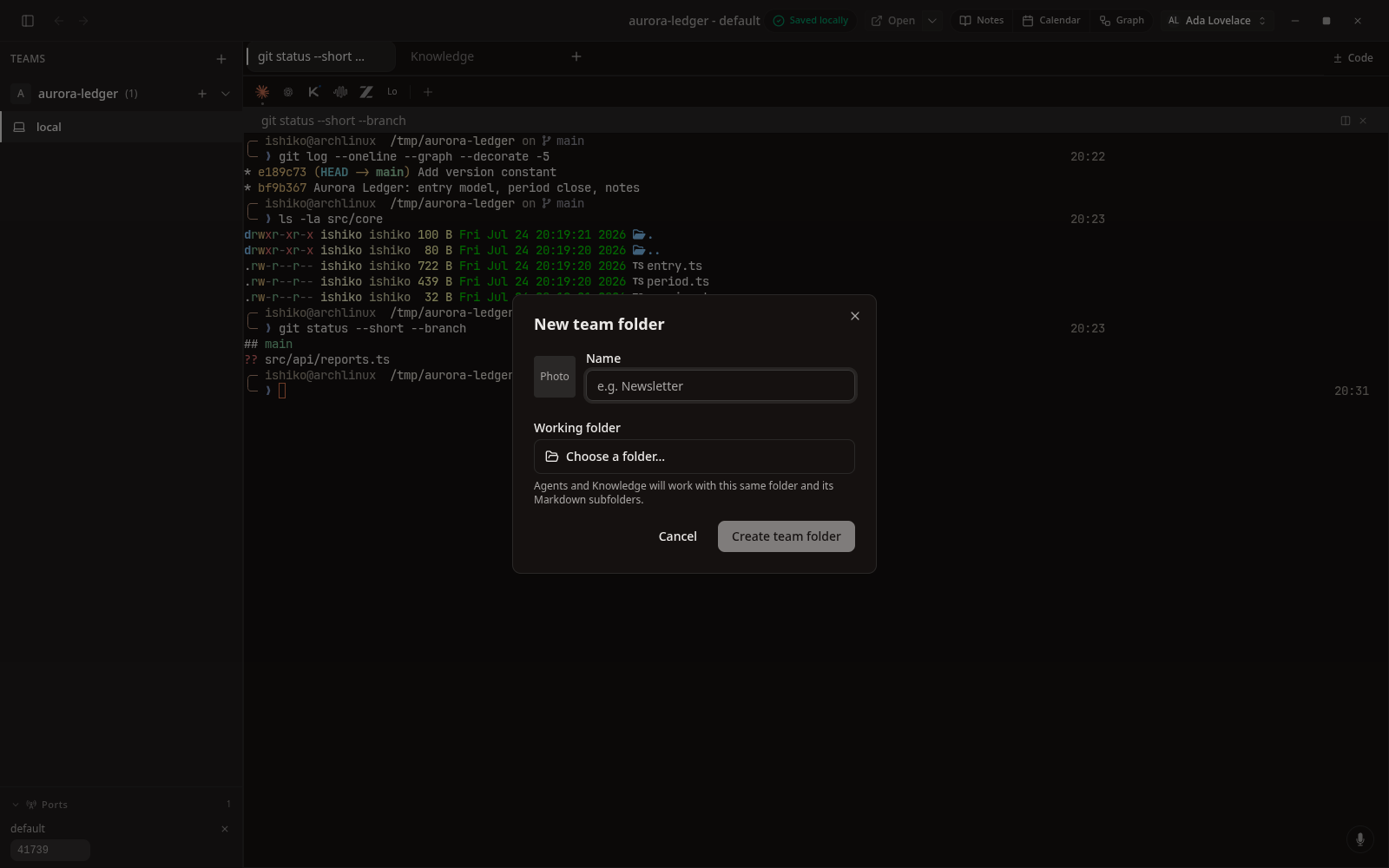
New team
Teams group agents around a working folder.
 Full size
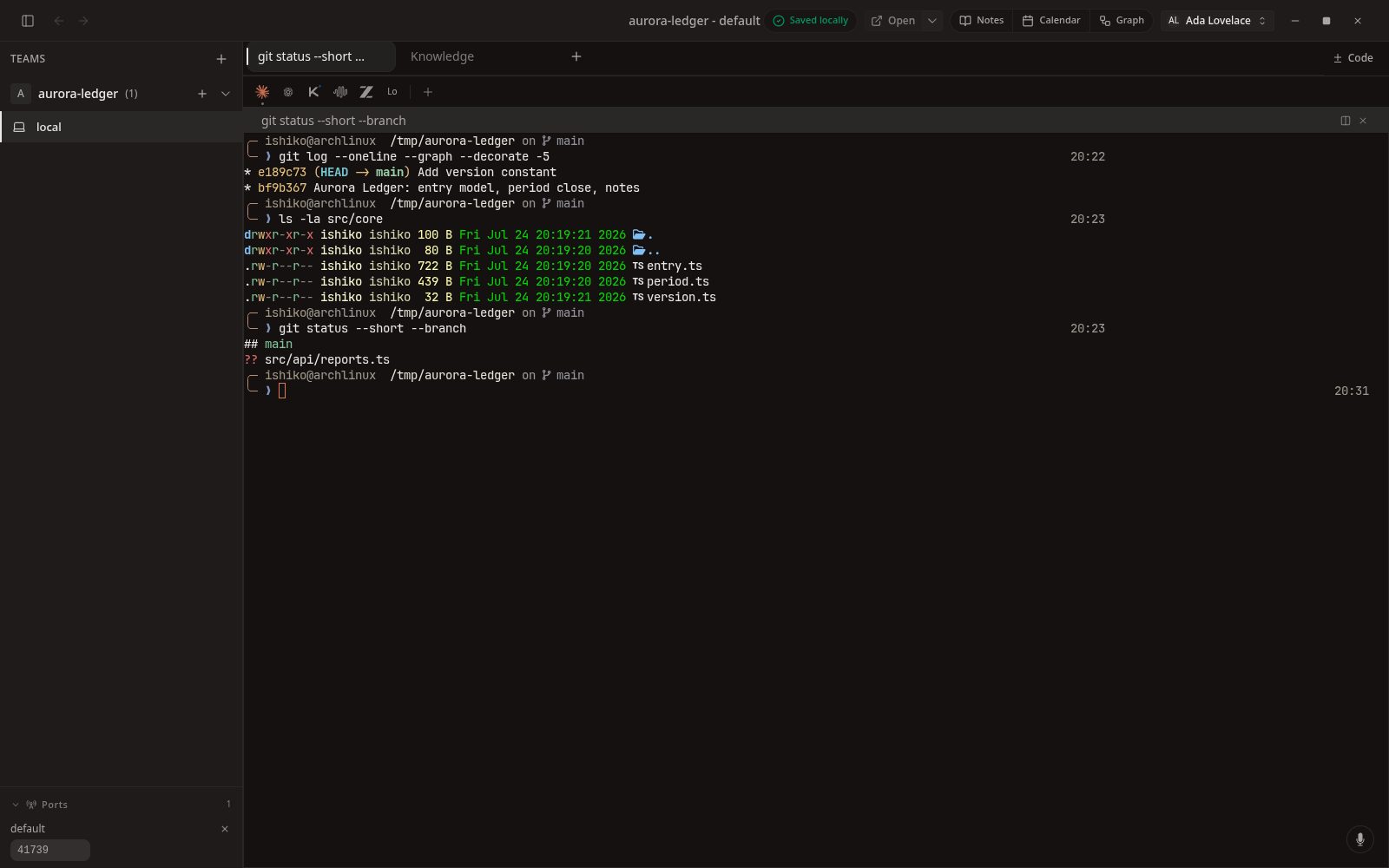
Resume centre
Search live and recent work and return to an exact saved tab and pane.
 Full size
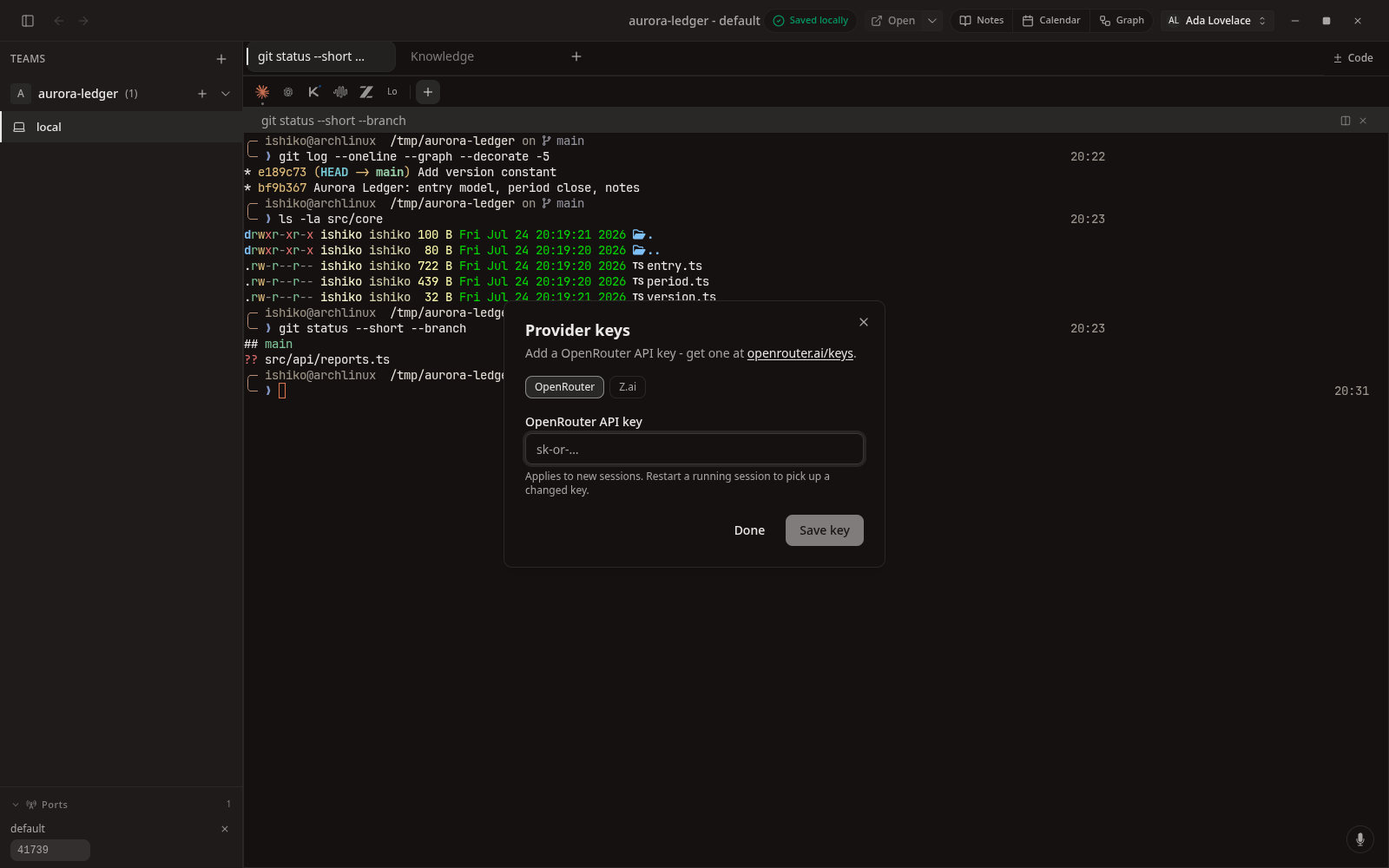
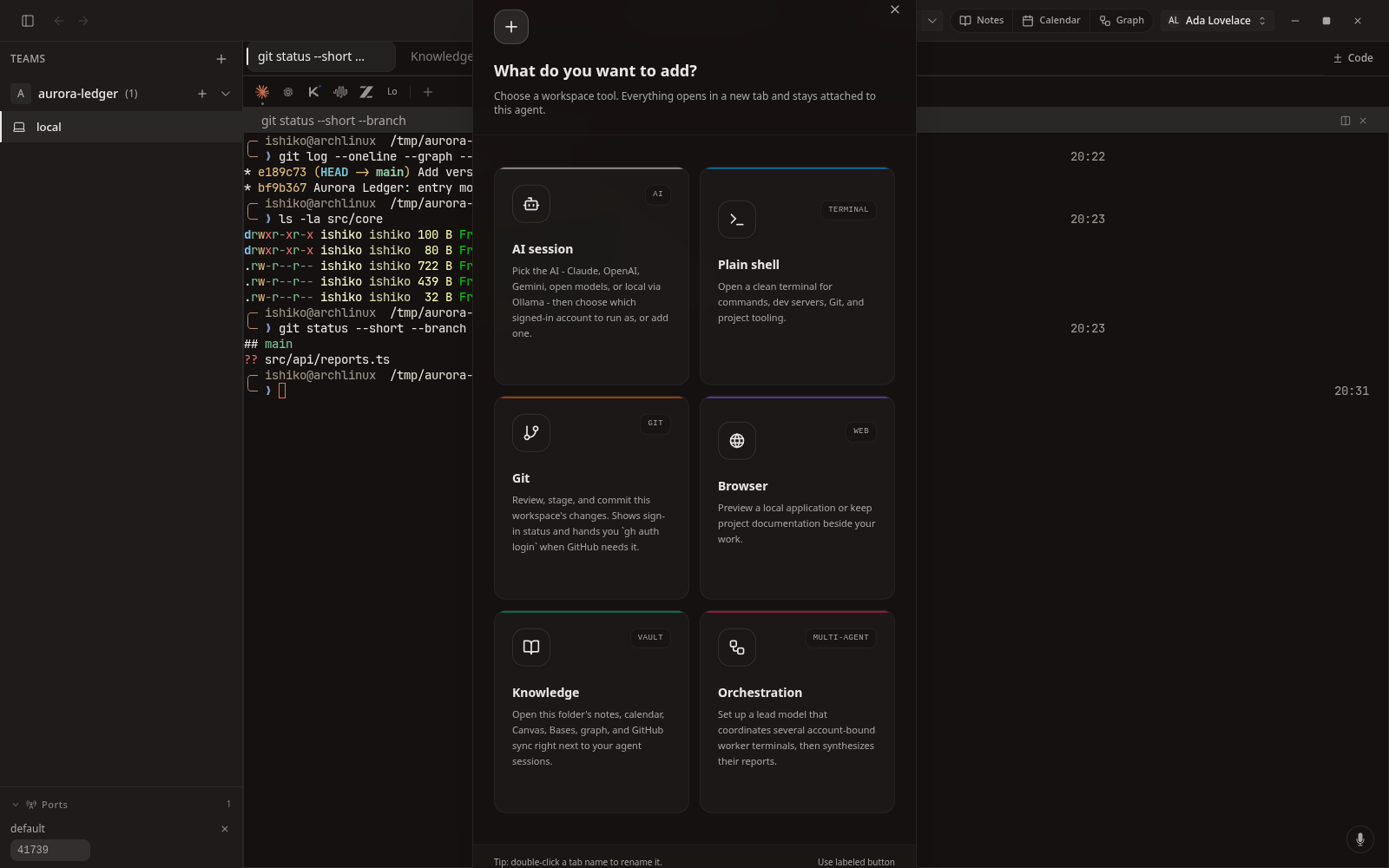
Model bar
Start a session on a different model in the same worktree, one click.
 Full size
New tab
Terminals, file views, and Knowledge panes open as tabs.
 Full size
Open in
Hand the current folder to an external tool.
 Full size
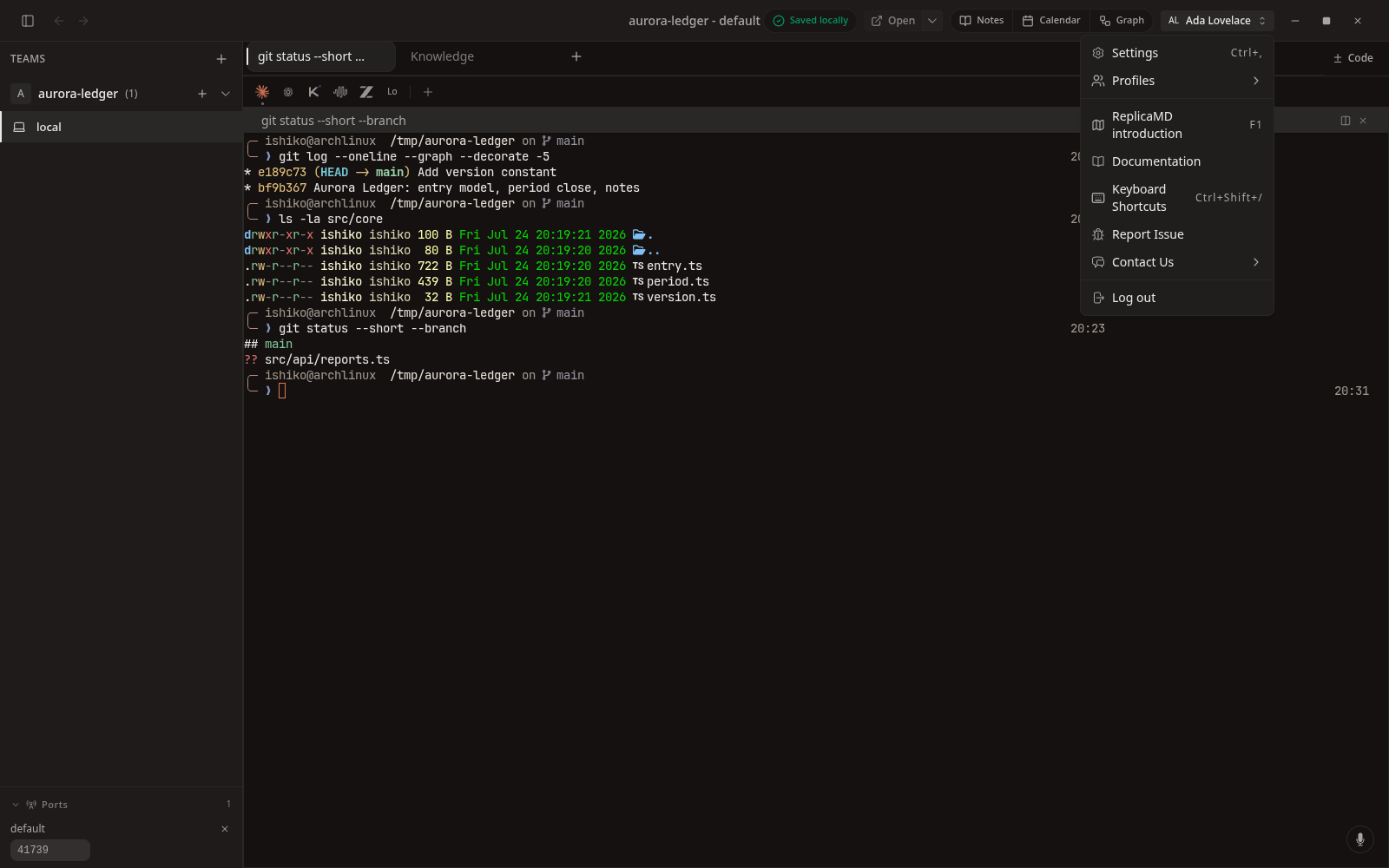
Profile menu
Switch local profiles from the top bar.